Fixed-window load tests need a stop condition that belongs to the test plan instead of the person watching the run. In JMeter, a Thread Group lifetime schedule lets a smoke, soak, or ramped load window stop after a set number of seconds while still writing normal sampler results.
The duration setting is part of the Thread Group scheduler. Duration-based plans need the loop controller to keep producing work until the configured end time arrives, so they commonly pair Specify Thread lifetime with an Infinite loop count during the bounded run.
A scheduled duration stops each thread between samples after the configured lifetime. It does not interrupt a sampler that is still waiting for a response, so slow requests can make the final stop slightly later than the entered duration. Keep the workload short enough for the window, use a fresh result file, and confirm the JMeter summary or log shows the end-time stop.
Steps to set JMeter test duration:
- Open the test plan in the JMeter GUI.
- Select the Thread Group that should run for a fixed window.
- Enable the scheduler by selecting Specify Thread lifetime.
Specify Thread lifetime: selected
JMeter shows Duration and Startup delay fields after the lifetime option is enabled.
- Enter the test duration in seconds.
Duration (seconds): 6
Startup delay (seconds): 0
Use the real load-test window for production runs, such as 300 for five minutes or 3600 for one hour. The short value here keeps validation fast.
- Set Loop Count to Infinite.
Loop Count: Infinite selected
A fixed loop count can finish before the duration when samplers are fast. Infinite keeps work available while the scheduler owns the stop condition.
- Keep the thread count and ramp-up aligned with the scheduled window.
Number of Threads (users): 1
Ramp-up Period (seconds): 0
Long ramp-up time consumes part of the duration. For short smoke windows, use a small ramp-up or a longer duration so every user has time to run samples.
- Save the test plan with a duration-specific name.
duration-smoke.jmx
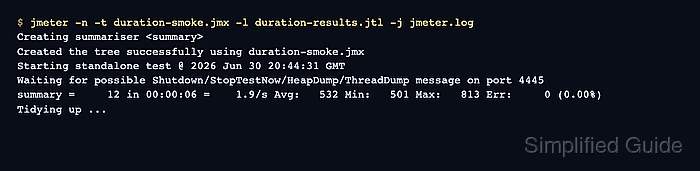
- Run the saved plan in non-GUI mode with a fresh result file.
$ jmeter -n -t duration-smoke.jmx -l duration-results.jtl -j jmeter.log
Creating summariser <summary>
Created the tree successfully using duration-smoke.jmx
Starting standalone test @ 2026 Jun 30 20:44:31 GMT
Waiting for possible Shutdown/StopTestNow/HeapDump/ThreadDump message on port 4445
summary =     12 in 00:00:06 =    1.9/s Avg:   532 Min:   501 Max:   813 Err:     0 (0.00%)
Tidying up ...
... end of run
-n runs JMeter without the GUI, -t selects the saved plan, -l writes sampler results, and -j writes the run log.
Related: How to run a JMeter test from the command line - Count the result-file rows.
$ wc -l duration-results.jtl
13 duration-results.jtl
The first row is the CSV header, so thirteen lines means twelve samples were recorded during the six-second window.
- Check the run log for the scheduler stop message.
$ cat jmeter.log
##### snipped #####
2026-06-30 20:44:38,545 INFO o.a.j.t.JMeterThread: Stopping because end time detected by thread: Thread Group - six second smoke window 1-1
2026-06-30 20:44:38,546 INFO o.a.j.t.JMeterThread: Thread finished: Thread Group - six second smoke window 1-1
2026-06-30 20:44:38,548 INFO o.a.j.r.Summariser: summary =     12 in 00:00:06 =    1.9/s Avg:   532 Min:   501 Max:   813 Err:     0 (0.00%)

Mohd Shakir Zakaria is a cloud architect with deep roots in software development and open-source advocacy. Certified in AWS, Red Hat, VMware, ITIL, and Linux, he specializes in designing and managing robust cloud and on-premises infrastructures.


