Browser pages that depend on JavaScript can leave visitors with a blank panel when scripting is turned off. A <noscript> fallback displays a message and a working link for visitors who cannot run the page's scripts.
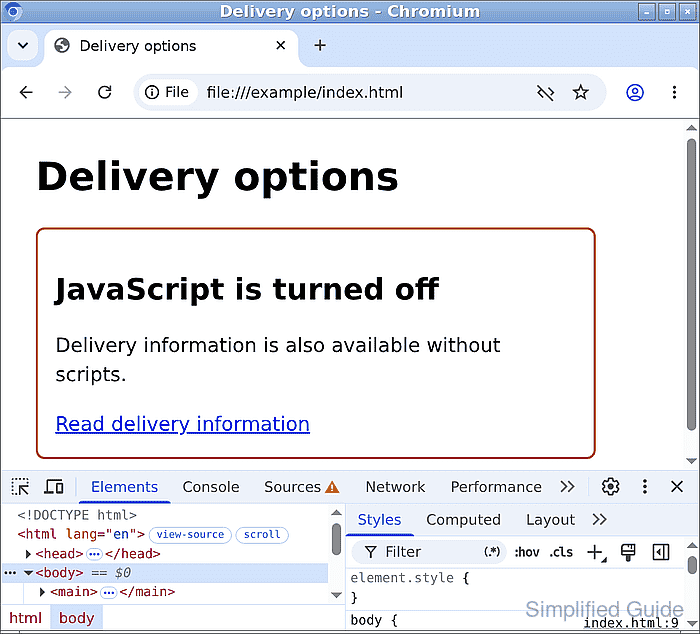
In the document body, the browser renders the child HTML inside <noscript> only when scripting is disabled or unsupported. The fallback belongs beside the JavaScript-owned panel, and its links and content must work without JavaScript.
A script that fails to load or throws an exception does not trigger <noscript> while scripting remains enabled. Those failures need normal error handling or a progressively enhanced page that keeps its basic content available.
Steps to add a noscript fallback for JavaScript-disabled browsers:
- Create a file named index.html in your text editor with the page shell.
- index.html
<!doctype html>
<html lang="en">
<head>
  <meta charset="utf-8">
  <meta name="viewport" content="width=device-width, initial-scale=1">
  <link rel="icon" href="data:,">
  <title>Delivery options</title>
  <style>
    body { font: 18px/1.5 system-ui, sans-serif; margin: 2rem; }
    main { max-width: 32rem; }
    .panel { padding: 1rem; border: 2px solid #386e87; border-radius: .5rem; }
    .fallback { padding: 1rem; border: 2px solid #b45309; border-radius: .5rem; }
    h1, h2 { line-height: 1.2; }
  </style>
</head>
<body>
  <main>
    <h1>Delivery options</h1>
  </main>
</body>
</html>
The <main> contains the heading for a delivery panel; the panel and fallback go beneath it.
- Insert the delivery panel and fallback immediately after the heading inside <main>.
- index.html
    <section id="delivery-app" class="panel" hidden>
      <h2>Delivery times</h2>
      <p>Standard delivery takes 3–5 business days.</p>
    </section>
    <noscript>
      <div class="fallback">
        <h2>JavaScript is turned off</h2>
        <p>Delivery information is also available without scripts.</p>
        <a href="delivery.html">Read delivery information</a>
      </div>
    </noscript>
The hidden attribute keeps the script-owned panel out of view until JavaScript reveals it. The fallback link points to delivery.html in the same folder.
- Insert the script immediately before </body> in index.html.
- index.html
  <script>
    document.querySelector("#delivery-app").hidden = false;
  </script>
Placing the script after the panel ensures the element exists before querySelector() runs.
- Create delivery.html in the same folder with the script-free destination.
- delivery.html
<!doctype html>
<html lang="en">
<head>
  <meta charset="utf-8">
  <meta name="viewport" content="width=device-width, initial-scale=1">
  <link rel="icon" href="data:,">
  <title>Delivery information</title>
  <style>body { font: 18px/1.5 system-ui, sans-serif; margin: 2rem; }</style>
</head>
<body>
  <h1>Delivery information</h1>
  <p>Standard delivery takes 3–5 business days.</p>
  <p><a href="index.html">Back to delivery options</a></p>
</body>
</html>
For an existing website, the fallback can link to a real server-rendered page instead. A destination that also requires JavaScript leaves the visitor stuck.
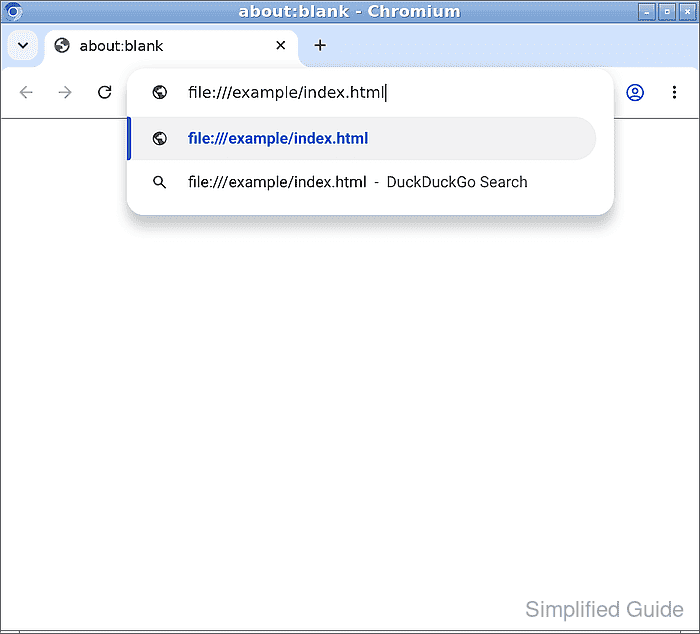
- Open the saved index.html in Chrome with JavaScript enabled.
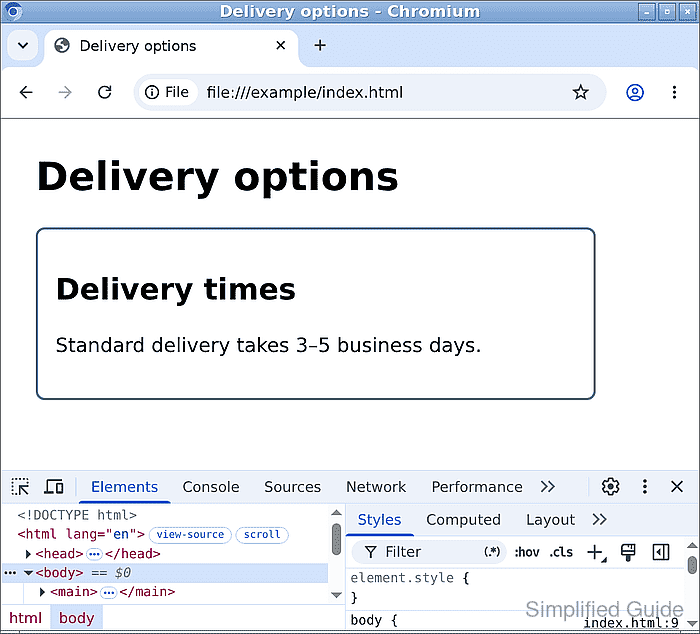
- Open Chrome DevTools with Ctrl+Shift+I.
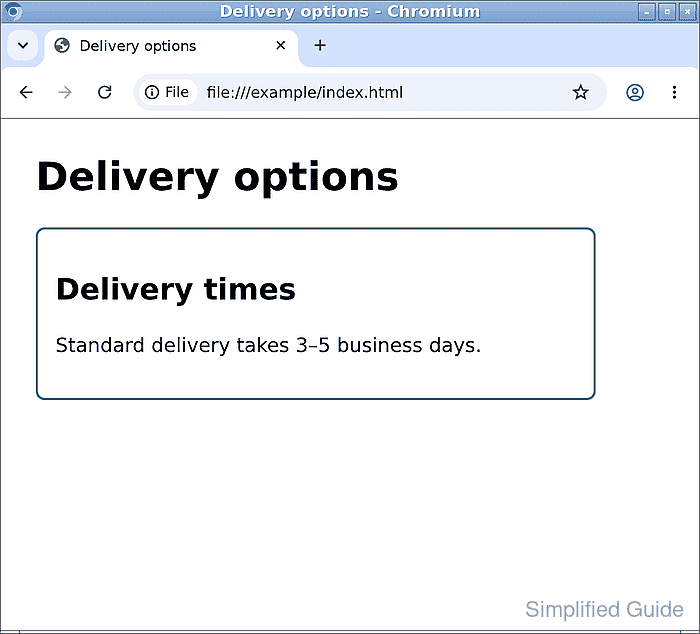
With JavaScript enabled, the Delivery times panel is visible and the fallback is absent. On macOS, the DevTools shortcut is Command+Option+I.
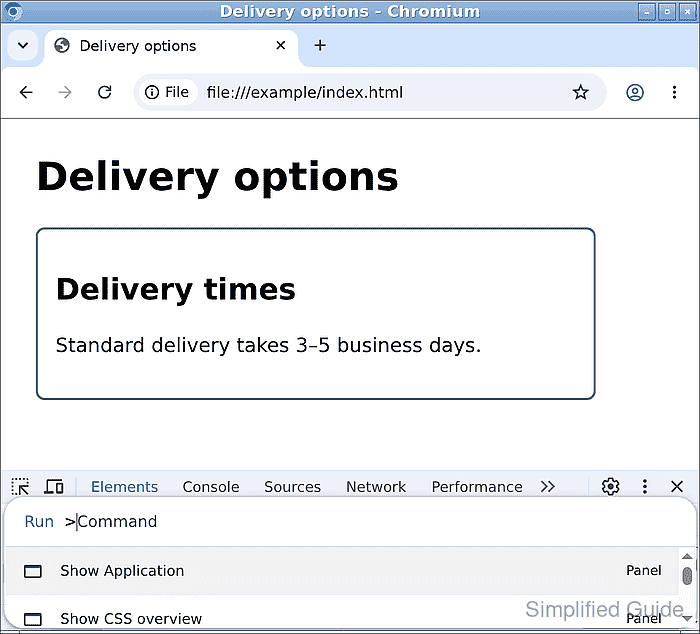
- Open the DevTools Command Menu with Ctrl+Shift+P.
On macOS, the Command Menu shortcut is Command+Shift+P.
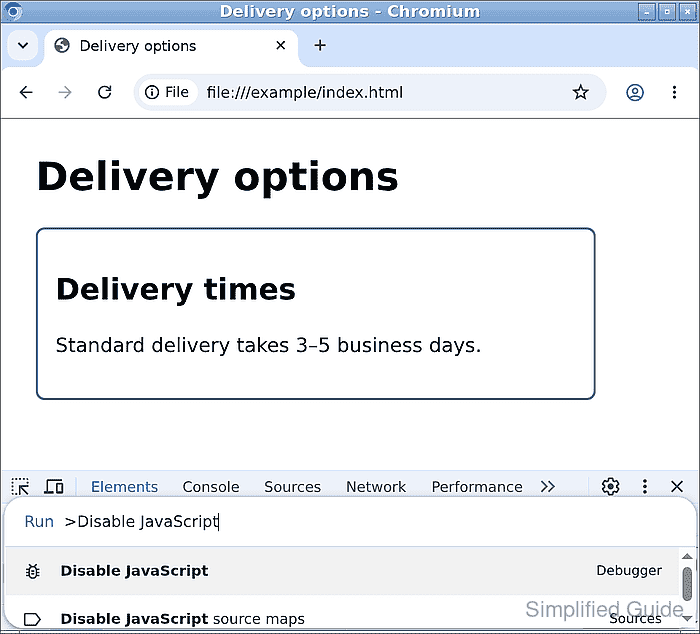
- Type Disable JavaScript in the command box.
- Run the highlighted Disable JavaScript command with Enter.
- Reload the local page while DevTools remains open.
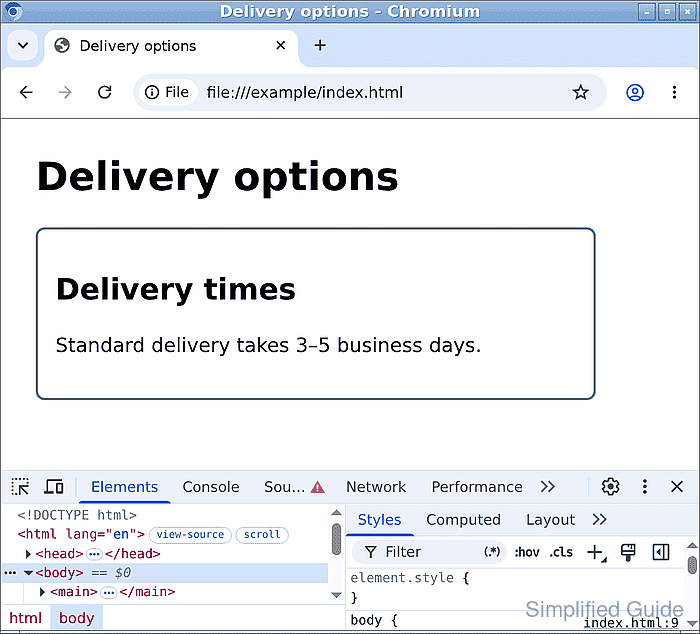
The browser evaluates <noscript> as it parses the page, so the old panel remains until reload. Closing DevTools restores scripting for the tab.
- Follow Read delivery information in the fallback.
The JavaScript is turned off message and link replace the script-owned delivery panel.
- Confirm that Delivery information displays the delivery time with JavaScript still disabled.
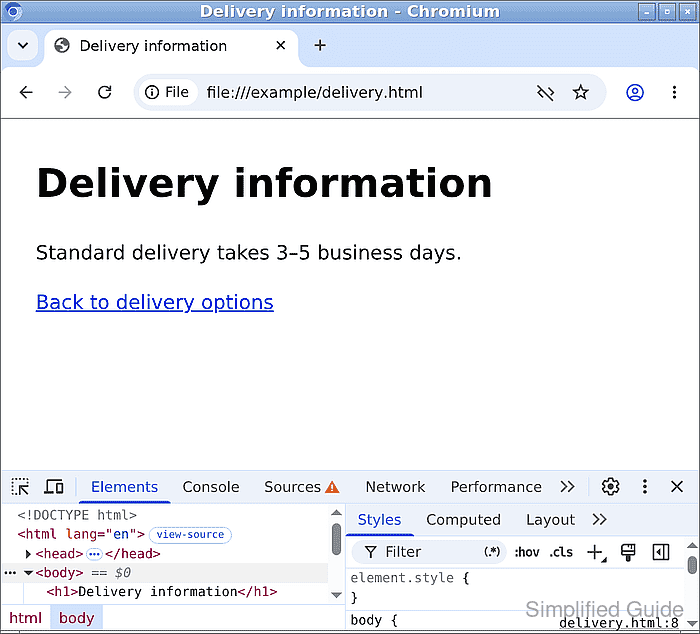
The destination shows Standard delivery takes 3–5 business days without any script. A missing page or another JavaScript-only panel means the fallback does not yet provide a working route.