Java applications can reject an internal HTTPS endpoint even when the operating system already trusts the issuing certificate authority. The JVM reads TLS trust material from its own truststore through JSSE, so errors such as PKIX path building failed or unable to find valid certification path to requested target often mean the Java process is not using the trust anchor that the endpoint chain requires.
A truststore contains public certificates that Java uses to decide whether a remote peer is trusted. A keystore usually contains the private key and certificate that identify the local application. The default JVM truststore is usually $JAVA_HOME/lib/security/cacerts, while application launches can override it with javax.net.ssl.trustStore and javax.net.ssl.trustStorePassword.
Use a dedicated application truststore when the change is for one service, build agent, or Java client. Import only the CA or intermediate certificate that should become trusted, compare the fingerprint before changing the store, and restart or rerun the Java process after the import. Editing cacerts changes trust for every Java process using that JDK, and package upgrades or JDK replacements can move the effective store.
Related: How to install JDK on Ubuntu
Related: How to set JAVA_HOME on Linux
Steps to import a CA certificate into a Java truststore:
- Choose the truststore file, certificate file, and alias.
Item Example Purpose CA certificate internal-ca.pem Public CA or intermediate certificate to trust. Truststore /opt/example-app/app-truststore.p12 Store used by the affected Java process. Alias example-internal-ca Stable name used later for lookup, replacement, or removal. If the application must keep the public CA roots from the default JDK store, start from its existing truststore or a controlled copy of $JAVA_HOME/lib/security/cacerts instead of creating an empty store.
- Inspect the certificate before importing it.
$ keytool -printcert -file internal-ca.pem
Owner: CN=Example Internal Root CA, O=Example Operations, C=US
Issuer: CN=Example Internal Root CA, O=Example Operations, C=US
Serial number: fa3e625768364a0f
Valid from: Mon Jun 08 07:35:06 UTC 2026 until: Thu Jun 05 07:35:06 UTC 2036
Certificate fingerprints:
         SHA1: C8:5F:5F:7D:8B:79:1A:50:9F:18:F6:69:D3:D1:85:50:7D:93:E0:87
         SHA256: F3:FA:36:B1:EF:17:D3:13:24:77:B8:9A:6F:0E:9C:F4:DB:1B:16:D6:4D:43:92:D7:49:41:3D:B6:AB:CB:47:37
Signature algorithm name: SHA384withRSA
Subject Public Key Algorithm: 2048-bit RSA key
Version: 3
##### snipped #####
Match the SHA-256 fingerprint against a trusted ticket, PKI console, or out-of-band certificate record before importing the certificate. Trusting the wrong CA lets Java accept endpoints issued by that certificate.
- Import the certificate into the application truststore.
$ keytool -importcert \
  -alias example-internal-ca \
  -file internal-ca.pem \
  -keystore /opt/example-app/app-truststore.p12 \
  -storetype PKCS12 \
  -storepass changeit \
  -noprompt
Certificate was added to keystore
Use PKCS12 for a new application-specific truststore unless the application requires another format. If the target file is an existing JKS store, omit -storetype PKCS12 or use -storetype JKS to match it.
Run the import as a user that is allowed to write the target truststore. Avoid storing real truststore passwords in shell history or shared process lists; use protected service configuration or an interactive prompt where that matters.
- Use -cacerts only when the global JDK truststore is the intended target.
$ sudo keytool -importcert \
  -cacerts \
  -alias example-internal-ca \
  -file internal-ca.pem
Enter keystore password:
Trust this certificate? [no]:  yes
Certificate was added to keystore
Confirm the JDK used by the application before editing cacerts. Updating the wrong JDK does not change the Java process that is failing, and editing the global store can affect unrelated Java applications.
Related: How to set JAVA_HOME on Linux
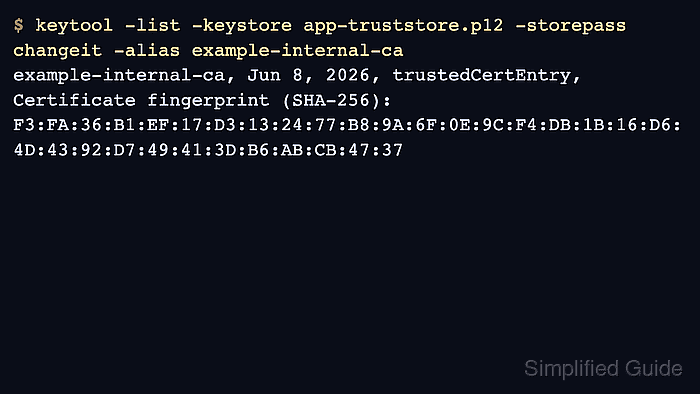
- Verify the alias exists in the intended truststore.
$ keytool -list -keystore /opt/example-app/app-truststore.p12 -storepass changeit -alias example-internal-ca
example-internal-ca, Jun 8, 2026, trustedCertEntry,
Certificate fingerprint (SHA-256): F3:FA:36:B1:EF:17:D3:13:24:77:B8:9A:6F:0E:9C:F4:DB:1B:16:D6:4D:43:92:D7:49:41:3D:B6:AB:CB:47:37
The alias and fingerprint should match the certificate inspected before import. A different fingerprint means the truststore contains a different certificate under that alias.
- Start or rerun the Java process with the truststore it should use.
$ java \
  -Djavax.net.ssl.trustStore=/opt/example-app/app-truststore.p12 \
  -Djavax.net.ssl.trustStorePassword=changeit \
  -jar example-client.jar
HTTP 200
For services, place the same javax.net.ssl.trustStore and javax.net.ssl.trustStorePassword values in the service manager, application server, build agent, or launcher that starts the Java process. A truststore imported in the filesystem is not used until the process points to it or uses a default store that contains the certificate.

Mohd Shakir Zakaria is a cloud architect with deep roots in software development and open-source advocacy. Certified in AWS, Red Hat, VMware, ITIL, and Linux, he specializes in designing and managing robust cloud and on-premises infrastructures.


