Changing an iptables default policy decides what happens to packets that reach the end of a built-in chain without matching an explicit rule. A DROP policy on INPUT can harden a host, but it can also block new administration sessions the moment the policy changes if the allow rules are not already in place.
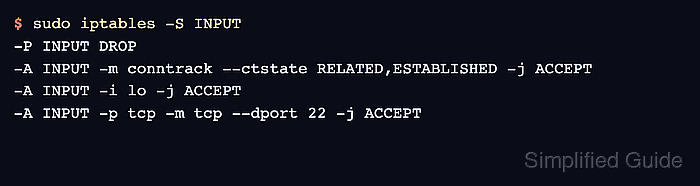
The -P or –policy operation works on built-in chains such as INPUT, FORWARD, and OUTPUT. It does not set policies on user-defined chains, and the policy target is limited to ACCEPT or DROP. The examples below use the default filter table and set the INPUT policy after adding explicit rules for existing connections, loopback traffic, and SSH.
Run the change from a console session or keep an already-open remote session available while testing a new login. Do not save the ruleset until a separate connection test succeeds, and repeat the equivalent policy and allow rules with ip6tables when the host accepts IPv6 traffic.
Related: How to list iptables rules with counters
Related: How to allow a port with iptables
Steps to set a default iptables chain policy:
- List the current INPUT policy and rule order.
$ sudo iptables -L INPUT -n --line-numbers
Chain INPUT (policy ACCEPT)
num  target     prot opt source               destination
Use FORWARD instead of INPUT when setting the policy for routed traffic, or OUTPUT when setting the policy for locally generated traffic.
- Allow packets that belong to established or related connections.
$ sudo iptables -I INPUT 1 -m conntrack --ctstate ESTABLISHED,RELATED -j ACCEPT
The conntrack match keeps reply traffic for connections that were already allowed by an earlier rule.
- Allow loopback traffic before changing the default policy.
$ sudo iptables -I INPUT 2 -i lo -j ACCEPT
Local services often communicate through the loopback interface. Blocking it can break service health checks and local clients.
- Allow the management port before switching INPUT to DROP.
$ sudo iptables -I INPUT 3 -p tcp --dport 22 -j ACCEPT
Replace 22 with the actual management port when SSH listens on a non-default port. A wrong port or source restriction can block new remote logins immediately.
- Confirm the allow rules appear in the INPUT chain before changing the policy.
$ sudo iptables -S INPUT
-P INPUT ACCEPT
-A INPUT -m conntrack --ctstate RELATED,ESTABLISHED -j ACCEPT
-A INPUT -i lo -j ACCEPT
-A INPUT -p tcp -m tcp --dport 22 -j ACCEPT
- Set the INPUT default policy to DROP.
$ sudo iptables -P INPUT DROP
Run this only after the required allow rules are visible. Use sudo iptables -P INPUT ACCEPT from the open session or console if the next connection test fails.
- Verify the chain now shows the DROP policy with the allow rules still present.
$ sudo iptables -S INPUT
-P INPUT DROP
-A INPUT -m conntrack --ctstate RELATED,ESTABLISHED -j ACCEPT
-A INPUT -i lo -j ACCEPT
-A INPUT -p tcp -m tcp --dport 22 -j ACCEPT
- Test a new management connection from a separate terminal or trusted host.
$ nc -vz server.example.com 22
Connection to server.example.com 22 port [tcp/ssh] succeeded!
Opening a new SSH session is an equivalent test when nc is not available.
- Restore ACCEPT while correcting the rules if the connection test fails.
$ sudo iptables -P INPUT ACCEPT
After the new connection succeeds, save the verified ruleset with the persistence method used by the system. Related: How to save iptables rules permanently

Mohd Shakir Zakaria is a cloud architect with deep roots in software development and open-source advocacy. Certified in AWS, Red Hat, VMware, ITIL, and Linux, he specializes in designing and managing robust cloud and on-premises infrastructures.


