Adding a watermark with ImageMagick marks an exported image without opening a graphical editor. Batch exports, review proofs, and public previews can keep the original image untouched while writing a branded copy to a separate file.
The magick composite command places one image over another. A transparent PNG logo keeps its alpha channel, -gravity southeast anchors it to the lower-right corner, -geometry +32+32 keeps it away from the edges, and -dissolve 45% blends the watermark with the base image.
Use an output filename that differs from the input filename, especially when testing opacity and placement. The commands use a JPEG source and a transparent PNG logo; ImageMagick 7 syntax starts with magick composite, while some older ImageMagick 6 packages expose composite as the command name.
Steps to add a watermark with ImageMagick:
- Confirm that ImageMagick can read the source image and watermark image.
$ magick identify -format "%f %m %wx%h\n" source.jpg logo.png
source.jpg JPEG 1200x800
logo.png PNG 360x360
Use a transparent PNG for the watermark when the logo should keep soft edges or a non-rectangular shape.
- Place the watermark in the lower-right corner and save a separate output file.
$ magick composite -dissolve 45% -gravity southeast -geometry +32+32 logo.png source.jpg watermarked.jpg
-gravity southeast chooses the corner, -geometry +32+32 adds the inset, and -dissolve 45% controls opacity. Increase the percentage for a stronger watermark.
Do not reuse the original filename as the output while testing. ImageMagick writes the result to the output path you provide.
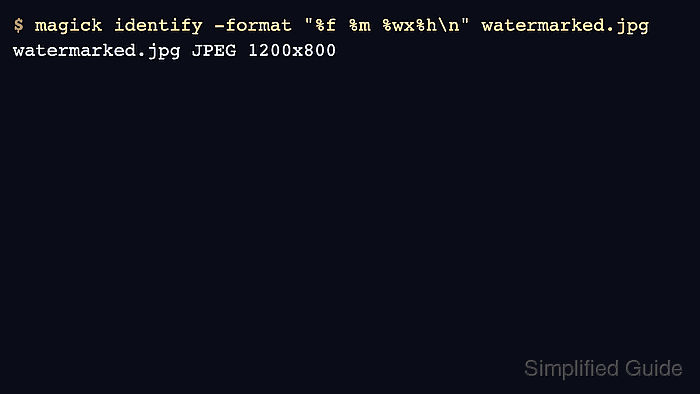
- Confirm the source and watermarked files keep the expected format and dimensions.
$ magick identify -format "%f %m %wx%h\n" source.jpg watermarked.jpg
source.jpg JPEG 1200x800
watermarked.jpg JPEG 1200x800

The visual check matters because identify proves the file dimensions and format, not the final logo placement.

Mohd Shakir Zakaria is a cloud architect with deep roots in software development and open-source advocacy. Certified in AWS, Red Hat, VMware, ITIL, and Linux, he specializes in designing and managing robust cloud and on-premises infrastructures.


