A text overlay in ImageMagick can label an exported image, proof, thumbnail, or social asset without opening a graphical editor. The safest command writes a captioned copy, keeps the source image untouched, and places the text against a predictable gravity point so small placement changes do not require manual editing.
The example uses magick with -annotate after the input image is read. -gravity south anchors the text near the bottom center, the offset keeps it away from the image edge, and the fill plus stroke settings make the caption readable over mixed image colors.
A font file is made available as overlay-font.ttf in the working directory for the sample command. Replace that filename with a local TTF or OTF font path when needed; specifying the font avoids failures on systems where ImageMagick has no default font configured.
Steps to add a text overlay with ImageMagick:
- Open a terminal in the directory containing the source image.
- Confirm the source image dimensions before choosing the caption position.
$ magick identify -format '%f %m %wx%h\n' source.jpg
source.jpg JPEG 1200x800
The example starts from a 1200x800 JPEG file. Check your real dimensions first so the point size and offset are not copied blindly from a differently sized image.
- Make a readable font file available as overlay-font.ttf, or replace that filename in the command with an absolute font path.
Use a TrueType or OpenType font file that exists on your system. If ImageMagick can already resolve named fonts in your environment, a configured font name can also work.
- Write the captioned copy with -annotate.
$ magick source.jpg -gravity south -font overlay-font.ttf -pointsize 52 -fill white -stroke black -strokewidth 2 -annotate +0+48 'Draft approved' captioned.jpg
-gravity south places the annotation near the bottom center, +0+48 keeps it above the lower edge, -fill white sets the text color, and -stroke black -strokewidth 2 adds a thin outline for contrast.
Use a different output filename while testing. ImageMagick writes to the output path at the end of the command, so reusing the source filename can replace the original image.
- Confirm that both files keep the expected dimensions.
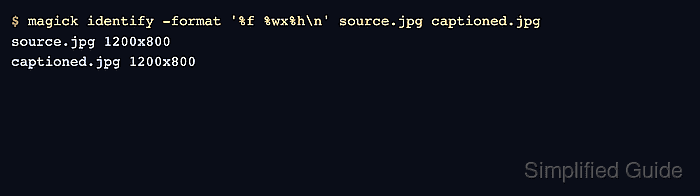
$ magick identify -format '%f %m %wx%h\n' source.jpg captioned.jpg
source.jpg JPEG 1200x800
captioned.jpg JPEG 1200x800
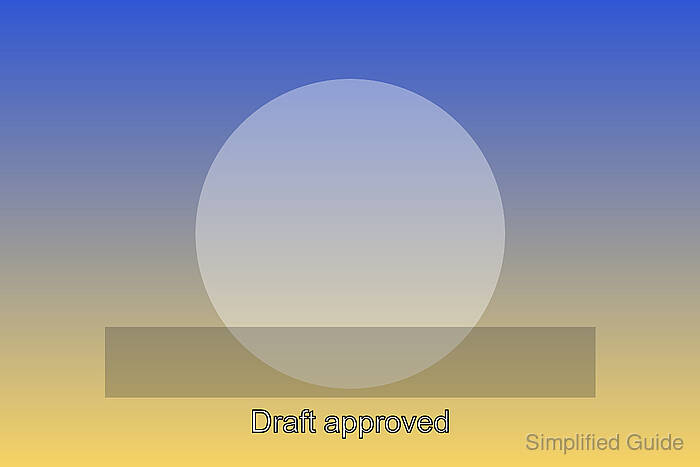
The dimension check proves that captioned.jpg was written without changing the canvas size. Open the file afterward to confirm the text position, wording, and contrast visually.
- Adjust the overlay if the caption is too low, too small, or hard to read.
Increase -pointsize for larger text, change the -gravity value for another edge or corner, adjust the annotation offset, or reduce -strokewidth if the outline is too heavy for the image.

Mohd Shakir Zakaria is a cloud architect with deep roots in software development and open-source advocacy. Certified in AWS, Red Hat, VMware, ITIL, and Linux, he specializes in designing and managing robust cloud and on-premises infrastructures.


