A montage turns several separate images into one tiled preview, which is useful when a reviewer, designer, or automation job needs to inspect related assets together instead of opening each file one at a time. ImageMagick can build that combined image from a terminal while keeping the original files unchanged.
In ImageMagick 7, magick montage reads the input images, lays them out in rows and columns, and writes one output image. The -tile option sets the grid shape, while -geometry sets the preferred size of each tile and the spacing around it.
The example below creates an unlabeled 2-by-2 montage from four frames. Use filenames that sort in the intended order, and point -font at a TrueType font file that ImageMagick can read; some builds fail during montage layout when no default font is available, even if labels are not being drawn.
Steps to create an image montage with ImageMagick:
- Open a terminal in the directory containing the images to tile.
- Check the input image order and dimensions.
$ magick identify -format '%f %m %wx%h\n' frame-*.png
frame-01.png PNG 480x300
frame-02.png PNG 480x300
frame-03.png PNG 480x300
frame-04.png PNG 480x300
Shell globbing passes frame-*.png in filename sort order. Rename files with zero-padded numbers when the montage must keep a specific sequence.
- Create a 2-by-2 montage image.
$ magick montage -font /Library/Fonts/NotoSans_Regular.ttf frame-*.png -tile 2x2 -geometry 220x140+14+14 -background '#111827' -bordercolor '#334155' montage.png
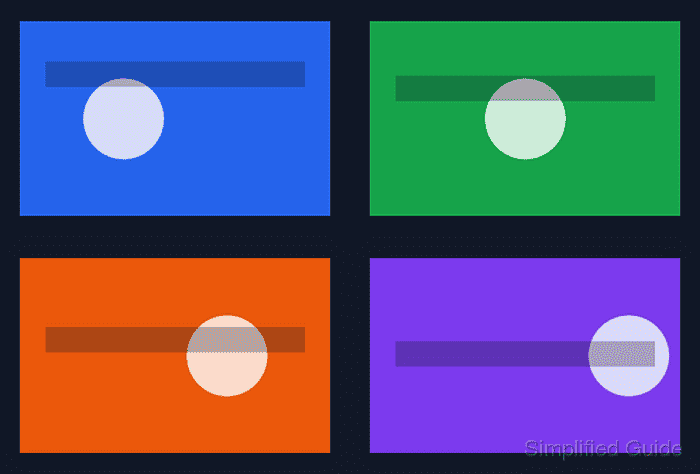
Replace the -font path with an installed font file on the system, such as a DejaVu Sans or Noto Sans TrueType file. The 220x140+14+14 geometry fits each source inside a 220-by-140 tile and leaves 14 pixels of spacing around each tile.
- Verify the output image format and dimensions.
$ magick identify -format '%f %m %wx%h\n' montage.png
montage.png PNG 496x336
The exact dimensions change when the tile size, spacing, border, or font metrics change. The check should report one output image rather than four separate files.
- Open montage.png and confirm that every expected image appears in the intended position before handing it off or replacing an existing preview.