Contact sheets make a group of frames, thumbnails, or exported assets easier to review before handing them to another person or committing them to a project. ImageMagick can tile the images into one PNG so the order, spacing, and labels are visible in a single file.
In ImageMagick 7, the magick montage command reads several input images and writes one composite image. The -tile option controls the row and column layout, while -geometry sets each tile size and the space around it.
Filename labels help identify each source image, but they require a font that ImageMagick can load. Use an installed TrueType font path for -font when the default font list is empty or when montage reports that it cannot read a font.
Steps to create a contact sheet with ImageMagick:
- Open a terminal in the directory containing the image sequence.
- Check the input images before building the sheet.
$ magick identify -format '%f %m %wx%h\n' frame-*.png
frame-01.png PNG 480x300
frame-02.png PNG 480x300
frame-03.png PNG 480x300
frame-04.png PNG 480x300
Use filenames that sort in the intended order, such as frame-01.png before frame-02.png. Shell globbing passes the files to montage in that sorted order.
- Create a labeled 2-by-2 contact sheet.
$ magick montage -font /usr/share/fonts/truetype/dejavu/DejaVuSans.ttf -label '%f' frame-*.png -geometry 220x140+16+36 -tile 2x2 -background '#f8fafc' -bordercolor '#cbd5e1' contact-sheet.png
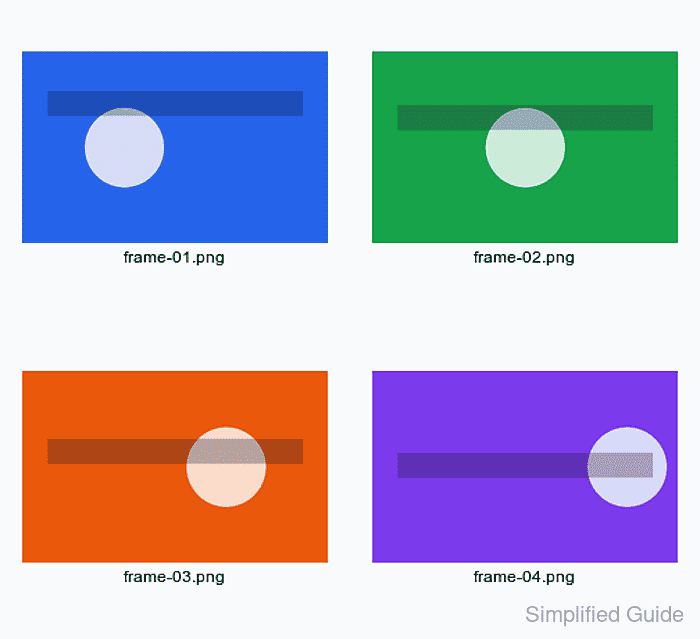
Replace the -font path with a font installed on the system. The +16+36 part of -geometry leaves horizontal and vertical space for padding and labels.
- Verify that montage wrote one output image.
$ magick identify -format '%f %m %wx%h\n' contact-sheet.png
contact-sheet.png PNG 504x460
The exact pixel size can change with tile geometry and font metrics. The check should report one PNG file with dimensions large enough to hold all tiles.
- Open the contact sheet and confirm that every expected image appears in the intended order.