Python application frameworks can report usage information separately from the work they perform. Haystack's anonymous usage telemetry can be disabled for an application without changing its pipelines.
Haystack reads its telemetry setting when its telemetry module first loads. An application with haystack-ai installed can set the opt-out in its Python entry point before any imports load Haystack, including imports through other modules.
The setting covers Haystack's own usage reporting. Integrations and model providers may have separate telemetry or logging settings, which this opt-out does not control.
Steps to disable telemetry in Haystack:
- Open the Python entry-point file, such as main.py, in your text editor.
- Add the opt-out before any imports that load Haystack to disable usage telemetry.
import os

os.environ["HAYSTACK_TELEMETRY_ENABLED"] = "False"
A module docstring and any future imports stay at the top of the file. If the file already imports os, that import can serve the assignment. The setting must take effect before the first direct or indirect Haystack import. An application started from a service or container, or one whose source cannot change, can set the same variable to False in its environment instead.
- Insert a temporary telemetry-state diagnostic after the file's imports.
from haystack.telemetry._telemetry import telemetry

print("Telemetry disabled:", telemetry is None)
This diagnostic reads an internal runtime value in Haystack 3.4.1. A value of None means the telemetry client was not initialized.
Related: How to check the Haystack version - Save the entry-point file.
- Restart the application using the launch command for your entry-point filename.
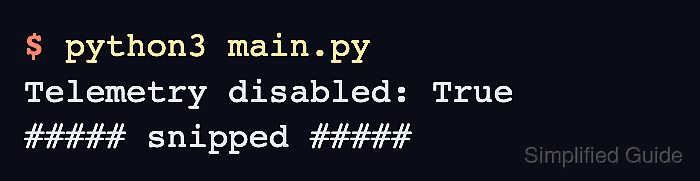
$ python3 main.py
An already-running process retains its initialized telemetry state until it restarts.
- Confirm the application prints the disabled state and continues its normal work. Example output:
Telemetry disabled: True
##### snipped #####
If the line ends in False, an earlier import initialized telemetry before the opt-out took effect. If the diagnostic raises an import error on another release, the internal inspection path may have changed; an error does not confirm that telemetry is disabled.
- Remove the two temporary diagnostic lines from the entry-point file.
The opt-out lines stay in the file and do not depend on the diagnostic.
- Save the entry-point file.