Setting a Grafana home dashboard makes a chosen dashboard open when users return to Home after sign-in. It helps place shared operating panels in front of an organization instead of the generic Grafana start page.
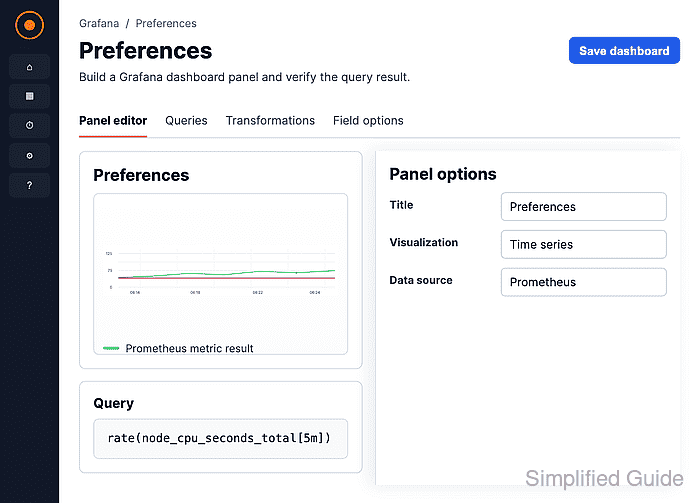
Grafana stores home dashboard preferences at several layers. The organization default applies unless a team or personal preference overrides it, and the UI picker shows dashboards that the current user has starred.
Organization administrators can save the default from Administration → General → Default preferences. The saved preference can also be checked through the organization preferences API, which returns the selected dashboard UID.
Related: How to import a Grafana dashboard
Related: How to create a Grafana team
Steps to set a Grafana organization home dashboard:
- Open the dashboard that should become the organization home dashboard.
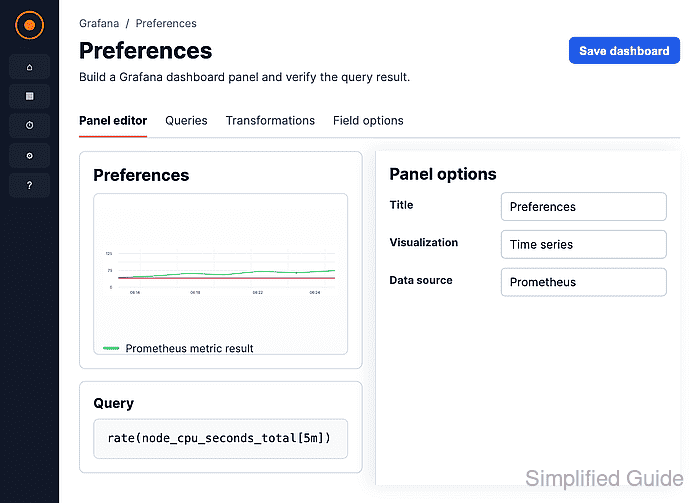
- Click the star next to the dashboard title if it is not already starred.
Only starred dashboards appear in the Home Dashboard picker.
- Open Administration → General.
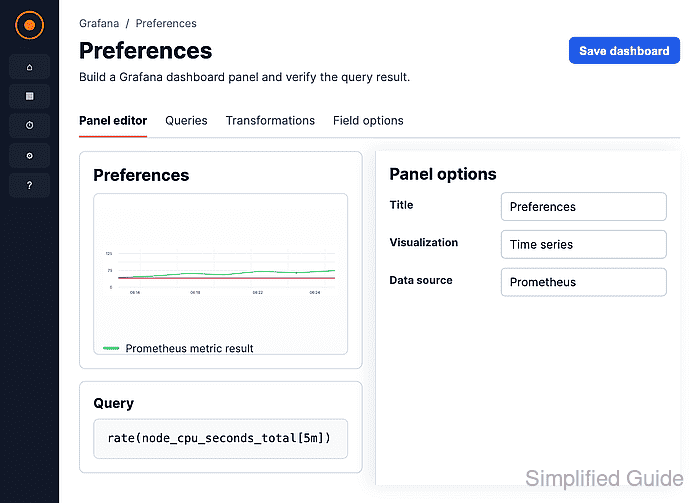
- Click Default preferences.
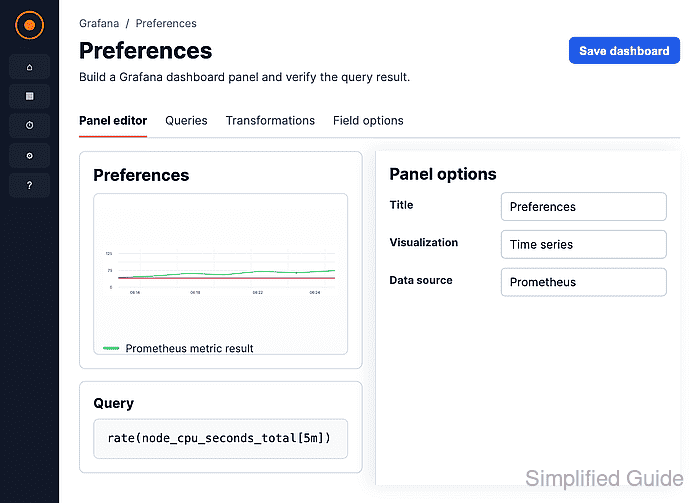
- Select the starred dashboard from the Home Dashboard field.
- Click Save preferences.
- Click Save in the confirmation dialog.
This changes the organization default for users who do not have a team or personal home dashboard preference.
- Click Home to confirm the selected dashboard opens.
- Check the saved organization preference from an authenticated API client.
$ curl --header "Authorization: Bearer glsa_xxxxxxxxxxxxxxxxxxxxxxxx" https://grafana.example.com/api/org/preferences
{"homeDashboardUID":"ops-home"}

Mohd Shakir Zakaria is a cloud architect with deep roots in software development and open-source advocacy. Certified in AWS, Red Hat, VMware, ITIL, and Linux, he specializes in designing and managing robust cloud and on-premises infrastructures.


