A slow Grafana dashboard backed by Prometheus often comes from panels that recalculate the same heavy PromQL expression on every refresh. A Prometheus recording rule stores that expression as a new time series, so the dashboard can read a ready-made metric instead of asking Prometheus to aggregate raw samples repeatedly.
Recording rules run inside Prometheus at the rule group interval and write their output back into the local time-series database. Grafana still uses the same Prometheus data source, but the panel query changes from a nested expression to the recorded metric name.
The recorded series starts only after the rule is loaded and evaluated; it does not backfill old dashboard history. Keep the labels that dashboard variables or legends need, validate the rule file before reload, and confirm the final panel through Query Inspector so the saved dashboard is using the new series.
Steps to speed up a Grafana dashboard with a Prometheus recording rule:
- Open the slow Grafana panel and copy the current PromQL expression from the Prometheus query editor in Code mode.
sum without (instance, pod) (rate(http_requests_total{job="checkout-api"}[5m]))Use Query Inspector → Stats before the change to note the request time and returned rows for the panel.
Related: How to use Grafana query inspector - Choose a recorded metric name and the labels the dashboard still needs.
Recorded metric: job:http_requests:rate5m
Kept labels: job
Prometheus recording rule names commonly describe the aggregation level, source metric, and operation. A name such as job:http_requests:rate5m is easier to recognize in Grafana than a copied expression.
- Create the recording rule file on the Prometheus host.
$ sudo vi /etc/prometheus/rules/dashboard.rules.yml
groups:
  - name: dashboard-rollups
    interval: 1m
    rules:
      - record: job:http_requests:rate5m
        expr: sum without (instance, pod) (rate(http_requests_total{job="checkout-api"}[5m]))
Keep only labels that the panel, legend, or template variables need. Keeping high-cardinality labels such as pod or instance can preserve the dashboard load that the rule is meant to remove.
- Reference the rule file from the active Prometheus configuration.
$ sudo vi /etc/prometheus/prometheus.yml
rule_files:
  - /etc/prometheus/rules/dashboard.rules.yml
If the configuration already has a rule_files list, add the dashboard rule file to that list instead of creating a second top-level key.
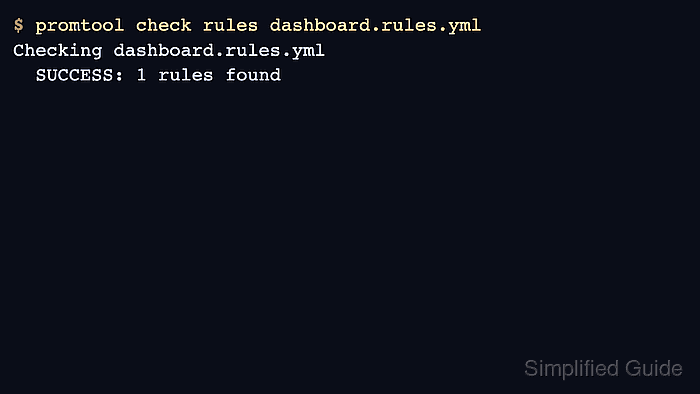
- Validate the rule file with promtool.
$ promtool check rules /etc/prometheus/rules/dashboard.rules.yml
Checking /etc/prometheus/rules/dashboard.rules.yml
  SUCCESS: 1 rules found
Prometheus applies rule-file changes only when the configured rule files are well formed.
Related: How to test Prometheus rule files - Reload Prometheus after the rule file passes validation.
$ curl -i -X POST http://prometheus.example.net/-/reload
HTTP/1.1 200 OK
##### snipped #####
The HTTP reload endpoint works only when Prometheus is started with --web.enable-lifecycle. If that endpoint is disabled, use the reload method already approved for the Prometheus service, such as sending SIGHUP through the service manager.
- Query Prometheus for the recorded metric after one rule evaluation interval.
$ promtool query instant http://prometheus.example.net 'job:http_requests:rate5m'
job:http_requests:rate5m{job="checkout-api"} => 42.81 @[1781909952.22]
An empty result means the source expression had no samples for the selected range, the rule has not evaluated yet, or Prometheus did not load the rule file.
- Replace the panel expression in Grafana with the recorded metric query.
job:http_requests:rate5m{job="$job"}Keep any dashboard variable matchers that still belong on the recorded series. Remove matchers for labels that the recording rule intentionally aggregated away.
- Click Run queries and confirm the panel returns data for the selected dashboard time range.
A recorded metric begins at the reload time, so older time ranges can still show No data until enough rule evaluations exist.
- Save the panel and dashboard after the recorded metric renders correctly.
- Open Query Inspector for the saved panel and confirm the request uses the recorded metric name.
Stats should show returned rows for the panel, and Query should show job:http_requests:rate5m in the request payload. Compare the request time with the baseline from the original expression before removing the old query from notes or runbooks.
Related: How to use Grafana query inspector

Mohd Shakir Zakaria is a cloud architect with deep roots in software development and open-source advocacy. Certified in AWS, Red Hat, VMware, ITIL, and Linux, he specializes in designing and managing robust cloud and on-premises infrastructures.


