firewalld panic mode is an emergency runtime switch that drops network traffic through the host firewall. It can cut off remote administration as soon as it is enabled, so use it only with console access or another out-of-band recovery path.
Panic mode is not a normal hardening profile and it is not a replacement for a restrictive zone. It is meant to stop traffic quickly during an incident, a containment window, or a test where blocking all packet flow is the intended result.
The command changes the active daemon state immediately. Query the state before and after enabling it, verify that the expected client traffic is blocked, and keep the disable command ready before starting the test.
Related: Check active firewalld zones
Related: Troubleshoot blocked firewalld connections
Related: Check firewalld status
Steps to enable firewalld panic mode:
- Confirm that firewalld is running before using panic mode.
$ sudo firewall-cmd --state
running
- Confirm that console or out-of-band access is available.
$ whoami
admin
Do not enable panic mode through the only active SSH session unless losing that session is acceptable. Panic mode is designed to block network traffic immediately.
- Check the current panic state.
$ sudo firewall-cmd --query-panic
no
- Enable panic mode.
$ sudo firewall-cmd --panic-on
success
- Verify that panic mode is active.
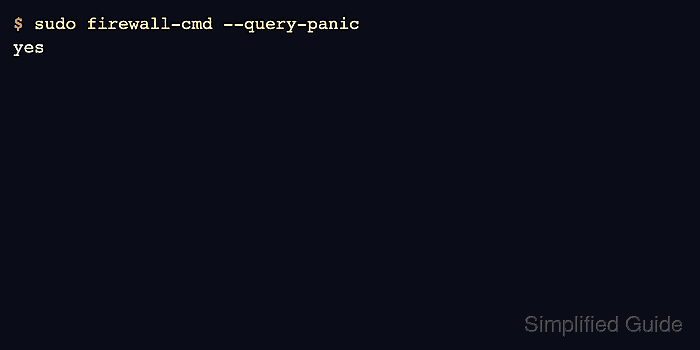
$ sudo firewall-cmd --query-panic
yes
- Test from another host that normal traffic is blocked.
$ nc -vz -w 2 app01.example.net 22
nc: connect to app01.example.net port 22 (tcp) failed: Connection timed out
A timeout or rejected connection is expected while panic mode is active. Existing remote sessions can also stop responding.
- Disable panic mode when the containment or test window is finished.
$ sudo firewall-cmd --panic-off
success
Leave panic mode enabled only when the operational decision is to keep the host network-isolated. Otherwise disable it before returning the system to service.
- Verify that panic mode is no longer active.
$ sudo firewall-cmd --query-panic
no
- Recheck the zone state after leaving panic mode.
$ sudo firewall-cmd --get-active-zones
public (default)
  interfaces: enp1s0
If expected traffic is still blocked after panic mode is disabled, inspect active zones and rules before assuming panic mode is still the cause.
Related: Check active firewalld zones

Mohd Shakir Zakaria is a cloud architect with deep roots in software development and open-source advocacy. Certified in AWS, Red Hat, VMware, ITIL, and Linux, he specializes in designing and managing robust cloud and on-premises infrastructures.


