A firewalld direct rule bypasses the normal service, port, rich rule, and policy abstractions and writes a lower-level rule into the backend firewall. Use it only when a zone rule cannot express the packet match, because direct rules are harder to audit and current upstream documentation marks the direct interface as deprecated.
Direct rules require an address family, table, chain, priority, and backend-style rule arguments. The example adds an IPv4 rule to accept TCP port 8443 from one trusted host in the INPUT path, then checks the saved direct-rule inventory before relying on it.
Runtime and permanent direct rules are separate. Add a temporary runtime rule only for testing, add the permanent rule when it must survive a reload, and keep a replacement plan with a rich rule or policy whenever the same match can be represented through supported firewalld objects.
Related: Allow traffic from one source with a rich rule
Related: Open a permanent port in firewalld
Related: Check firewalld status
Steps to add a firewalld direct rule:
- Confirm that firewalld is running before changing backend rules.
$ sudo firewall-cmd --state
running
- Check whether a supported zone rule can express the same exception.
$ sudo firewall-cmd --zone=public --list-rich-rules
rule family="ipv4" source address="10.77.0.10/32" port port="8443" protocol="tcp" accept
Prefer services, ports, rich rules, or policies when they can express the match. The direct interface is deprecated upstream and should be kept for cases that need backend-specific behavior.
- Inspect existing permanent direct rules before adding a new priority.
$ sudo firewall-cmd --permanent --direct --get-all-rules
An empty result means no permanent direct rules are saved. Existing rules with the same family, table, chain, and low priority can run before the new rule.
- Add the direct rule to the permanent configuration.
$ sudo firewall-cmd --permanent --direct --add-rule ipv4 filter INPUT 0 -p tcp --dport 8443 -s 10.77.0.10 -j ACCEPT
success
The priority value sorts rules inside the selected chain. Lower numbers run earlier, so use a narrow source and destination match when adding a rule near the front of INPUT.
- Validate the saved firewalld configuration.
$ sudo firewall-cmd --check-config
success
- Reload firewalld so the permanent direct rule becomes active.
$ sudo firewall-cmd --reload
success
A reload normally replaces runtime rules with permanent configuration. Direct runtime changes may be affected by FlushAllOnReload settings, so verify the final runtime inventory after reload.
- List the active direct rules after the reload.
$ sudo firewall-cmd --direct --get-all-rules
ipv4 filter INPUT 0 -p tcp --dport 8443 -s 10.77.0.10 -j ACCEPT
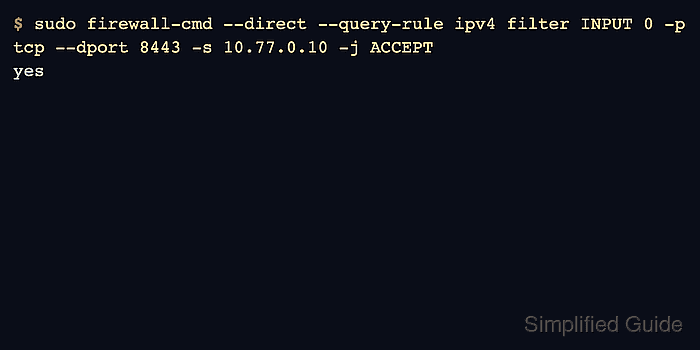
- Query the exact direct rule when a change ticket needs a yes-or-no proof.
$ sudo firewall-cmd --direct --query-rule ipv4 filter INPUT 0 -p tcp --dport 8443 -s 10.77.0.10 -j ACCEPT
yes
- Test the application port from the source address matched by the rule.
$ nc -vz app01.example.net 8443
Connection to app01.example.net 8443 port [tcp/*] succeeded!
- Test the same port from an unmatched source path.
$ nc -vz -w 2 app01.example.net 8443
nc: connect to app01.example.net port 8443 (tcp) failed: Connection timed out
If the unmatched source still connects, look for a broader service, port, rich rule, source-zone assignment, policy, or earlier direct rule that allows the same traffic.

Mohd Shakir Zakaria is a cloud architect with deep roots in software development and open-source advocacy. Certified in AWS, Red Hat, VMware, ITIL, and Linux, he specializes in designing and managing robust cloud and on-premises infrastructures.


