Espresso waits for the Android main thread and registered idling resources before it performs view actions, but some valid test environments need a longer or stricter wait boundary. Setting the IdlingPolicies timeout gives a slow screen, emulator, or registered IdlingResource enough time to finish without adding a fixed sleep to the test.
The IdlingPolicies API is part of espresso-core and controls two timeout paths. setMasterPolicyTimeout() affects the app-wide idle loop that raises AppNotIdleException, while setIdlingResourceTimeout() affects registered resources that raise IdlingResourceTimeoutException when they stay busy too long.
Keep the value tied to a known slow operation instead of raising it across a whole suite by habit. A timeout that is too high can hide a stuck counter, blocked callback, or animation problem, so rerun the same connected test after the policy change and treat any remaining timeout as a synchronization bug.
Steps to set Espresso idling timeouts:
- Confirm the failure is an Espresso idle timeout.
$ ./gradlew :app:connectedDebugAndroidTest

Task :app:connectedDebugAndroidTest
Starting 1 tests on Pixel_8_API_35
OrderStatusTest > refreshShowsReadyStatus FAILED
androidx.test.espresso.IdlingResourceTimeoutException:
Wait for [OrderRepository] to become idle timed out

FAILURE: Build failed with an exception.
If the failure is NoMatchingViewException or a failed matches() assertion, tune the view state or matcher instead of raising the idling-policy timeout.
- Add the policy setup and restore methods to the affected test class.
- OrderStatusTest.kt
package com.example.orders

import androidx.test.espresso.IdlingPolicies
import androidx.test.espresso.Espresso.onView
import androidx.test.espresso.action.ViewActions.click
import androidx.test.espresso.assertion.ViewAssertions.matches
import androidx.test.espresso.matcher.ViewMatchers.withId
import androidx.test.espresso.matcher.ViewMatchers.withText
import java.util.concurrent.TimeUnit
import org.junit.After
import org.junit.Before
import org.junit.Test

private const val NORMAL_SUITE_IDLE_SECONDS = 15L
private const val SLOW_ORDER_IDLE_SECONDS = 45L

class OrderStatusTest {
    @Before
    fun setIdlingTimeouts() {
        IdlingPolicies.setMasterPolicyTimeout(
            SLOW_ORDER_IDLE_SECONDS,
            TimeUnit.SECONDS
        )
        IdlingPolicies.setIdlingResourceTimeout(
            SLOW_ORDER_IDLE_SECONDS,
            TimeUnit.SECONDS
        )
    }

    @After
    fun restoreIdlingTimeouts() {
        IdlingPolicies.setMasterPolicyTimeout(
            NORMAL_SUITE_IDLE_SECONDS,
            TimeUnit.SECONDS
        )
        IdlingPolicies.setIdlingResourceTimeout(
            NORMAL_SUITE_IDLE_SECONDS,
            TimeUnit.SECONDS
        )
    }

    @Test
    fun refreshShowsReadyStatus() {
        onView(withId(R.id.refreshButton)).perform(click())

        onView(withId(R.id.status))
            .check(matches(withText("Ready")))
    }
}
NORMAL_SUITE_IDLE_SECONDS is the boundary your own suite wants after the class-specific override, not an Espresso default. Move the setup to a shared base class only when the whole instrumentation suite should use the same policy.
- Remove any fixed sleep that the idling policy replaces.
// Remove this after the policy and IdlingResource are in place.
Thread.sleep(45_000)
Raising the policy timeout does not fix a counter that never decrements or a callback that is not registered as an IdlingResource. Fix the synchronization signal when the same resource still times out at the higher boundary.
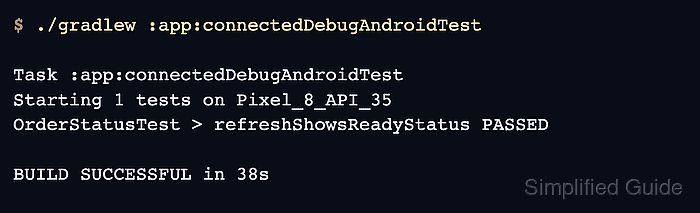
- Run the connected Espresso test task again.
$ ./gradlew :app:connectedDebugAndroidTest

Task :app:connectedDebugAndroidTest
Starting 1 tests on Pixel_8_API_35
OrderStatusTest > refreshShowsReadyStatus PASSED

BUILD SUCCESSFUL in 38s
Android's command-line test workflow runs instrumented tests with connectedAndroidTest and writes connected reports under the module build directory. Replace :app with the module path used by the project.

Mohd Shakir Zakaria is a cloud architect with deep roots in software development and open-source advocacy. Certified in AWS, Red Hat, VMware, ITIL, and Linux, he specializes in designing and managing robust cloud and on-premises infrastructures.


