Configuring the Logstash s3 output sends selected pipeline events to an Amazon S3 bucket for archive, replay, or downstream processing. This output fits pipelines where hot search storage should stay focused on recent data while older or secondary event copies move to object storage.
The output writes events into local temporary files, rotates them by size, time, or both, and uploads completed files under the configured bucket and prefix. The prefix can use Logstash timestamp interpolation, but date-level paths keep the number of active upload prefixes lower for busy pipelines.
Elastic supports the plugin for AWS S3 buckets. Credentials should come from the AWS SDK credential chain or the Logstash keystore instead of literal keys in the pipeline file, and final proof comes from a new object appearing in S3 after an event passes through the running pipeline.
Steps to configure Logstash output to Amazon S3:
- Confirm the s3 output is available in the installed Logstash plugins.
$ sudo /usr/share/logstash/bin/logstash-plugin list --verbose s3
Using bundled JDK: /usr/share/logstash/jdk
logstash-integration-aws (7.3.4)
 ├── logstash-codec-cloudfront
 ├── logstash-codec-cloudtrail
 ├── logstash-input-cloudwatch
 ├── logstash-input-s3
 ├── logstash-input-sqs
 ├── logstash-output-cloudwatch
 ├── logstash-output-s3
 ├── logstash-output-sns
 └── logstash-output-sqs
Recent package installs expose logstash-output-s3 through logstash-integration-aws, so a separate plugin install is not normally needed when this list already includes the output.
- Create a writable temporary directory for pending S3 upload files.
$ sudo install -d -o logstash -g logstash -m 0750 /var/lib/logstash/s3-output
Logstash writes rotated local files here before upload. Put the directory on monitored storage with enough free space for burst traffic, retries, and S3 outages.
- Open the S3 output pipeline file.
$ sudoedit /etc/logstash/conf.d/40-s3-output.conf
Use a filename that fits the lexical order of the rest of /etc/logstash/conf.d. Split pipeline files are assembled in filename order.
Related: How to configure Logstash pipelines - Add the S3 output block.
output {
  s3 {
    id => "s3_archive"
    bucket => "logs-archive"
    region => "us-east-1"
    prefix => "logstash/%{+YYYY/MM/dd}/"
    temporary_directory => "/var/lib/logstash/s3-output"
    restore => true
    rotation_strategy => "size_and_time"
    size_file => 10485760
    time_file => 15
    codec => json_lines
  }
}
The plugin follows the AWS SDK credential chain. Prefer an IAM instance profile, a supported role option, an environment variable, or Logstash keystore substitution instead of literal access keys.
Related: How to add a secret to a Logstash keystore
Tool: S3 Bucket Policy Public Access Checker - Review the AWS S3 and prefix boundaries before saving.
Elastic supports this output for AWS S3 buckets, not generic S3-compatible storage endpoints. Keep prefix coarse-grained, such as a date path, and add validate_credentials_on_root_bucket ⇒ false only when the IAM policy allows writes under a sub-prefix but blocks root-bucket validation.
- Test the full Logstash pipeline configuration.
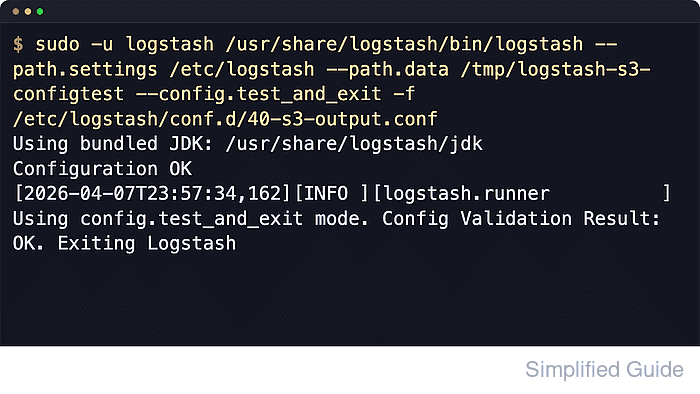
$ sudo -u logstash /usr/share/logstash/bin/logstash \
  --path.settings /etc/logstash \
  --path.data /tmp/logstash-s3-configtest \
  --config.test_and_exit \
  -f /etc/logstash/conf.d
Using bundled JDK: /usr/share/logstash/jdk
##### snipped #####
Configuration OK
[2026-06-18T20:56:37,689][INFO ][logstash.runner] Using config.test_and_exit mode. Config Validation Result: OK. Exiting Logstash
The temporary --path.data directory keeps validation state away from the running service data directory. This test validates syntax and plugin settings, not AWS credentials, DNS, bucket policy, or s3:PutObject permission.
Related: How to test a Logstash pipeline configuration - Remove the temporary validation data path.
$ sudo rm --recursive --force /tmp/logstash-s3-configtest
- Restart the Logstash service.
$ sudo systemctl restart logstash.service
Restarting Logstash pauses active pipelines while inputs, filters, queues, and outputs reload.
If /etc/logstash/logstash.yml enables config.reload.automatic, a validated pipeline-file change can load without a full service restart. Changes to plugins, /etc/logstash/logstash.yml, JVM options, or service units still require a restart.
Related: How to manage the Logstash service with systemctl in Linux - Check the S3 output in the running pipeline statistics.
$ curl -s http://127.0.0.1:9600/_node/stats/pipelines/main?pretty
{
  "pipelines" : {
    "main" : {
##### snipped #####
      "plugins" : {
        "outputs" : [
          {
            "id" : "s3_archive",
            "name" : "s3",
            "events" : {
              "in" : 12,
              "out" : 12
            }
          }
        ]
      }
    }
  }
}
Replace main when /etc/logstash/pipelines.yml uses another pipeline ID. If the API is secured or moved from http://127.0.0.1:9600, use the configured host, port, TLS, and authentication settings.
Related: How to check Logstash pipeline metrics - Send one fresh event through the pipeline input that reaches the S3 output.
Use the existing input's normal test path, such as a test log line, HTTP event, Kafka record, or Beats event. The S3 output only uploads completed rotated files, so the object may appear after size_file or time_file is reached.
- List the S3 prefix from a host with AWS CLI access.
$ aws s3 ls s3://logs-archive/logstash/ --recursive --profile log-archive
2026-06-18 14:25:33        248 logstash/2026/06/18/ls.s3.312bc026-2f5d-49bc-ae9f-5940cf4ad9a6.2026-06-18T14.25.part0.txt
The object key should start with the configured prefix and continue with the plugin-generated ls.s3 filename. If the listing stays empty after a fresh event and one rotation interval, inspect /var/log/logstash/logstash-plain.log and the local temporary_directory for upload retries.

Mohd Shakir Zakaria is a cloud architect with deep roots in software development and open-source advocacy. Certified in AWS, Red Hat, VMware, ITIL, and Linux, he specializes in designing and managing robust cloud and on-premises infrastructures.


