A Logstash beats input gives Filebeat, Metricbeat, and other Beats a single ingestion endpoint for logs and metrics. Centralizing that listener keeps parsing, routing, and output handling in the Logstash pipeline instead of spreading those decisions across every shipper host.
On packaged Linux installs, Logstash normally builds the default main pipeline by merging every .conf file under /etc/logstash/conf.d in lexical order. The beats input listens on a TCP host and port, and a stable plugin id makes the pipeline stats API show which listener accepted connections and how many events it handled.
Current beats input releases accept plaintext traffic unless ssl_enabled is set, and they reject legacy TLS keys from older examples such as ssl and ssl_verify_mode. Keep the listener on a trusted network or enable TLS before exposing it more broadly, and remember that the Logstash HTTP API is enabled by default on the local loopback address in the 9600-9700 range unless /etc/logstash/logstash.yml overrides it.
Steps to configure a Logstash Beats input:
- Create a dedicated pipeline file for the beats listener.
input {
  beats {
    id => "beats_5044"
    host => "0.0.0.0"
    port => 5044
  }
}

output {
  stdout {
    codec => rubydebug
  }
}
The explicit id makes the listener easy to identify in the pipeline stats API. Replace the temporary stdout output with elasticsearch or another production output after the input itself is confirmed.
Binding to 0.0.0.0 exposes the listener on every interface. If only one network or local host should reach it, set host to that specific address instead. Current beats input releases also fail to start if old examples still use keys such as ssl or ssl_verify_mode; use ssl_enabled and ssl_client_authentication instead.
- Run the configuration test as the logstash service account.
$ sudo -u logstash /usr/share/logstash/bin/logstash \
  --path.settings /etc/logstash \
  --path.data /tmp/logstash-configtest \
  --config.test_and_exit
Using bundled JDK: /usr/share/logstash/jdk
Sending Logstash logs to /var/log/logstash which is now configured via log4j2.properties
[2026-06-18T14:37:29,945][INFO ][logstash.runner          ] Starting Logstash {"logstash.version"=>"9.4.2"}
##### snipped #####
[2026-06-18T14:37:30,302][INFO ][logstash.javapipeline    ][main] Pipeline `main` is configured with `pipeline.ecs_compatibility: v8` setting. All plugins in this pipeline will default to `ecs_compatibility => v8` unless explicitly configured otherwise.
Configuration OK
[2026-06-18T14:37:30,303][INFO ][logstash.runner          ] Using config.test_and_exit mode. Config Validation Result: OK. Exiting Logstash
The temporary --path.data directory must be writable by the logstash user and keeps the test away from the service data directory in /var/lib/logstash.
- Restart the Logstash service so it loads the new input.
$ sudo systemctl restart logstash.service
A restart briefly stops active pipelines, so upstream Beats may buffer or back off until the listener returns.
- Confirm the Logstash service returned to the running state.
$ sudo systemctl status logstash.service \
  --no-pager --lines=20
● logstash.service - logstash
     Loaded: loaded (/usr/lib/systemd/system/logstash.service; enabled; preset: enabled)
     Active: active (running) since Thu 2026-06-18 14:37:38 UTC; 8s ago
   Main PID: 21844 (java)
      Tasks: 95 (limit: 28486)
     Memory: 958.3M
        CPU: 14.612s
##### snipped #####
Jun 18 14:37:38 logstash-01 logstash[21844]: [2026-06-18T14:37:38,423][INFO ][logstash.agent           ] Pipelines running {count: 1, running_pipelines: [:main], non_running_pipelines: []}
If the unit does not stay active (running), inspect /var/log/logstash or the journal before retrying the restart.
- Confirm the beats listener is bound to TCP port 5044.
$ sudo ss -ltnp 'sport = :5044'
State  Recv-Q Send-Q Local Address:Port Peer Address:Port Process
LISTEN 0      4096         0.0.0.0:5044      0.0.0.0:*    users:(("java",pid=21844,fd=239))
If host is set to a specific address, ss should show that address instead of 0.0.0.0.
- From a Filebeat host, test the configured Logstash output endpoint.
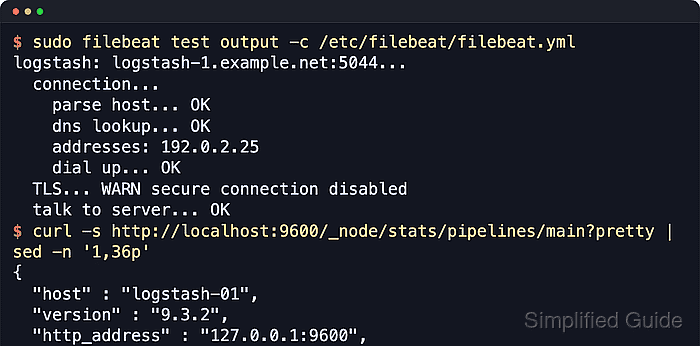
$ sudo filebeat test output -c /etc/filebeat/filebeat.yml
logstash: logstash-1.example.net:5044...
  connection...
    parse host... OK
    dns lookup... OK
    addresses: 192.0.2.25
    dial up... OK
  TLS... WARN secure connection disabled
  talk to server... OK
The shipper-side test confirms host resolution, TCP reachability, and the current TLS settings before any real events are sent. When TLS is enabled, this output includes certificate and handshake details instead of the secure connection disabled warning.
- Query the Logstash pipeline stats API and confirm the beats input ID is active.
$ curl -s \
  http://localhost:9600/_node/stats/pipelines/main?pretty
{
  "host" : "logstash-01",
  "version" : "9.4.2",
  "status" : "green",
  ##### snipped #####
  "pipelines" : {
    "main" : {
      "events" : {
        "in" : 1,
        "filtered" : 1,
        "out" : 1
      },
      "plugins" : {
        "inputs" : [ {
          "id" : "beats_5044",
          "name" : "beats",
          "current_connections" : 0,
          "peak_connections" : 2,
          "events" : {
            "out" : 1
          }
        } ]
      }
    }
  }
}
Nonzero events.out under beats_5044 means at least one Beat event reached this input. current_connections can return to 0 after a one-shot output test closes, while a continuously running Beat usually keeps an open connection.
- Review recent Logstash journal lines for listener startup and a shipped event.
$ sudo journalctl --unit=logstash.service \
  --since "5 min ago" --no-pager --lines=40
Jun 18 14:37:38 logstash-01 logstash[21844]: [2026-06-18T14:37:38,408][INFO ][logstash.inputs.beats    ][main] Starting input listener {address: "0.0.0.0:5044"}
Jun 18 14:37:38 logstash-01 logstash[21844]: [2026-06-18T14:37:38,457][INFO ][org.logstash.beats.Server][main][beats_5044] Starting server on port: 5044
Jun 18 14:38:13 logstash-01 logstash[21844]:          "input" => {
Jun 18 14:38:13 logstash-01 logstash[21844]:        "type" => "stdin"
Jun 18 14:38:13 logstash-01 logstash[21844]:     },
Jun 18 14:38:13 logstash-01 logstash[21844]:      "message" => "2026-06-18T14:30:00Z beats input live check from web-01.example.net to logstash-1.example.net"
With the temporary stdout output shown earlier, the journal captures the event payload. After replacing stdout with a production output, use that destination's own confirmation path instead of expecting full events in the journal.

Mohd Shakir Zakaria is a cloud architect with deep roots in software development and open-source advocacy. Certified in AWS, Red Hat, VMware, ITIL, and Linux, he specializes in designing and managing robust cloud and on-premises infrastructures.


