Checking Elasticsearch cluster stats gives a cluster-wide snapshot of index count, document count, storage footprint, node count, versions, and shard health status without visiting each node separately. It is useful before capacity reviews, upgrade planning, and incident triage when the question is whether the cluster as a whole still matches the expected environment.
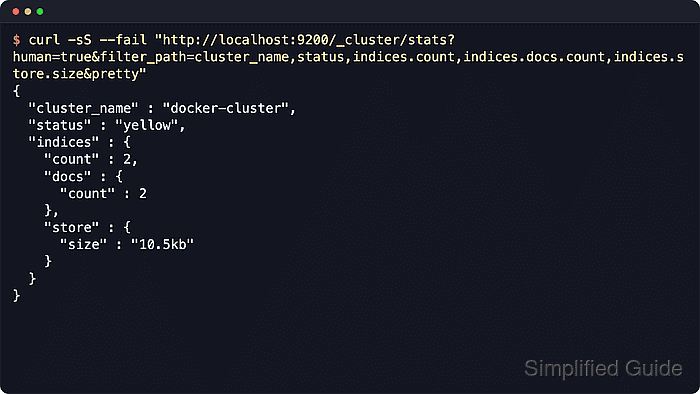
Elasticsearch serves this snapshot through the _cluster/stats API. Response filtering keeps routine checks short, while the full response includes topology and runtime details such as node roles, versions, plugins, JVM, filesystem, and index metrics.
A local HTTP endpoint keeps the sample commands easy to read. Secured production clusters usually require the cluster HTTPS URL plus basic, bearer, or API key authentication, and the caller needs the monitor cluster privilege.
Steps to check Elasticsearch cluster stats:
- Request a small cluster stats overview.
$ curl --silent --show-error --fail "http://localhost:9200/_cluster/stats?filter_path=cluster_name,status,indices.count,nodes.count.total&pretty"
{
  "cluster_name" : "guide-cluster",
  "status" : "yellow",
  "indices" : {
    "count" : 3
  },
  "nodes" : {
    "count" : {
      "total" : 1
    }
  }
}
The status value uses the same health colors as the cluster health API. A single-node cluster commonly reports yellow when indices still have unassigned replicas.
- Request capacity and version fields for a broader operational summary.
$ curl --silent --show-error --fail "http://localhost:9200/_cluster/stats?filter_path=cluster_name,status,nodes.count.total,nodes.versions,indices.count,indices.docs.count,indices.store.size_in_bytes&pretty"
{
  "cluster_name" : "guide-cluster",
  "status" : "yellow",
  "indices" : {
    "count" : 3,
    "docs" : {
      "count" : 6
    },
    "store" : {
      "size_in_bytes" : 35138
    }
  },
  "nodes" : {
    "count" : {
      "total" : 1
    },
    "versions" : [
      "9.4.2"
    ]
  }
}
Use byte fields such as size_in_bytes for scripts and alerts because human-readable values are formatted for operators, not numeric comparison.
- Request human-readable storage size when the result will be reviewed manually.
$ curl --silent --show-error --fail "http://localhost:9200/_cluster/stats?human=true&filter_path=cluster_name,status,indices.count,indices.docs.count,indices.store.size&pretty" { "cluster_name" : "guide-cluster", "status" : "yellow", "indices" : { "count" : 3, "docs" : { "count" : 6 }, "store" : { "size" : "34.3kb" } } } - Save the complete cluster stats payload when a deeper review is needed.
$ curl --silent --show-error --fail "http://localhost:9200/_cluster/stats?pretty" > cluster-stats.json
Full cluster stats can be large and may reveal node versions, plugins, topology, JVM, filesystem, repository, and index details. Add include_remotes=true only when configured remote cluster stats should be included.
- Validate the saved JSON before sharing or attaching it.
$ python3 -m json.tool cluster-stats.json >/dev/null
No output means python3 parsed the saved JSON successfully. Review _nodes.failed inside the payload before treating it as a complete cluster-wide snapshot.
Tool: JSON Validator
- Limit the request to the local node view when checking from one Elasticsearch host.
$ curl --silent --show-error --fail "http://localhost:9200/_cluster/stats/nodes/_local?filter_path=cluster_name,_nodes,nodes.count.total,nodes.versions&pretty"
{
  "_nodes" : {
    "total" : 1,
    "successful" : 1,
    "failed" : 0
  },
  "cluster_name" : "guide-cluster",
  "nodes" : {
    "count" : {
      "total" : 1
    },
    "versions" : [
      "9.4.2"
    ]
  }
}
Replace _local with a node name, node ID, or comma-separated node filter list when narrowing the response to specific members. From a load balancer, _local reflects whichever node handled the request.
- Add a per-node timeout when slow or unreachable nodes should not stall the stats request.
$ curl --silent --show-error --fail "http://localhost:9200/_cluster/stats?timeout=5s&filter_path=_nodes,cluster_name,status&pretty"
{
  "_nodes" : {
    "total" : 1,
    "successful" : 1,
    "failed" : 0
  },
  "cluster_name" : "guide-cluster",
  "status" : "yellow"
}
Timed-out nodes are counted under _nodes.failed. Retry through a healthy coordinator or investigate node connectivity before trusting a partial result.

Mohd Shakir Zakaria is a cloud architect with deep roots in software development and open-source advocacy. Certified in AWS, Red Hat, VMware, ITIL, and Linux, he specializes in designing and managing robust cloud and on-premises infrastructures.


