Checking an APM service in Kibana confirms that an instrumented application is sending transaction or span data that operators can investigate. The Applications UI should show the service in the inventory, recent activity in the selected time window, and enough detail to move from a high-level signal to a trace sample.
Kibana lists a service only when matching transactions or spans exist inside the selected time range. The time picker, environment filter, and service name matter as much as the intake pipeline, and a service that sends only logs does not appear in the APM Services inventory.
A complete service check follows the same path a responder uses during triage, moving from Service Inventory to service overview, transactions, dependencies or service map, and Discover for raw trace documents. Use a recent service with known traffic so empty panels point to a filter, ingestion, or instrumentation issue instead of a quiet application.
Steps to check an APM service in Kibana:
- Open Kibana and go to Observability → Applications → Service Inventory.
The global search field can also open Applications when the main menu layout differs by space, role, or deployment type.
- Set the global time picker to a period with recent application traffic.
A service appears in the inventory only when transactions or spans match the selected time range. Expand the range before troubleshooting the intake path.
- Select the intended Environment filter or leave it at All.
Use the same environment value that the agent or OpenTelemetry SDK sends in service.environment. Choosing production hides a service that reports only staging data.
- Search for the service name in Service Inventory.
For a service named checkout-service, the row should show recent latency, throughput, failed transaction rate, and health or alert indicators when those features have enough data.
- Open the service from the inventory.
If the service is missing after the time range and environment are correct, confirm the application is sending transactions or spans instead of logs only.
- Check the service overview charts for Latency, Throughput, and Failed transaction rate.
HTTP server-side 4xx transactions are usually treated as successful from the service perspective because the client caused the error. Client-side HTTP spans with status 400 or higher are treated as failures.
- Review the Transactions table for the busiest or slowest transaction groups.
Transaction groups are sorted by impact by default, which helps expose routes that combine traffic volume with latency.
- Open one transaction group and select a trace sample from the latency distribution.
The trace sample timeline should show the root transaction, child spans, duration, and related metadata for the selected request.
- Open the Dependencies view for the same service.
Dependencies show downstream services, databases, and external calls with latency, throughput, failed transaction rate, and impact. Use Service Map when the relationship view matters; missing traceparent propagation can leave a connection off the map.
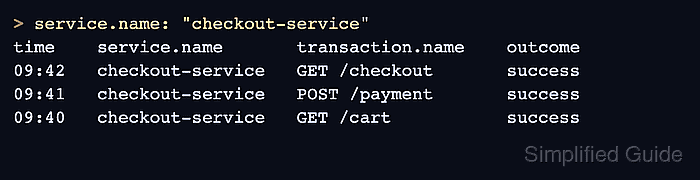
- Open Discover and search a traces data view for the same service name.
service.name: "checkout-service"
For a raw trace check, select a data view that matches traces-* or use ES|QL with FROM traces-*. Trace-aware Discover views can show service.name, transaction.name, span.name, duration fields, and event.outcome.
Related: How to create a Kibana data view
- Confirm the latest trace rows match the service shown in Applications.
The same service name, transaction names, and recent timestamps in Discover confirm that Kibana is reading the underlying trace data rather than showing only cached navigation state.
- Narrow the time range around a slow or failed trace sample when the service appears but the overview is hard to interpret.
Zooming into a spike updates the service overview, transactions, dependencies, and trace sample lists to the selected interval.

Mohd Shakir Zakaria is a cloud architect with deep roots in software development and open-source advocacy. Certified in AWS, Red Hat, VMware, ITIL, and Linux, he specializes in designing and managing robust cloud and on-premises infrastructures.


