When a Docker Compose service exits early, restarts, or appears stuck, the service log is usually the fastest proof of what the container process actually wrote. Compose keeps the service name and replica prefix attached to each line, which helps separate one service from another in a shared project.
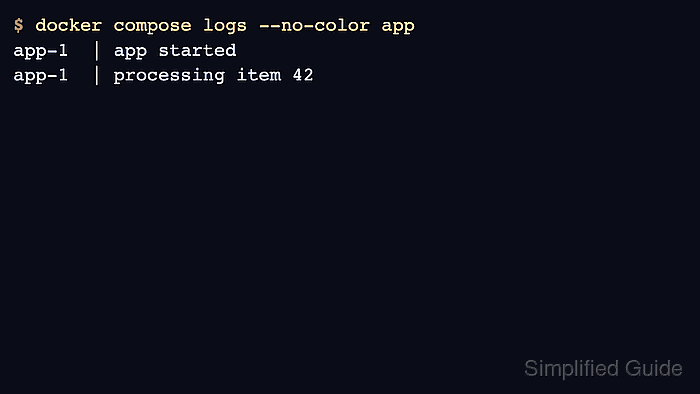
docker compose logs reads output from the containers in the current Compose project. It can show all services or a selected service, with enough project context to keep each line tied to the container that produced it.
The command must target the same Compose project that started the containers. A clean log read proves what was emitted, but it does not prove the service is healthy unless the log line is tied to the expected application state.
Steps to view Docker Compose logs:
- Change into the Compose project directory.
$ cd /srv/example-stack
- List the services so the log command targets the right name.
$ docker compose ps --services
app
worker
db
- Show the latest log lines for one service.
$ docker compose logs --no-color --tail=50 app
app-1  | app started
app-1  | listening on 0.0.0.0:8080
app-1  | processing item 42
--no-color keeps copied evidence readable in tickets and change records.
- Filter logs to a recent time window when old startup output is not relevant.
$ docker compose logs --no-color --since=15m app
app-1  | 2026-06-16T04:50:11Z request completed status=200 path=/health
app-1  | 2026-06-16T04:51:04Z request completed status=200 path=/api/items
- Follow the service log during a restart or test request.
$ docker compose logs --no-color --follow --tail=20 app
app-1  | app started
app-1  | listening on 0.0.0.0:8080
Stop the follow stream with Ctrl-C after the expected line appears.
- Confirm the service state after reviewing the log signal.
$ docker compose ps app
NAME                  IMAGE               COMMAND                  SERVICE   STATUS          PORTS
example-stack-app-1   registry.example/app:1.0   "/entrypoint.sh"   app       Up 2 minutes    0.0.0.0:8080->8080/tcp

Mohd Shakir Zakaria is a cloud architect with deep roots in software development and open-source advocacy. Certified in AWS, Red Hat, VMware, ITIL, and Linux, he specializes in designing and managing robust cloud and on-premises infrastructures.


