Codex prompts that need to inspect or change Google Stitch projects need more than local repository context. Adding the Stitch MCP server gives new Codex sessions a remote streamable HTTP connection to Stitch so design projects, screens, and generated UI assets can be reached from the coding workflow.
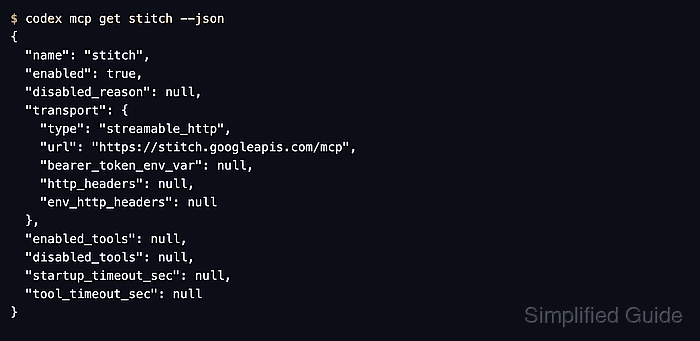
Google lists Stitch as a beta Google MCP server at https://stitch.googleapis.com/mcp. Codex can save that endpoint as a remote server, but the Stitch API-key path uses an X-Goog-Api-Key HTTP header, which must be added to the saved MCP configuration rather than appended to the URL.
Current Codex CLI validation accepts custom remote-server headers through env_http_headers in config.toml. In validation, codex mcp login stitch failed with Dynamic client registration not supported, so use the API-key header path unless Google or Codex documents a supported OAuth client flow for the environment.
Related: How to add a URL-based MCP server to Codex
Related: How to get Codex MCP server details
Related: How to list Codex MCP servers
Related: How to remove a Codex MCP server
Steps to add Stitch MCP server to Codex:
- Export the Stitch API key in the shell that will start Codex.
$ export STITCH_API_KEY=<your-stitch-api-key>
Codex reads the value from the environment variable at session startup, so the key does not need to be stored directly in ~/.codex/config.toml.
- Add the official Stitch MCP endpoint under the server name stitch.
$ codex mcp add stitch --url https://stitch.googleapis.com/mcp
Added global MCP server 'stitch'.
The saved entry is a remote streamable HTTP server that Codex CLI and the Codex IDE extension can share through the same active configuration layer.
Related: How to add a URL-based MCP server to Codex - Open the Codex configuration file.
$ vi ~/.codex/config.toml
If CODEX_HOME points somewhere else, edit the config.toml file under that directory instead.
- Add the API-key header mapping to the stitch entry.
- ~/.codex/config.toml
[mcp_servers.stitch]
url = "https://stitch.googleapis.com/mcp"
env_http_headers = { "X-Goog-Api-Key" = "STITCH_API_KEY" }
env_http_headers stores the header name and the environment variable name. It does not store the API key value.
- Inspect the saved stitch entry.
$ codex mcp get stitch --json
{
  "name": "stitch",
  "enabled": true,
  "disabled_reason": null,
  "transport": {
    "type": "streamable_http",
    "url": "https://stitch.googleapis.com/mcp",
    "bearer_token_env_var": null,
    "http_headers": null,
    "env_http_headers": {
      "X-Goog-Api-Key": "STITCH_API_KEY"
    }
  },
  "enabled_tools": null,
  "disabled_tools": null,
  "startup_timeout_sec": null,
  "tool_timeout_sec": null
}
Confirm transport.type is streamable_http, transport.url is the Stitch endpoint, and env_http_headers maps X-Goog-Api-Key to STITCH_API_KEY.
Related: How to get Codex MCP server details - List configured MCP servers.
$ codex mcp list
Name    Url                                Bearer Token Env Var  Status   Auth
stitch  https://stitch.googleapis.com/mcp  -                     enabled  Unsupported
Unsupported under Auth is expected for this entry because the API key is supplied through a custom environment-backed HTTP header, not a bearer-token or OAuth login mode.
Related: How to list Codex MCP servers - Start a new Codex session from the same shell.
$ codex
If Codex starts from an app launcher, IDE, service, or terminal that does not inherit STITCH_API_KEY, the server entry remains saved but Stitch tool calls cannot authenticate.
- Open the MCP status view inside the Codex terminal UI.
/mcp
The stitch server should appear after the session reloads the saved configuration. Restart any already-open Codex session that was started before the server was added.
- Send a read-only Stitch prompt.
List my Stitch projects.
A session with a valid key should answer by calling Stitch MCP tools. Allow the MCP tool call if Codex prompts for approval, and check the API key if the server appears but the prompt cannot read projects.

Mohd Shakir Zakaria is a cloud architect with deep roots in software development and open-source advocacy. Certified in AWS, Red Hat, VMware, ITIL, and Linux, he specializes in designing and managing robust cloud and on-premises infrastructures.


