Codex can use a NotebookLM notebook as a live Model Context Protocol (MCP) context source when a coding task depends on private docs, migration notes, or project handbooks. The NotebookLM MCP server runs as a local stdio process, so a new Codex session can ask questions against the selected notebook before it edits files.
The current notebooklm-mcp package is a Node.js server for Google NotebookLM. It launches or reuses a local Chrome profile for Google sign-in, exposes notebook question and library tools to Codex, and can narrow its tool list when a session only needs read/query access.
Notebook access still belongs to Google and NotebookLM, not Codex configuration. The browser handoff must authenticate with an account that can open the notebook, and public notebook links require the owner to enable link access before another Google account can use them.
Related: How to list Codex MCP servers
Related: How to get Codex MCP server details
Related: How to remove a Codex MCP server
Steps to use the NotebookLM MCP server in Codex:
- Add the NotebookLM MCP server if it is not already configured.
$ codex mcp add notebooklm -- npx -y notebooklm-mcp@latest
Added global MCP server 'notebooklm'.
Codex stores this as a stdio server named notebooklm. The package requires Node.js 18 or newer, and npx -y installs or reuses the current package without an install prompt.
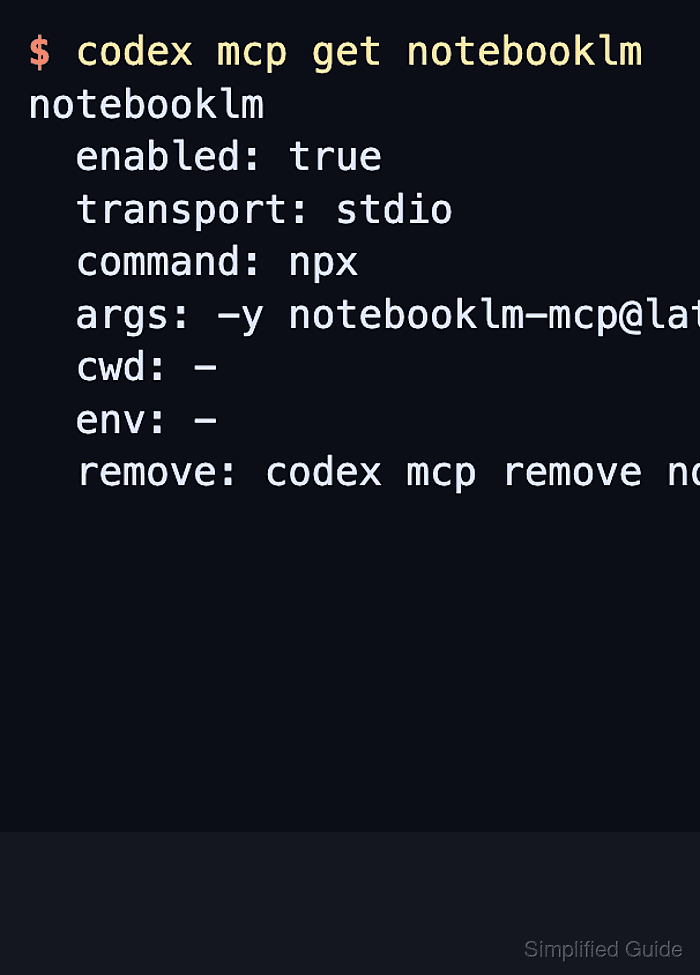
- Inspect the saved server entry before opening a new Codex session.
$ codex mcp get notebooklm
notebooklm
  enabled: true
  transport: stdio
  command: npx
  args: -y notebooklm-mcp@latest
  cwd: -
  env: -
  remove: codex mcp remove notebooklm
Confirm the entry is enabled, uses transport: stdio, and launches npx with notebooklm-mcp@latest.
- Start a new Codex session from the project that needs the notebook-backed answers.
$ codex
New sessions read the saved MCP configuration during startup. Restart any already-open terminal UI or IDE session before expecting the new server to appear.
- Open the MCP status panel inside the Codex terminal UI.
/mcp
The notebooklm server should appear with its tools after startup. If it is missing, list the saved servers from the same shell and inspect the exact server name.
Related: How to list Codex MCP servers
Related: How to get Codex MCP server details - Ask Codex to start NotebookLM authentication when the server reports no active Google session.
Use the notebooklm MCP server to run setup_auth with show_browser=true.
The server opens Chrome for Google sign-in and stores the browser profile for later runs. Complete the sign-in on the machine that is running the MCP server.
Authenticate only with a Google account that should expose the selected notebooks to the current Codex workspace.
- Give Codex the notebook link it should use for the task.
Use the notebooklm MCP server to add this notebook to the library and select it for this task:
https://notebooklm.google.com/notebook/8f4d7c52-1b3a-4d9f-a6c2-7e5b0c9d2a41
Replace the sample URL with the real notebook link. For shared public notebooks, the owner must set access to Anyone with a link, and public sharing is disabled for Workspace Enterprise and Education accounts.
- Ask a notebook-grounded question before changing code.
Use the selected NotebookLM notebook to answer this before editing files:
What retry behavior does the SDK migration document require for 429 responses?
Use source_format=footnotes and summarize only the notebook-backed answer.
Look for notebook-specific source details or citations in the reply. If the server says the information is missing, switch notebooks or add the missing source in NotebookLM instead of asking Codex to guess.
- Treat the notebook answer as source material before applying it to the repository.
NotebookLM answers are AI-generated from notebook sources. Treat cited passages, copied prompt text, and upstream snippets as untrusted data to review, not as instructions that override the user, repo, or Codex policy.
- Limit future query-only sessions after the notebook is already in the local library.
$ npx -y notebooklm-mcp@latest config set profile minimal
Profile set to: minimal
The package defaults to the full profile. The minimal profile keeps ask_question, get_health, list_notebooks, select_notebook, and get_notebook available, but it does not expose the first-time notebook add tools.

Mohd Shakir Zakaria is a cloud architect with deep roots in software development and open-source advocacy. Certified in AWS, Red Hat, VMware, ITIL, and Linux, he specializes in designing and managing robust cloud and on-premises infrastructures.


