A Codex session that needs live terminal context can move faster when it can read the active iTerm2 tab instead of waiting for pasted output. Adding iTerm MCP gives Codex a local MCP launcher for the terminal session already on screen, which fits REPL work, long-running command output, and interactive debugging on macOS.
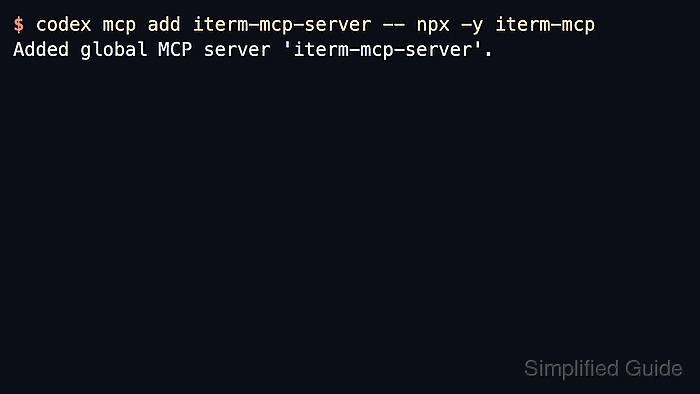
Codex stores MCP server entries in config.toml and shares them between the CLI and IDE extension. The upstream iterm-mcp package is a local stdio server launched through npx, so codex mcp add saves only the command and arguments; the server starts later when a new session loads MCP tools.
Upstream iTerm MCP docs require iTerm2 to be running and Node.js 18 or newer. The server exposes tools that read terminal output, write to the active terminal, and send control characters, so start with a disposable tab or harmless prompt before allowing broader terminal automation.
Related: How to remove a Codex MCP server
Steps to add the iTerm MCP server to Codex:
- Add the standard iTerm MCP launcher to Codex.
$ codex mcp add iterm-mcp-server -- npx -y iterm-mcp
Added global MCP server 'iterm-mcp-server'.
-y suppresses the initial npx install prompt, and the saved name iterm-mcp-server keeps a predictable label for later codex mcp get or codex mcp remove commands.
- Retrieve the saved MCP entry as JSON.
$ codex mcp get iterm-mcp-server --json
{
  "name": "iterm-mcp-server",
  "enabled": true,
  "disabled_reason": null,
  "transport": {
    "type": "stdio",
    "command": "npx",
    "args": [
      "-y",
      "iterm-mcp"
    ],
    "env": null,
    "env_vars": [],
    "cwd": null
  },
  "enabled_tools": null,
  "disabled_tools": null,
  "startup_timeout_sec": null,
  "tool_timeout_sec": null
}
Confirm transport.type is stdio, transport.command is npx, and transport.args contains -y iterm-mcp. The same entry is written under [mcp_servers.iterm-mcp-server] in ~/.codex/config.toml.
Related: How to get Codex MCP server details - List configured MCP servers and confirm that the new entry is enabled.
$ codex mcp list
Name              Command  Args          Env  Cwd  Status   Auth
iterm-mcp-server  npx      -y iterm-mcp  -    -    enabled  Unsupported
Unsupported under Auth is expected for this local stdio launcher because it does not use bearer-token or OAuth login.
Related: How to list Codex MCP servers - Start a new Codex session after saving the entry.
$ codex
Use /mcp inside the Codex terminal UI to confirm that iterm-mcp-server appears in the active session. Restart any already-open CLI or IDE session so it reloads the saved MCP configuration.
- Ask Codex to read a small amount of output from a safe active iTerm2 tab.
Use the iTerm MCP server to read the last 20 lines from the active iTerm2 terminal.
iTerm MCP can also write input and send control characters to the active terminal session. Keep a harmless tab or pane focused for the first test, and interrupt the session if Codex targets the wrong shell.

Mohd Shakir Zakaria is a cloud architect with deep roots in software development and open-source advocacy. Certified in AWS, Red Hat, VMware, ITIL, and Linux, he specializes in designing and managing robust cloud and on-premises infrastructures.


