Docker's MCP catalog separates discovering a tool from granting access to the service behind it. The Docker MCP Toolkit connects Codex to that catalog through a local gateway, so Codex can find servers before any service-specific tools are enabled.
A signed-in Codex CLI and a running Docker daemon must already be available in the same environment. Docker's MCP CLI plugin is also required; it comes with Docker Desktop's MCP Toolkit and is available separately for Docker Engine. The official Docker MCP catalog, mcp/docker-mcp-catalog, must already be imported for the same operating-system user and Docker configuration used by Codex and the connector.
Docker MCP profiles hold collections of servers and their settings. Connecting a populated profile makes those servers available to Codex when the gateway starts. An empty profile still exposes the gateway's catalog-search tool, allowing the connection to be checked without signing in to a third-party service or adding a server to the profile.
A standalone Docker Engine installation needs Docker's standalone MCP setup, including the profiles feature, before these profile commands are available.
On Linux, access to the Docker daemon can grant root-level control of the machine running it. The gateway and its MCP tools run with their own process and container permissions; Codex's shell sandbox does not restrict them.
Steps to add the Docker MCP server to Codex:
- Choose an appropriate Docker MCP profile from the available profile IDs.
$ docker mcp profile list
ID	Name
----	----
codex	codex
A suitable existing profile can be reused. Its ID takes the place of codex in the connection and inspection steps. An empty profile is enough for the catalog lookup.
- Create the codex profile if no existing profile fits.
$ docker mcp profile create --name codex
Created profile codex with 0 servers
The new profile ID is codex. An existing profile does not need to be created again.
- Connect the codex Docker MCP profile to Codex globally.
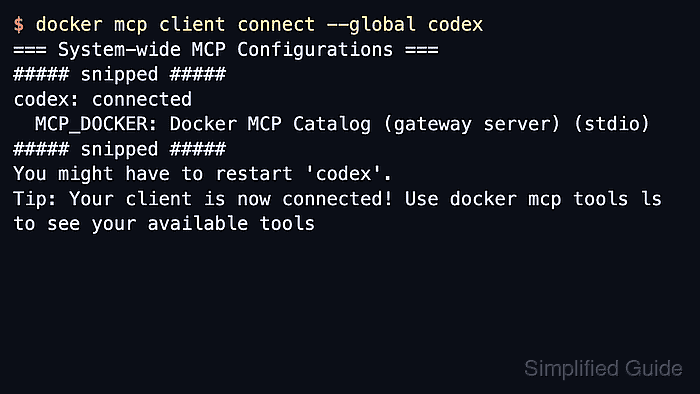
$ docker mcp client connect --global --profile codex codex
=== System-wide MCP Configurations ===
 ● codex: connected
   MCP_DOCKER: Docker MCP Catalog (gateway server) (stdio)
You might have to restart 'codex'.
Tip: Your client is now connected! Use docker mcp tools ls to see your available tools
Docker's connector requires global scope for Codex and writes the normal user configuration below. It does not follow a custom CODEX_HOME, so Codex and the connector must resolve to the same configuration file.
~/.codex/config.toml
- Inspect the saved MCP_DOCKER entry in Codex.
$ codex mcp get MCP_DOCKER --json
{
  "name": "MCP_DOCKER",
  "enabled": true,
  "disabled_reason": null,
  "transport": {
    "type": "stdio",
    "command": "docker",
    "args": [
      "mcp",
      "gateway",
      "run",
      "--profile",
      "codex"
    ],
    "env": null,
    "env_vars": [],
    "cwd": null
  },
  "enabled_tools": null,
  "disabled_tools": null,
  "startup_timeout_sec": null,
  "tool_timeout_sec": null
}
The entry should be enabled, with stdio transport and docker as the launcher. Its arguments should select the codex profile. A missing entry or a different profile indicates that Codex is not reading the intended connection.
Related: How to get Codex MCP server details - Start a fresh Codex CLI session in your project.
$ codex
A session opened before the connection was saved may not have MCP_DOCKER available. The new session loads the saved gateway entry.
- Ask Codex to find fetch in the Docker MCP catalog without changing the profile.
Use the MCP_DOCKER mcp-find tool to search the Docker MCP catalog for fetch. Report the server name and description without adding, enabling, or running a server.
- Select Allow for the MCP_DOCKER mcp-find request if Codex asks for approval.
The request should name mcp-find and show fetch as the query. Allow approves that invocation; Allow for this session and Always allow grant a broader approval.
- Confirm that the completed mcp-find call returns the fetch server description.
**Server:** `fetch`
**Description:** Fetches a URL from the internet and extracts its contents as markdown.

No server was added, enabled, or run.
A completed MCP_DOCKER/mcp-find call and the returned catalog description show that Codex reached the gateway. An approval denial, tool error, or answer without a tool result does not establish the connection. The gateway entry and selected profile remain available for later sessions.