Adding Chrome DevTools MCP to Codex gives a coding session browser-side tools for rendered-page checks, screenshots, console messages, network requests, and performance traces. Browser-side proof catches layout, console, network, and performance failures that source review or shell output can miss.
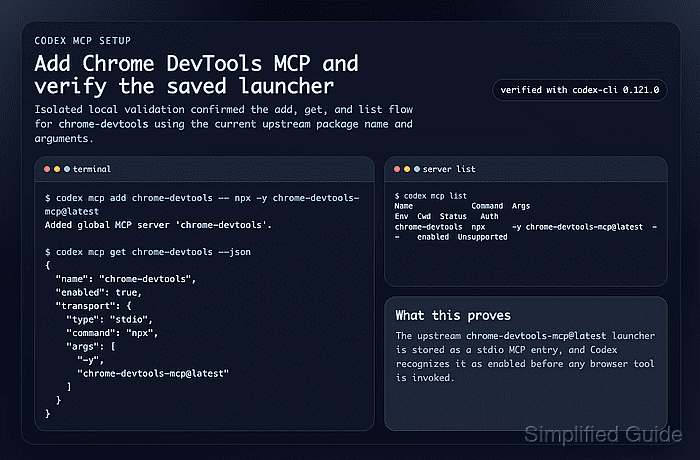
Codex stores MCP server definitions in config.toml, with the user-level file at ~/.codex/config.toml and optional project-scoped config in trusted repositories. The Chrome DevTools MCP server is a local stdio launcher started through npx, so saving it with codex mcp add records the command Codex will run when a session first needs browser tools.
Chrome's current setup docs require Node.js LTS with npm and current stable Google Chrome or newer. The server can inspect and modify browser content, and performance tools can use CrUX field data unless disabled, so use a browser profile that matches the task and add privacy flags such as --no-usage-statistics or --no-performance-crux when policy requires them.
Related: How to get Codex MCP server details
Related: How to list Codex MCP servers
Related: How to add the Playwright MCP server to Codex
Related: How to remove a Codex MCP server
Steps to add Chrome DevTools MCP server to Codex:
- Add the Chrome DevTools MCP launcher to Codex.
$ codex mcp add chrome-devtools -- npx -y chrome-devtools-mcp@latest
Added global MCP server 'chrome-devtools'.
-y prevents the first npx package prompt from blocking the MCP launch. Add server flags after chrome-devtools-mcp@latest before saving the entry when you need behavior such as --headless, --isolated, --no-usage-statistics, or --no-performance-crux.
- Retrieve the saved entry as JSON.
$ codex mcp get chrome-devtools --json
{
  "name": "chrome-devtools",
  "enabled": true,
  "disabled_reason": null,
  "transport": {
    "type": "stdio",
    "command": "npx",
    "args": [
      "-y",
      "chrome-devtools-mcp@latest"
    ],
    "env": null,
    "env_vars": [],
    "cwd": null
  },
  "enabled_tools": null,
  "disabled_tools": null,
  "startup_timeout_sec": null,
  "tool_timeout_sec": null
}
Confirm that transport.type is stdio, command is npx, and args contains chrome-devtools-mcp@latest with any server flags you saved in the previous step.
- List configured MCP servers and confirm that the saved entry is enabled.
$ codex mcp list
Name             Command  Args                           Env  Cwd  Status   Auth
chrome-devtools  npx      -y chrome-devtools-mcp@latest  -    -    enabled  Unsupported
Unsupported under Auth is expected for this local stdio launcher because it does not use bearer-token or OAuth login.
- Start a new Codex session after saving the entry.
$ codex
Use /mcp in the interactive Codex TUI to confirm that chrome-devtools is available in the active session. Restart an already-open CLI or IDE session so it reloads the saved MCP configuration.
- Send a browser prompt that requires the new server to use Chrome.
Check the performance of https://developers.chrome.com
A working run starts Chrome DevTools MCP, opens Chrome when a browser tool is needed, and records a performance trace. The first run can take longer while npx fetches the current package.

Mohd Shakir Zakaria is a cloud architect with deep roots in software development and open-source advocacy. Certified in AWS, Red Hat, VMware, ITIL, and Linux, he specializes in designing and managing robust cloud and on-premises infrastructures.


