A project conversation can hold decisions that never reached a source file. Claude Code saves terminal sessions locally, so resuming a session brings those earlier messages back into the conversation instead of making you explain the work again.
The latest conversation belongs to the current project directory; a session picker helps when another task has become more recent. Names make older work easier to recognize, while a session ID identifies a particular conversation even when its display name is missing or ambiguous.
An installed, signed-in CLI and an existing saved interactive conversation are the starting point. Restoring conversation history does not roll back project files, and a branch copies the conversation rather than creating a separate checkout. Desktop, VS Code, and web session lists have their own entry points.
Steps to resume a session in Claude Code:
Continue the latest conversation
- Return to the project directory used for the saved conversation.
$ cd ~/work/example-app
The directory is an example; use the project where you worked earlier, under the same local user account.
- Reopen the most recent interactive session in that directory.
$ claude --continue
If you need an older conversation, use the picker in the next section instead. Interactive continuation skips sessions created with claude -p or the Agent SDK; those can still be resumed by their session ID.
- Check the restored messages for a recognizable earlier request and reply.
An unfamiliar conversation means the newest session is the wrong one. A compacted conversation can reopen at a Conversation compacted row, with a summary supplying the older context.
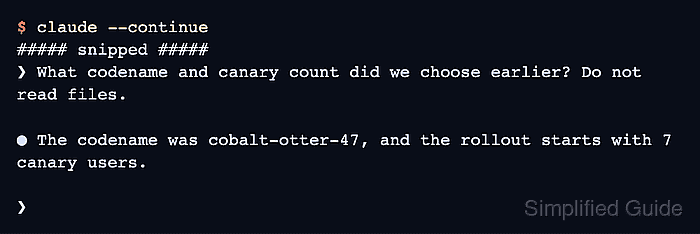
- Submit a follow-up about a detail from the earlier conversation.
What codename and canary count did we choose earlier? Do not read files.
The question fits a conversation that already established a release codename and rollout size. For your own conversation, ask about a decision recorded there without repeating its answer.
- Confirm that the reply agrees with the earlier decision.
● The codename was cobalt-otter-47, and the rollout starts with 7 canary users.
The response shown came from a conversation that had set those values. Your answer should match your own history, and the input prompt should be ready for further work. An authentication or connection error does not confirm a usable continuation.
Choose an older conversation
- Leave the active Claude Code session with /exit.
> /exit
If you are already at the shell prompt, no exit is needed.
- Open the session picker from the project directory.
$ claude --resume
Inside an active session, /resume opens the picker without returning to the shell.
- Highlight the intended conversation with the arrow keys.
Resume session
##### snipped #####
  scratch-notes
  3 seconds ago · master · 332.3KB

❯ release-plan
  24 seconds ago · master · 347KB
##### snipped #####
The picker shows the session name or generated title and recent activity. Typing filters the list; Space previews the selected conversation. Ctrl+A widens the list to all projects on the machine when the current project has no matching row.
- Press Enter to resume the highlighted session.
The earlier messages should reappear. The same history check and follow-up used above distinguish the intended conversation from another task with a similar title.
Reopen a session by name or ID
- Name the active conversation with /rename.
> /rename release-plan
Session renamed to: release-plan
The name is an example. A new conversation can be named at launch with claude -n "release-plan"; renaming an existing conversation keeps its history.
- Exit the named conversation.
> /exit
- Resume the conversation by its name.
$ claude --resume "release-plan"
An exact, unique name resumes directly; an ambiguous name opens the picker. If a name cannot be found, claude --resume SESSION_ID addresses the saved session by ID. Replace SESSION_ID with its full value from /status or a branch confirmation. The Session name and earlier messages should identify the conversation you expected.
Continue in a separate branch
A conversation branch shares the project files with the original session. File edits in either conversation still affect that project. Resuming one session in two terminals without branching also mixes their messages into one transcript.
- Branch the restored conversation before trying a different approach.
> /branch release-alternative
- Check the branch confirmation for distinct new and original session IDs.
The confirmation says you are now in the new branch and gives the original's resume command. The new branch and original appear as separate rows in the picker after you leave the branch. The original keeps its earlier conversation; subsequent branch messages belong to the copy.
- Ask a follow-up that depends on the copied conversation.
What codename and canary count did we choose earlier? Do not read files.
- Confirm that the branch answers from the earlier context.
The answer should retain the earlier decision, and the prompt bar should show release-alternative. If you want to return to the original, /resume release-plan reopens it; the original session ID from the confirmation also works when a name is ambiguous.