A registered tool is unavailable when its local process cannot start. In Claude Code, an MCP server marked Failed to connect needs its startup error resolved before its tools can return to the conversation.
A local stdio server runs a command on your machine. Its executable, file paths and environment must work from the directory where Claude Code starts; a relative script path can work in one directory and fail in another. A connection that exceeds the startup limit can fail even when the server eventually starts.
Claude Code and the server must already be installed, with Claude signed in for the final tool call. The terminal commands use Bash or Zsh on Linux, macOS or WSL, with the local Memory server as the example. Remote server sign-in, project approval and tools that time out after connecting need different checks. A failed first stdio connection needs a new session or Reconnect in /mcp before its tools become available again.
If claude mcp add itself printed an error, the server was not saved. Correct the add command using Adding a local MCP server before diagnosing a saved server's connection.
Steps to fix an MCP server that fails to connect in Claude Code:
- Identify the failed server from the project directory where you use it.
Server definitions and debug logs can contain credentials or private paths. Shared diagnostics need sensitive values redacted. A local server runs with your account's access, so only launch software you trust.
$ claude mcp list
Checking MCP server health…

##### snipped #####
memory: ./tools/memory-server  - ✘ Failed to connect — ENOENT: no such file or directory, posix_spawn './tools/memory-server'
memory is the example server name; use your failed server's name in later commands. ENOENT points to a missing executable or path. Connection error may have no appended detail, so the direct command and log checks still matter.
- Inspect the saved definition for the failed server.
$ claude mcp get memory
memory:
  Scope: Local config (private to you in this project)
  Status: ✘ Failed to connect
  Issue: ENOENT: no such file or directory, posix_spawn './tools/memory-server'
  Type: stdio
  Command: ./tools/memory-server
  Args:
  Environment:
##### snipped #####
Command and Args must match the server publisher's launch instructions. The Issue line supplies the failure detail; Environment shows the per-server variables. The scope determines which entry a later remove command changes.
- Run the configured server command directly from the same directory.
$ ./tools/memory-server
For an npx entry, the direct command includes its saved arguments, such as npx -y @modelcontextprotocol/server-memory@2.1.0. A stdio server normally starts and waits for input; Ctrl+C stops this manual test. A missing runtime, missing variable or missing file usually produces a more specific message here than the connection status does.
- Repeat the health check with MCP debug logging enabled.
$ claude --debug=mcp mcp list
The = in –debug=mcp binds the category filter. This records the failed startup without requiring a model prompt.
- Open the latest debug log in your text editor.
The default location is ~/.claude/debug/latest, a link to the current log under ~/.claude/debug. Server stderr and lines containing MCP server “memory” connect the launch command to its failure. A timed-out start includes Starting connection with timeout of 30000ms and a later Connection failed line with CONNECT_TIMEOUT. The configuration debugging reference describes this log location.
- Record the existing server definition in a private note.
A replacement must preserve unrelated arguments and variables. Removing a registration does not delete the server's stored data, but it removes that entry's launch settings.
- Remove the failed registration only if its launch definition needs correction.
$ claude mcp remove memory --scope local
The example uses local scope. For a server whose Scope is User config or Project config, the matching value is user or project; changing a shared project entry also affects collaborators. A timeout with a valid launch definition goes directly to the longer-startup step; neither removal nor re-registration applies.
- Register the corrected server command if its faulty entry was removed.
$ claude mcp add --scope local \
  --env MEMORY_FILE_PATH="$PWD/memory.jsonl" \
  --transport stdio memory -- npx -y @modelcontextprotocol/server-memory@2.1.0
npx -y downloads and executes this pinned package without an installation prompt. Memory server 2.1.0 requires Node.js 24 or later. The storage file is outside the package cache so a cache cleanup does not remove the graph.
The example replaces the missing relative launcher with the Memory server's npx command. For another server, the correction belongs in its documented command and settings rather than switching it to Memory.
If the log identifies a relative script path, an absolute path to that script avoids dependence on the launch directory. If stderr names a required variable, –env NAME=value sets it for that server; –transport stdio terminates the environment-value list before the server name. MEMORY_FILE_PATH is optional in Memory itself, although a custom launcher may require it.
- Allow a longer startup only if the log shows a connection timeout.
$ MCP_TIMEOUT=90000 claude mcp list
90000 allows 90 seconds for startup instead of the default 30 seconds. It can accommodate a slow launch or first package download; it cannot repair a missing executable or a process that exits. The limit applies to this command only, and must also be set on the later claude launch if the server still needs it. MCP_TOOL_TIMEOUT controls tool execution after connecting and does not fix startup. Environment variable reference
- Confirm that the original server now reports Connected.
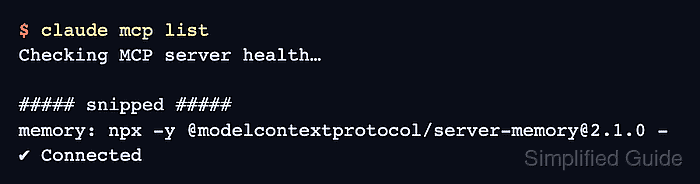
$ claude mcp list
Checking MCP server health…

##### snipped #####
memory: npx -y @modelcontextprotocol/server-memory@2.1.0 - ✔ Connected
A server still dependent on the longer startup limit needs MCP_TIMEOUT=90000 on this check too. A connection error that remains after the matching correction needs its new failure detail investigated before proceeding.
- Start a new Claude Code session in the same project.
$ claude --permission-mode default
Manual permission mode lets the first tool call ask for approval. If the server still needs the longer startup allowance, the launch is MCP_TIMEOUT=90000 claude –permission-mode default. A new session reads the repaired definition; for an unchanged definition repaired outside Claude, Reconnect in the existing session's /mcp server menu can retry it.
- Approve the project folder if Claude Code displays its trust prompt.
Yes, I trust this folder allows Claude Code to read, edit and execute files there. An unfamiliar project needs review before approval.
- Open the server manager with /mcp.
/mcp
The memory row should show a connected checkmark and 9 tools for this package version.
- Select memory to inspect its connection details.
The server panel should show Status: connected and the intended launch command.
- Select View tools to inspect the available operations.
The Memory server includes read_graph, search_nodes and open_nodes. A connected status without the expected tools is not enough to continue.
- Close the MCP menus with Esc until the conversation prompt returns.
- Ask Claude to read the graph through the repaired Memory server.
read_graph sends the entire stored graph into the Claude conversation. A graph containing private information needs a narrower read-only request, such as searching for a nonsensitive test entity.
Use only the memory server read_graph tool to read the knowledge graph.
For another server, a small read-only request using one of its listed tools serves the same purpose.
- Approve the memory — Read Graph Tool call once with Yes.
The permission prompt identifies the server and operation before execution; the one-time choice avoids saving a broader permission rule.
- Confirm that memory - read_graph (MCP) returns the graph in the conversation.
An empty graph can return empty entities and relations arrays. The named MCP tool result proves that the repaired connection supplies a usable tool, rather than Claude answering from its own knowledge. Ctrl+O expands collapsed call details.