Creating a Checkmk monitoring site gives a self-hosted Checkmk server an isolated site instance with its own Linux user, configuration tree, web URL, and administrator account. Use it after installing the Checkmk server package or when a separate lab, customer, or version-test site should run on the same server.
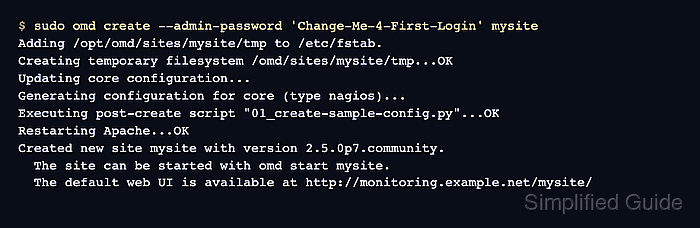
The omd create command is a root-level operation because it creates the site user and group, writes the site directory under /omd/sites, and prepares the site-specific web configuration. The site ID becomes the Linux username and the URL path, so choose it before creating the site.
The package-installed server path differs from the official Docker image path because the Docker image creates and starts a default cmk site automatically. On a Linux server installation, create the site with omd, start it as the site user, confirm all site services are running, and open the web UI as cmkadmin before handing the server to operators.
Related: How to install Checkmk on Ubuntu
Related: How to start and stop a Checkmk site
Related: How to reset a Checkmk user password
Steps to create a Checkmk monitoring site:
- Choose the Checkmk site ID.
The site ID must start with a letter and may contain letters, digits, and underscores after that. Keep it at 16 characters or fewer because Checkmk also creates a Linux user with the same name.
- Create the site as root with a one-time administrator password.
$ sudo omd create --admin-password 'Change-Me-4-First-Login' mysite
Adding /opt/omd/sites/mysite/tmp to /etc/fstab.
Creating temporary filesystem /omd/sites/mysite/tmp...OK
Updating core configuration...
Generating configuration for core (type nagios)...
Executing post-create script "01_create-sample-config.py"...OK
Executing post-create script "02_cmk-compute-api-spec"...OK
Executing post-create script "03_message-broker-certs"...OK
Restarting Apache...OK
Created new site mysite with version 2.5.0p7.community.
  The site can be started with omd start mysite.
  The default web UI is available at http://monitoring.example.net/mysite/

  The admin user for the web applications is cmkadmin with password: Change-Me-4-First-Login
  For command line administration of the site, log in with 'omd su mysite'.
  After logging in, you can change the password for cmkadmin with 'cmk-passwd cmkadmin'.
The --admin-password value can appear in shell history, process listings, copied transcripts, and support logs. Use a temporary password for creation and replace it after the first login.
- Enter the new site environment.
$ sudo omd su mysite
OMD[mysite]:~$
- Start the new site.
OMD[mysite]:~$ omd start
Creating temporary filesystem /omd/sites/mysite/tmp...OK
Starting agent-receiver...OK
Starting mkeventd...OK
Starting rrdcached...OK
Starting npcd...OK
Starting nagios...OK
Starting apache...OK
Starting redis...OK
Initializing Crontab...OK
Related: How to start and stop a Checkmk site
- Check the site service status.
OMD[mysite]:~$ omd status
agent-receiver: running
mkeventd:       running
rrdcached:      running
npcd:           running
nagios:         running
apache:         running
redis:          running
crontab:        running
-----------------------
Overall state: running
- Open the default site URL from the creation output.
http://monitoring.example.net/mysite/
Replace monitoring.example.net with the server hostname or IP address that reaches the Checkmk web server. The final path segment is the site ID created by omd create.
- Log in as cmkadmin with the one-time password from the creation command.
The Checkmk dashboard should open under the new site path after a successful login.
- Change the cmkadmin password from the site shell.
OMD[mysite]:~$ cmk-passwd cmkadmin
New password:
Re-type new password:
Type the replacement password only at the interactive prompts. Do not place the final password in command arguments, saved transcripts, or support logs.
Related: How to reset a Checkmk user password
- Leave the site shell.
OMD[mysite]:~$ exit
logout

Mohd Shakir Zakaria is a cloud architect with deep roots in software development and open-source advocacy. Certified in AWS, Red Hat, VMware, ITIL, and Linux, he specializes in designing and managing robust cloud and on-premises infrastructures.


