A Certbot host can pass a manual renewal test and still miss its next unattended renewal when the scheduled task is disabled, inactive, or pointing at an old command. Checking the renewal timer shows whether the host has a next run queued before certificate-expiry alerts become urgent.
Most Linux and BSD Certbot installations use a scheduled task that runs certbot renew periodically. On systemd hosts, the package may expose that schedule as certbot.timer or another unit name, so start from the timer listing and carry the discovered unit name through the checks instead of assuming one path.
These checks read scheduler and unit state only; they do not request, renew, revoke, or replace certificates. If no Certbot timer appears, look for the installed renewal command in /etc/crontab, /etc/cron.*/*, snap-managed timers, or the installation instructions for that host before adding a second schedule. A timer check proves the host will try to run renewal later, while a dry-run renewal proves that the saved certificate configuration can still complete validation.
Steps to check the Certbot renewal timer:
- List systemd timers whose unit names include Certbot.
$ systemctl list-timers --all '*certbot*'
NEXT                        LEFT LAST PASSED UNIT          ACTIVATES
Thu 2026-06-18 17:00:35 UTC  16h -         - certbot.timer certbot.service

1 timers listed.
Use the value in the UNIT column for the remaining timer commands. If no row appears, this host may use cron, a snap-managed timer, or another package-specific scheduler instead of a visible systemd timer.
- Confirm that the timer is enabled to start at boot.
$ systemctl is-enabled certbot.timer
enabled
If the timer is disabled, the schedule can exist without starting automatically after reboot. Enable only the timer that belongs to the installed Certbot package.
- Check that the timer is loaded and waiting for its next trigger.
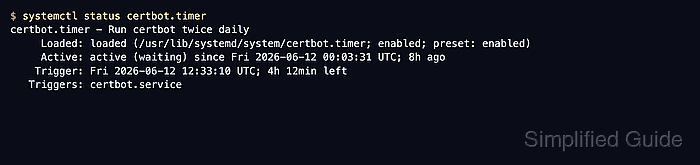
$ systemctl --no-pager status certbot.timer
● certbot.timer - Run certbot twice daily
     Loaded: loaded (/usr/lib/systemd/system/certbot.timer; enabled; preset: enabled)
     Active: active (waiting) since Thu 2026-06-18 00:03:17 UTC; 1min 18s ago
    Trigger: Thu 2026-06-18 17:00:35 UTC; 16h left
   Triggers: ● certbot.service
active (waiting) means systemd has loaded the timer and is waiting for the next scheduled trigger. A newly installed timer may not show a previous service run yet.
- Read the timer schedule from the installed unit.
$ systemctl --no-pager cat certbot.timer
# /usr/lib/systemd/system/certbot.timer
[Unit]
Description=Run certbot twice daily

[Timer]
OnCalendar=*-*-* 00,12:00:00
RandomizedDelaySec=43200
Persistent=true

[Install]
WantedBy=timers.target
RandomizedDelaySec means the displayed NEXT time can be offset from the calendar time. The randomized delay spreads renewal attempts instead of sending many clients at the certificate authority at the same instant.
- Confirm which service the timer starts.
$ systemctl --no-pager cat certbot.service
# /usr/lib/systemd/system/certbot.service
[Unit]
Description=Certbot
Documentation=file:///usr/share/doc/python-certbot-doc/html/index.html
Documentation=https://certbot.eff.org/docs
[Service]
Type=oneshot
ExecStart=/usr/bin/certbot -q renew --no-random-sleep-on-renew
PrivateTmp=true
The service should run certbot renew or the equivalent command from the package that installed Certbot, not an obsolete certbot-auto path or removed virtual environment.
- Check the most recent renewal service result when a run exists.
$ systemctl --no-pager status certbot.service
○ certbot.service - Certbot
     Loaded: loaded (/usr/lib/systemd/system/certbot.service; static)
     Active: inactive (dead) since Thu 2026-06-18 00:03:46 UTC; 49s ago
TriggeredBy: ● certbot.timer
       Docs: file:///usr/share/doc/python-certbot-doc/html/index.html
             https://certbot.eff.org/docs
    Process: 90 ExecStart=/usr/bin/certbot -q renew --no-random-sleep-on-renew (code=exited, status=0/SUCCESS)
   Main PID: 90 (code=exited, status=0/SUCCESS)
The timer check is complete when the timer is enabled, shows active (waiting), points to a service that runs certbot renew, and the latest service run shows status=0/SUCCESS when a run exists. If the service status shows a failure, inspect the service journal and run a dry-run renewal before relying on the next scheduled attempt.

Mohd Shakir Zakaria is a cloud architect with deep roots in software development and open-source advocacy. Certified in AWS, Red Hat, VMware, ITIL, and Linux, he specializes in designing and managing robust cloud and on-premises infrastructures.


