Running Apple's built-in Apache service under launchd keeps local sites, reverse proxies, webhook receivers, and test virtual hosts available after a Mac restarts. Boot-time startup matters most when the machine provides a local development endpoint or lightweight intranet service that should be ready before anyone opens Terminal.
macOS defines the Apple-supplied Apache httpd launch daemon as org.apache.httpd. The built-in plist lives under Apple's LaunchDaemons directory and runs httpd-wrapper with KeepAlive enabled, while the web server still reads its configuration from /etc/apache2 through the apachectl wrapper and httpd binary shipped with macOS.
The commands target the built-in macOS Apache stack, not a Homebrew, MacPorts, MAMP, XAMPP, or other packaged httpd service. Use an administrator account, confirm the configuration parses before enabling the daemon, and verify both the persistent launchd disabled state and the local HTTP response before relying on the next reboot.
Related: How to test Apache configuration
Related: How to enable or disable Apache modules
Steps to configure automatic Apache startup on macOS:
- Open Terminal with an account that can use sudo.
- Confirm the Apple-supplied Apache launch daemon is present.
$ plutil -p /System/Library/LaunchDaemons/org.apache.httpd.plist
{
  "Disabled" => true
  "KeepAlive" => true
  "Label" => "org.apache.httpd"
  "ProgramArguments" => [
    0 => "/usr/sbin/httpd-wrapper"
    1 => "-D"
    2 => "FOREGROUND"
  ]
##### snipped #####
}
The Disabled key is the shipped default in the Apple plist. The persistent operator override is stored by launchd and appears in the launchctl print-disabled system output after the service is enabled.
- Validate the active Apache configuration before enabling automatic startup.
$ sudo apachectl configtest
Syntax OK
A syntax error can prevent boot-time startup and trigger repeated restart attempts.
Related: How to test Apache configuration
- Enable the built-in launchd job for boot-time startup.
$ sudo launchctl enable system/org.apache.httpd
Apple-supplied system daemons are already known to the system domain, so no separate third-party plist has to be bootstrapped for this built-in service.
- Start or restart Apache immediately under launchd supervision.
$ sudo launchctl kickstart -k system/org.apache.httpd
The kickstart -k option terminates an existing instance before starting a fresh one.
The macOS apachectl wrapper still exists. Its start action uses the older launchctl load -w compatibility path for the same Apple plist.
- Confirm that Apache is no longer disabled in the system launchd domain.
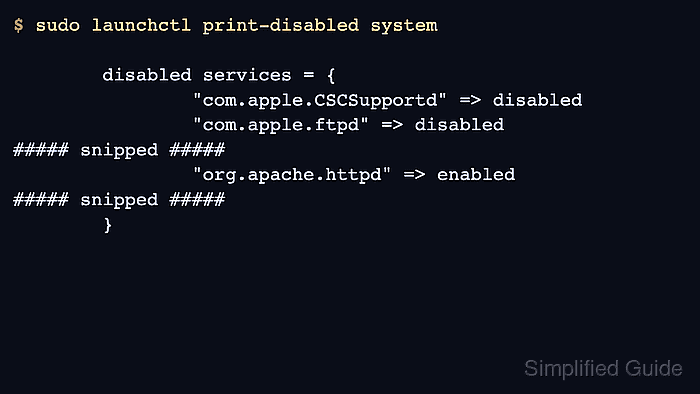
$ sudo launchctl print-disabled system

	disabled services = {
		"com.apple.CSCSupportd" => disabled
		"com.apple.ftpd" => disabled
##### snipped #####
		"org.apache.httpd" => enabled
##### snipped #####
	}
If this line shows enabled or false, the Apache service is not disabled for boot. The exact wording depends on the macOS release.
- Verify that launchd reports the Apache job as running.
$ sudo launchctl print system/org.apache.httpd system/org.apache.httpd = { active count = 1 path = /System/Library/LaunchDaemons/org.apache.httpd.plist type = LaunchDaemon state = running program = /usr/sbin/httpd-wrapper ##### snipped ##### } - Confirm that the local server responds after launchd starts it.
$ curl -I http://localhost/
HTTP/1.1 403 Forbidden
Date: Sat, 06 Jun 2026 08:02:24 GMT
Server: Apache
Content-Type: text/html; charset=iso-8859-1
A 403 Forbidden response still proves that Apache is listening. A 200 OK response is also fine if your default site allows access.
- Repeat the launchctl print and curl checks after the next reboot if the host needs proof that Apache starts before manual intervention.