Downloads often live on a separate disk or in a directory shared with a publishing job. On Ubuntu or Debian with the packaged Apache service, an Alias can serve that directory at a URL such as /downloads/ while the rest of the site still uses its DocumentRoot.
The alias maps a URL prefix to a filesystem path. A matching <Directory> block grants HTTP access to the destination, and Apache's worker account needs permission to traverse the parent directories and read the files.
A public alias makes files reachable by name even with directory listings disabled. A dedicated directory of public static files keeps private material out of the mapping.
Steps to serve a directory with Apache Alias:
Start with an enabled virtual host for an existing static site. Replace downloads.example.net with your site's hostname and use its HTTP or HTTPS scheme and port. The example uses the site file downloads.conf, the directory /srv/site-downloads outside DocumentRoot, the unused URL prefix /downloads/, and an existing public file named release.txt. Use your own values throughout and keep filesystem paths quoted. Choose a public file whose name has no matching URL at the site root. For the denied-access check, use an existing restricted static URL with a known denial status, such as /private/notes.txt.
- Check that Apache loads
mod_alias.$ sudo apache2ctl -M | grep -F alias_module alias_module (shared)
If no line appears, enable
aliasbefore editing the virtual host. - Find the enabled virtual host for your site's hostname and port.
$ sudo apache2ctl -S
The matching entry lists the configuration file and line number. With
a2ensite,sites-enabled/downloads.conflinks to the editable file undersites-available. TheUserline shows which account to use in place ofwww-datafor the file check. - Check that the Apache worker account can read your public file.
$ sudo -u www-data wc -c '/srv/site-downloads/release.txt'
38 /srv/site-downloads/release.txt
A byte count means the worker could open the file. If
wcreports an error, check the path and the worker's search permission on the parent directories and read permission on the file before editing. - Open the editable virtual host file.
The destination must contain only files meant to be public and must be free of symlinks. If an Apache access rule on the destination or a parent directory must keep denying access to those files, stop before adding the alias.
$ sudoedit '/etc/apache2/sites-available/downloads.conf'
- Insert the alias and its access rule just above the matching
</VirtualHost>line.Require all grantedallows any client that reaches the site to request files in the destination directory. If a redirect, proxy, alias, or access rule already handles the prefix, resolve that conflict before adding the mapping.Alias "/downloads/" "/srv/site-downloads/" <Directory "/srv/site-downloads"> Options None AllowOverride None Require all granted </Directory>
With a trailing slash on both
Aliasarguments, Apache maps/downloads/and paths beneath it. The<Directory>path names the same filesystem directory.Options Nonedisables generated listings, andAllowOverride Nonedisables per-directory.htaccessoverrides in the standard site configuration. - Save the file.
- Close the editor.
sudoeditwrites the saved changes to the virtual host file when the editor closes. - Test the Apache configuration before reloading.
$ sudo apache2ctl configtest
Syntax OK
If the test reports an error, correct the file and rerun the test before reloading.
- Reload the running Apache service after the syntax test passes.
A reload activates all pending Apache configuration changes. If the new mapping needs to be rolled back, remove the inserted lines, test the configuration, and reload again.
$ sudo service apache2 reload
- Confirm that the same filename returns
404 Not Foundat the site root.$ curl -sS -I http://downloads.example.net/release.txt HTTP/1.1 404 Not Found ##### snipped #####
- Recheck an existing restricted URL without credentials if your site has one.
$ curl -sS -I http://downloads.example.net/private/notes.txt
HTTP/1.1 403 Forbidden
##### snipped #####
The response should match the denial status the URL returned before the change.
- Verify that the file returns
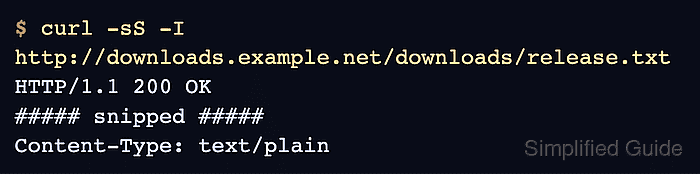
200 OKunder the alias URL.$ curl -sS -I http://downloads.example.net/downloads/release.txt HTTP/1.1 200 OK ##### snipped ##### Content-Type: text/plain
-Irequests response headers. A403 Forbiddenresponse can point to a directory access rule or insufficient filesystem permissions. A404 Not Foundresponse can point to the wrong virtual host, URL prefix, or filename.