Data science workstations on openSUSE or SUSE Linux Enterprise Server often need a separate Python stack from the system Python that zypper manages. Installing Anaconda Distribution in the user's home directory keeps Conda environments, packages, and notebooks away from operating-system packages while still making the conda command available in a normal shell.
Anaconda publishes Linux shell installers rather than native SUSE RPM packages. The installer filename must match the CPU architecture, and the archive page provides the SHA-256 hash used to check the downloaded file before installation.
Minimal SUSE hosts may need curl, ca-certificates, and bzip2 before the installer can download and unpack. Commercial or managed environments should confirm Anaconda licensing and software-delivery policy before installing manually, and default-channel package operations require accepting the channel Terms of Service before conda create or conda install can use those channels.
Steps to install Anaconda on SUSE Linux:
- Open a terminal with sudo privileges.
- Refresh the SUSE package repositories.
$ sudo zypper refresh
All repositories have been refreshed.
- Install the download and extraction prerequisites.
$ sudo zypper install --no-confirm curl ca-certificates bzip2
Loading repository data...
Reading installed packages...
'curl' is already installed.
'ca-certificates' is already installed.
The following NEW package is going to be installed:
  bzip2
##### snipped #####
(1/1) Installing: bzip2-1.0.8-150400.1.122.x86_64 [..done]
--no-confirm is a zypper alias for non-interactive confirmation. It keeps prerequisite installation from stopping at the package transaction prompt.
- Check the CPU architecture.
$ uname -m
x86_64
Use the Linux-x86_64 installer when this command returns x86_64. Use the Linux-aarch64 installer on compatible ARM64 servers; Anaconda notes that the ARM64 build targets server-class ARM systems and may not fit every Raspberry Pi setup.
- Download the Anaconda Distribution Linux installer.
$ curl -O https://repo.anaconda.com/archive/Anaconda3-2025.12-2-Linux-x86_64.sh
For aarch64 systems, download https://repo.anaconda.com/archive/Anaconda3-2025.12-2-Linux-aarch64.sh instead.
- Verify the installer checksum.
$ sha256sum Anaconda3-2025.12-2-Linux-x86_64.sh
57b2b48cc5b8665e25fce7011f0389d47c1288288007844b3b1ba482d4f39029  Anaconda3-2025.12-2-Linux-x86_64.sh
Compare the hash with the SHA-256 value shown beside the same installer filename at https://repo.anaconda.com/archive/ before running it.
- Run the installer in silent mode.
$ bash ./Anaconda3-2025.12-2-Linux-x86_64.sh -b -p "$HOME/anaconda3"
PREFIX=/home/user/anaconda3
Unpacking bootstrapper...
Unpacking payload...
Installing base environment...
installation finished.
The -b flag runs without prompts, and -p sets the install directory. Replace the installer filename with the ARM64 filename when the earlier architecture check returned aarch64.
- Activate Conda in the current terminal.
$ source "$HOME/anaconda3/bin/activate"
- Initialize Conda for Bash.
$ conda init bash
no change     /home/user/anaconda3/condabin/conda
no change     /home/user/anaconda3/bin/conda
no change     /home/user/anaconda3/bin/activate
##### snipped #####
modified      /home/user/.bashrc

==> For changes to take effect, close and re-open your current shell. <==
This command edits the current user's ~/.bashrc file. Preview with conda init bash --dry-run first when a managed shell profile needs review.
Related: How to initialize Conda for a shell
- Reload the Bash startup file.
$ source ~/.bashrc
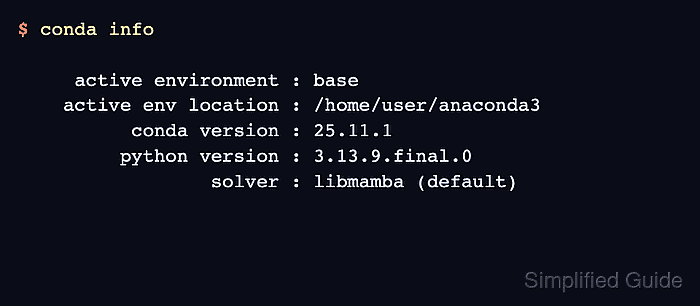
- Confirm the Conda base environment.
$ conda info active environment : base active env location : /home/user/anaconda3 conda version : 25.11.1 python version : 3.13.9.final.0 solver : libmamba (default) platform : linux-64 ##### snipped ##### - Accept the Anaconda default-channel Terms of Service.
$ conda tos accept
accepted Terms of Service for https://repo.anaconda.com/pkgs/main
accepted Terms of Service for https://repo.anaconda.com/pkgs/r
Channel Terms of Service acceptance is separate from running the installer. Without it, commands that solve packages from the default channels can stop for an interactive acceptance prompt.
- Run a package-resolution smoke test.
$ conda create --name sg-suse-check python=3.12 --dry-run --yes
2 channel Terms of Service accepted
Channels:
 - defaults
Platform: linux-64
Solving environment: done

DryRunExit: Dry run. Exiting.

## Package Plan ##

  environment location: /home/user/anaconda3/envs/sg-suse-check

  added / updated specs:
    - python=3.12

##### snipped #####
The dry run proves Conda can reach the default channels and solve a small environment without creating it. Remove --dry-run when an actual test environment should be created.
- Remove the downloaded installer.
$ rm Anaconda3-2025.12-2-Linux-x86_64.sh

Mohd Shakir Zakaria is a cloud architect with deep roots in software development and open-source advocacy. Certified in AWS, Red Hat, VMware, ITIL, and Linux, he specializes in designing and managing robust cloud and on-premises infrastructures.


