How to use WP-CLI safely on a production WordPress site
Production WordPress maintenance often needs repeatable shell commands instead of clicks in wp-admin. WP-CLI can update database rows, plugin files, cache state, and multisite records immediately, so the target document root and site URL must be proven before any write.
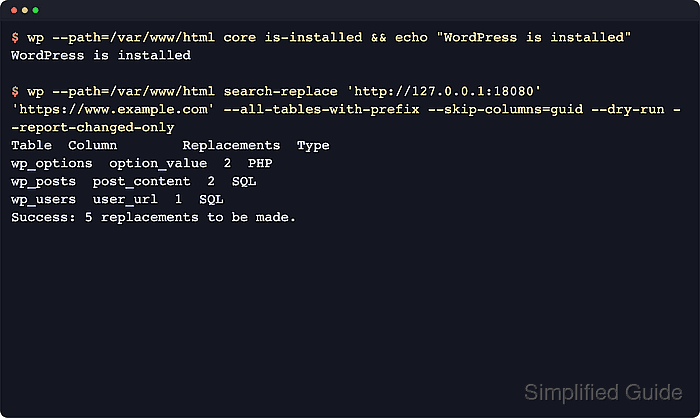
WP-CLI boots the WordPress files selected by --path and reads wp-config.php before running subcommands. On multisite, --url selects the site that receives the request context, so keeping both values explicit prevents a shell session, cron job, or deployment script from drifting into the wrong install.
The production pattern is target check, rollback export, dry-run preview, write as the content owner, and a read-only verification command that proves the intended state. URL search-replace exercises database writes and supports a dry-run report, so it demonstrates the same guardrails to use for plugin, theme, cache, and option changes.
Steps to use WP-CLI safely on a production WordPress site:
- Confirm that the intended document root contains an installed WordPress site.
$ wp --path=/var/www/example.com/public_html core is-installed
A successful wp core is-installed command prints no output and exits with status 0. Add --network only when checking whether the install is multisite.
- Confirm the active home URL from the same path.
$ wp --path=/var/www/example.com/public_html option get home
http://old.example.com
On multisite, add --url=https://www.example.com to every site-specific command after confirming the target site.
- Check siteurl before URL or domain changes.
$ wp --path=/var/www/example.com/public_html option get siteurl
http://old.example.com
home is the public front-end URL, while siteurl points to the WordPress application location. They can differ on subdirectory or relocated-core installs.
- Export a rollback database copy outside the public document root.
$ wp --path=/var/www/example.com/public_html db export ~/backups/wordpress/pre-change-2026-06-21-131500.sql
Success: Exported to '/home/wpops/backups/wordpress/pre-change-2026-06-21-131500.sql'.
wp db export uses the database credentials from wp-config.php and calls the mysqldump or mariadb-dump client. Confirm the export finished before running a write command.
Related: How to back up a WordPress site - Preview the production database change with a dry run.
$ wp --path=/var/www/example.com/public_html search-replace 'http://old.example.com' 'https://www.example.com' --all-tables-with-prefix --skip-columns=guid --dry-run --report-changed-only
Table	Column	Replacements	Type
wp_options	option_value	2	PHP
wp_posts	post_content	3	SQL
wp_users	user_url	1	SQL
Success: 6 replacements to be made.
Stop if the table names, columns, or replacement counts do not match the planned maintenance window.
Related: How to search and replace a WordPress database with WP-CLI - Run the write command as the account that owns the live WordPress tree.
$ sudo -u www-data wp --path=/var/www/example.com/public_html search-replace 'http://old.example.com' 'https://www.example.com' --all-tables-with-prefix --skip-columns=guid --report-changed-only
Table	Column	Replacements	Type
wp_options	option_value	2	PHP
wp_posts	post_content	3	SQL
wp_users	user_url	1	SQL
Success: Made 6 replacements.
Replace www-data with the web-content owner on the server. Mixing root-owned generated files into wp-content can break later uploads, updates, and cache writes.
- Confirm the home URL after the write.
$ wp --path=/var/www/example.com/public_html option get home
https://www.example.com
- Rerun the dry run against the old value.
$ wp --path=/var/www/example.com/public_html search-replace 'http://old.example.com' 'https://www.example.com' --all-tables-with-prefix --skip-columns=guid --dry-run --report-changed-only
Success: 0 replacements to be made.
For other production changes, match this final check to the command that changed state, such as wp plugin list after plugin maintenance or wp core verify-checksums after core file work.