How to install WP-CLI on Ubuntu or Debian
Installing WP-CLI on Ubuntu or Debian adds the wp command for WordPress administration from a shell. It is useful on servers where plugin updates, cache flushes, URL changes, database exports, and maintenance checks need repeatable commands instead of dashboard clicks.
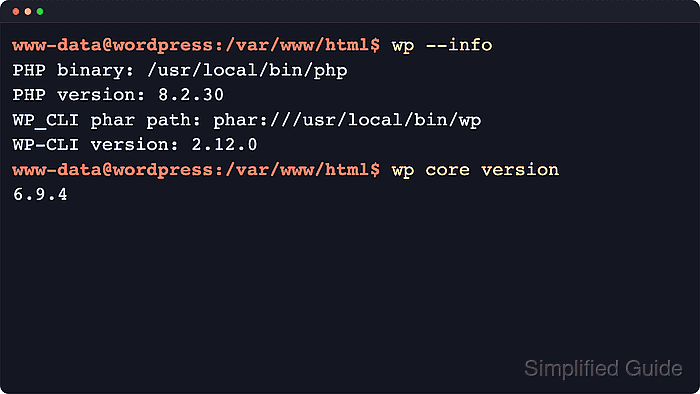
WP-CLI is distributed as a PHP Phar file. The official handbook still recommends downloading the Phar build, checking it with PHP, making it executable, and placing it on the command path. The Ubuntu and Debian php-cli package supplies the command-line PHP runtime that WP-CLI needs.
The install places wp under /usr/local/bin and verifies it with wp --info before any live site is touched. A temporary core download under /tmp proves that WP-CLI can run a real subcommand, while production maintenance should still be run from the correct WordPress document root and file owner.
Steps to install WP-CLI on Ubuntu or Debian:
- Open a terminal with sudo privileges.
- Refresh the package index.
$ sudo apt update
Reading package lists... Done
- Install the command-line prerequisites.
$ sudo apt install --yes ca-certificates curl php-cli less
Reading package lists... Done
Building dependency tree... Done
The following NEW packages will be installed:
  ca-certificates curl less php-cli
##### snipped #####
WP-CLI requires command-line PHP. Current Ubuntu and Debian releases provide it through the php-cli dependency package, which installs the distro's active PHP CLI version.
- Confirm that command-line PHP runs.
$ php --version
PHP 8.5.4 (cli) (built: May 25 2026 12:19:37) (NTS)
##### snipped #####
The exact PHP version follows the distribution release. WP-CLI currently requires PHP 7.2.24 or later.
- Download the official WP-CLI Phar build.
$ curl -fsSLO https://raw.githubusercontent.com/wp-cli/builds/gh-pages/phar/wp-cli.phar
The upstream WP-CLI handbook recommends the Phar build for most Linux installs. For signed-binary review, verify the companion signature from the official WP-CLI download verification instructions before installing the file.
- Test the downloaded Phar before moving it.
$ php wp-cli.phar --info
PHP binary:	/usr/bin/php8.5
PHP version:	8.5.4
WP-CLI version:	2.12.0
- Make the Phar executable.
$ chmod +x wp-cli.phar
- Move the executable onto the normal command path.
$ sudo mv wp-cli.phar /usr/local/bin/wp
- Confirm that the shell resolves wp from /usr/local/bin.
$ command -v wp
/usr/local/bin/wp
If the command is not found, confirm that /usr/local/bin is in the active PATH and that the file was moved as wp rather than left as wp-cli.phar.
- Confirm the installed WP-CLI path and version.
$ wp --info
PHP binary:	/usr/bin/php8.5
PHP version:	8.5.4
php.ini used:	/etc/php/8.5/cli/php.ini
WP_CLI phar path:	phar:///usr/local/bin/wp
WP-CLI version:	2.12.0
If a disposable root shell is being used for validation, append --allow-root to WP-CLI commands. On a normal server, run site-specific commands as the account that owns the WordPress files.
- Run a temporary WP-CLI smoke test.
$ wp core download --path=/tmp/wp-cli-smoke
Creating directory '/tmp/wp-cli-smoke/'.
Downloading WordPress 7.0 (en_US)...
md5 hash verified: 3f931837b01ce4ef308de24fa802f014
Success: WordPress downloaded.
This creates a temporary WordPress file tree only. It does not configure a database, change a live site, or install WordPress for production use.
- Confirm the downloaded core version.
$ wp core version --path=/tmp/wp-cli-smoke
7.0
The version number changes when WordPress publishes a new release.
- Remove the temporary smoke-test directory.
$ rm -rf /tmp/wp-cli-smoke
Use the real document root that contains wp-config.php before running production commands.
Related: How to use WP-CLI safely on a production WordPress site