How to back up a WordPress site
A recoverable WordPress backup saves the database and the matching site files from the same maintenance window. That pairing matters before plugin upgrades, theme deployments, host moves, and incident response because posts, settings, uploads, plugins, themes, and configuration must return to one consistent point in time.
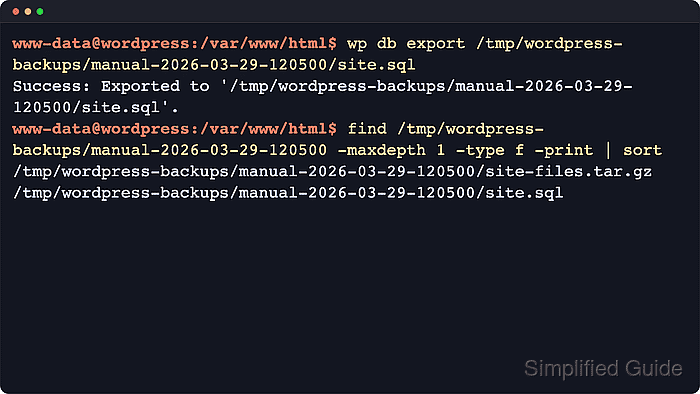
WordPress stores dynamic content in MySQL or MariaDB and keeps application state in the directory tree that contains wp-config.php, wp-content, hidden files, and custom drop-ins. WP-CLI exports the active database through the settings loaded from wp-config.php, while tar preserves the matching file tree.
Examples assume shell access on the host, a working wp command, and enough free space outside the public document root for both artifacts. WP-CLI uses the host mysqldump client for database exports, so install the current MySQL or MariaDB client package first when that binary is missing. On busy sites, keep the site in maintenance mode while the database dump and file archive are created.
Related: How to restore a WordPress site
Related: How to migrate a WordPress site to a new host
Steps to back up a WordPress site:
- Open a terminal session in the live WordPress document root.
$ cd /var/www/html
Run wp from the directory that contains the active wp-config.php file.
Related: How to install WP-CLI on Ubuntu or Debian
Related: How to install WP-CLI on Fedora or RHEL-compatible Linux - Set a dated backup directory outside the web root.
$ BACKUP_DIR=/home/user/backups/wordpress/manual-2026-03-29-120500
Do not store backup archives under the public document root. A web-accessible backup directory turns a recovery asset into a data leak.
- Create the backup directory.
$ mkdir -p "$BACKUP_DIR"
- Enable maintenance mode before the final snapshot.
$ wp maintenance-mode activate
Enabling Maintenance mode...
Success: Activated Maintenance mode.
On a read-only staging copy or a site already in a controlled maintenance window, maintenance mode may be unnecessary.
- Confirm that maintenance mode is active.
$ wp maintenance-mode status
Maintenance mode is active.
- Export the live database into the backup directory.
$ wp db export "$BACKUP_DIR/site.sql"
Success: Exported to '/home/user/backups/wordpress/manual-2026-03-29-120500/site.sql'.
WP-CLI reads the active database settings from wp-config.php instead of exposing credentials in shell history.
- Archive the current document root while excluding the temporary maintenance marker.
$ tar -czf "$BACKUP_DIR/site-files.tar.gz" --exclude=".maintenance" -C /var/www/html .
Archiving from the document root captures wp-config.php, hidden files, plugins, themes, uploads, and custom server-side files in one bundle.
- List the archive contents and confirm recovery-critical paths appear.
$ tar -tzf "$BACKUP_DIR/site-files.tar.gz"
./
./wp-links-opml.php
./wp-includes/
##### snipped #####
./wp-content/
./wp-content/themes/
./wp-content/plugins/
./wp-content/uploads/
./wp-content/uploads/2026/03/example-image.txt
./wp-config.php
If uploads or generated assets live on a mounted path outside the document root, back up that separate storage location in the same maintenance window.
- Record checksums for the SQL dump and file archive.
$ sha256sum "$BACKUP_DIR/site.sql" "$BACKUP_DIR/site-files.tar.gz"
382417055cc3ad6cfd6ae970a931512ddf5568c70c8a27d9f7a309211eeef241  /home/user/backups/wordpress/manual-2026-03-29-120500/site.sql
2bbb372619db9e3d021bf32b3552e0a83e0bc7eef04971317d6f844e2f679f78  /home/user/backups/wordpress/manual-2026-03-29-120500/site-files.tar.gz
Checksums make truncated or replaced files visible after a transfer, sync, or object-storage upload.
- Disable maintenance mode after both backup artifacts are complete.
$ wp maintenance-mode deactivate
Disabling Maintenance mode...
Success: Deactivated Maintenance mode.
If either artifact failed or produced an empty file, fix the failure and rerun the snapshot before reopening the live site.
- Confirm that maintenance mode is disabled.
$ wp maintenance-mode status
Maintenance mode is not active.
- Confirm that both backup artifacts exist before copying them to off-host storage.
$ find "$BACKUP_DIR" -maxdepth 1 -type f -print
/home/user/backups/wordpress/manual-2026-03-29-120500/site.sql
/home/user/backups/wordpress/manual-2026-03-29-120500/site-files.tar.gz
Keep several recent copies and store at least one copy off-host. A backup that lives only on the same server does not help after storage failure, ransomware, or full-host loss.
Related: How to restore a WordPress site