How to use WordPress recovery mode
WordPress recovery mode lets an administrator regain wp-admin access after a plugin, theme, or custom code change causes a fatal PHP error. It is meant for the moment when the dashboard or a public page shows a critical-error message, and it gives enough access to stop the component that broke the request.
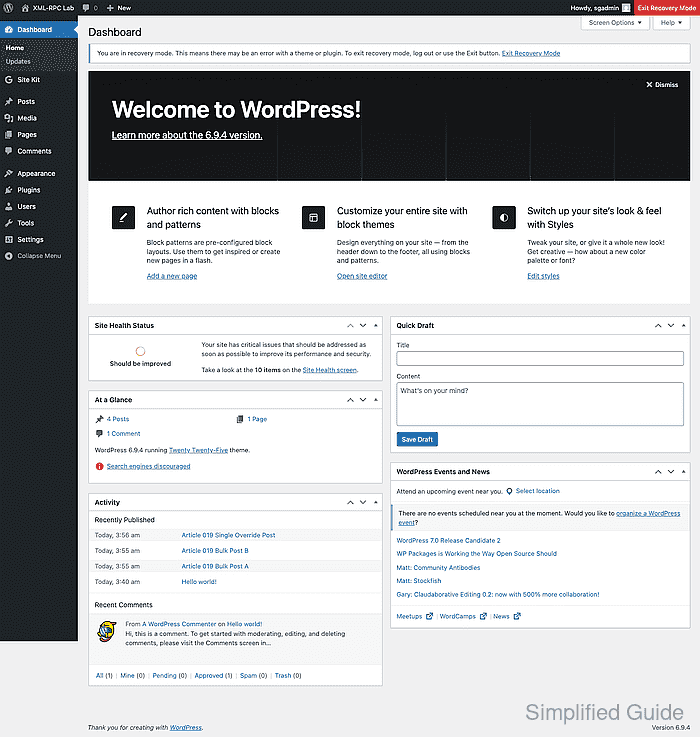
Recovery mode starts from the technical-issue email that WordPress sends to the site administrator when the fatal error happens during a normal page load. The recovery link sets a temporary recovery cookie for that browser, then the administrator logs in as usual and sees which plugin or theme WordPress paused for the session.
The email path depends on the site being able to send mail from the server before the failing code stops the request. If the message does not arrive, the link has expired, or the failure is in cron or another background task, use debug logging or WP-CLI to identify and disable the failing extension instead of waiting for recovery mode.
Steps to use WordPress recovery mode:
- Open the administrator mailbox and select the recovery link in the Your Site is Experiencing a Technical Issue email.
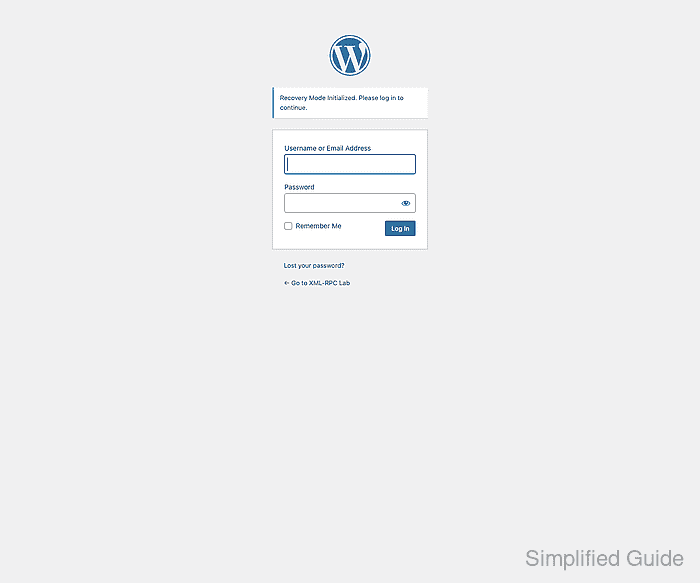
The login screen should show Recovery Mode Initialized. Please log in to continue. above the usual username and password fields. If the link has expired, trigger the same failing page load again after the current recovery email window expires.
- Log in with an administrator account to start the recovery session.
A successful recovery login adds an Exit Recovery Mode button to the admin bar and shows a recovery-mode notice near the top of the dashboard.
- Open Plugins or Appearance → Themes and match the paused component to the name in the recovery email.
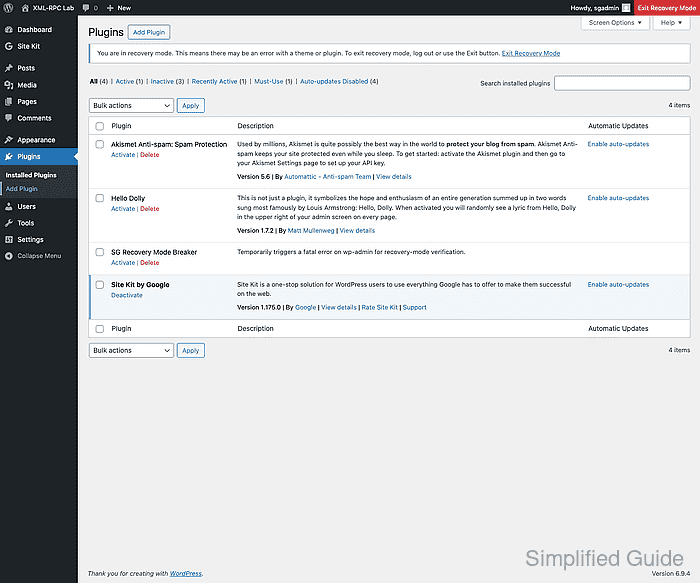
Plugin failures are usually handled from Plugins, while theme failures are handled from Appearance → Themes.
- Deactivate, update, replace, or remove the failing extension before testing the broken request again.
Do not reactivate the same broken plugin or theme before applying a fix; the fatal error can return as soon as WordPress loads that code again.
- Load the original failing dashboard page or public URL in the same browser and confirm that it no longer shows a critical-error screen.
If the page still fails, keep recovery mode active and use the dashboard notice, recovery email details, or debug log to identify the next failing component.
- Exit recovery mode from the admin bar after wp-admin and the original failing page both load normally.
Logging out also ends the current recovery session, but the admin-bar exit button gives a clear final confirmation that normal administrator access has been restored.