Enabling the WordPress debug log sends PHP notices, warnings, and fatal-error details into a file instead of leaving a white screen or failed admin action with no trail. It is useful when a problem appears only during real page loads, REST requests, scheduled tasks, or plugin and theme code paths that are hard to reproduce in a debugger.
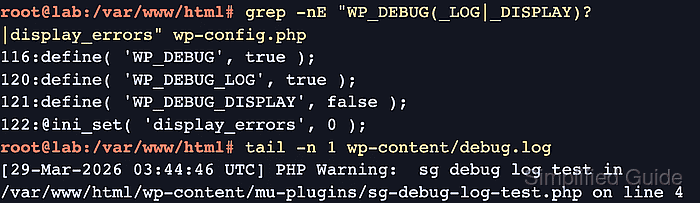
WordPress reads debug settings from wp-config.php. WP_DEBUG turns debug mode on, WP_DEBUG_LOG set to true writes to wp-content/debug.log, and WP_DEBUG_LOG set to a full file path writes somewhere else. WP_DEBUG_DISPLAY set to false keeps warnings out of public browser responses while the log captures them.
Use debug logging as a temporary troubleshooting window on production sites. Update existing constants instead of adding duplicate definitions, validate wp-config.php before reloading the failing request, and turn the settings off or restore the backup after collecting the error lines.
Steps to enable WordPress debug log:
- Open a terminal in the directory that contains the active wp-config.php file.
$ cd /var/www/example.com/public_html
Some hosts keep wp-config.php one directory above the public web root or generate part of it from platform settings. Edit the active file for the running site, not a copied or deployment-template file.
- Check for existing debug constants before editing.
$ grep -n "WP_DEBUG" wp-config.php
116:define( 'WP_DEBUG', false );
No output means the debug constants are not already defined in that file. If matching lines already exist, change those lines instead of adding a second copy.
- Back up wp-config.php.
$ sudo cp -a wp-config.php wp-config.php.bak
- Edit wp-config.php and place the debug settings above the final stop-editing line.
$ sudoedit wp-config.php
- wp-config.php
define( 'WP_DEBUG', true );
define( 'WP_DEBUG_LOG', true );
define( 'WP_DEBUG_DISPLAY', false );
@ini_set( 'display_errors', 0 );
Use a full file path for WP_DEBUG_LOG, such as /var/log/wordpress/debug.log, when the log must live outside wp-content or when wp-content is not writable by PHP.
- Validate the wp-config.php syntax.
$ php -l wp-config.php
No syntax errors detected in wp-config.php
- Reload the failing page, admin action, webhook, scheduled task, or API request.
- Read the debug log.
$ sudo cat wp-content/debug.log
[21-Jun-2026 03:04:19 UTC] PHP Warning:  Undefined array key "settings" in /var/www/example.com/public_html/wp-content/plugins/example-plugin/example.php on line 81
##### snipped #####
The first plugin, theme, or custom file path near the newest matching error is usually the line to investigate next.
Related: How to use WordPress recovery mode
Tool: Application Log Pattern Analyzer - Restore the previous debug policy after collecting the error details.
$ sudoedit wp-config.php
- wp-config.php
define( 'WP_DEBUG', false );
define( 'WP_DEBUG_LOG', false );
define( 'WP_DEBUG_DISPLAY', false );
@ini_set( 'display_errors', 0 );
If the site already had custom debug values, restore those original values or copy wp-config.php.bak back into place instead of forcing generic false values.
- Validate wp-config.php again.
$ php -l wp-config.php
No syntax errors detected in wp-config.php
- Remove the debug log when it contains sensitive troubleshooting details.
$ sudo rm wp-content/debug.log
The log can contain local paths, query fragments, stack traces, customer data, or plugin internals. Archive it somewhere private first if the investigation still needs the evidence.

Mohd Shakir Zakaria is a cloud architect with deep roots in software development and open-source advocacy. Certified in AWS, Red Hat, VMware, ITIL, and Linux, he specializes in designing and managing robust cloud and on-premises infrastructures.


