How to disable a WordPress plugin with WP-CLI
Disabling a WordPress plugin with WP-CLI stops WordPress from loading that plugin when the dashboard is unavailable, slow, or failing during a plugin incident. The wp plugin deactivate command changes plugin activation state from the shell without removing the plugin files.
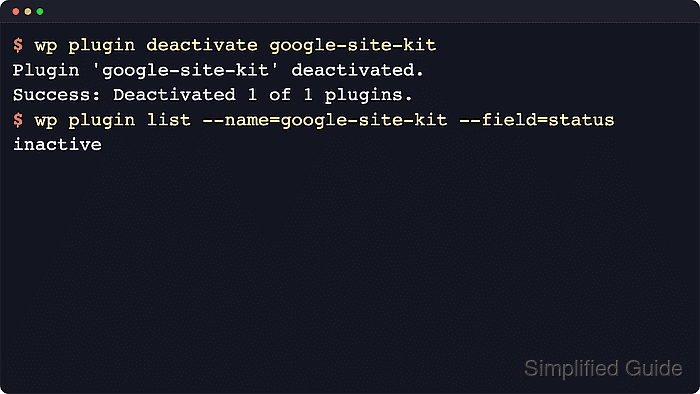
WP-CLI boots the WordPress install from the document root or --path value, then reads plugin state from the connected database. The active site URL matters on multisite because a plugin can be active for one site, active across the network, or inactive while its files still remain under /wp-content/plugins.
The starting point is a shell session where WP-CLI can already connect to the site and the target slug is known or can be copied from the active-plugin list. A plugin that crashes during normal bootstrap can be skipped for the deactivation command with --skip-plugins=<slug>; must-use plugins still load because WordPress treats them outside the ordinary plugin activation list.
Steps to disable a WordPress plugin with WP-CLI:
- Change into the exact WordPress document root.
$ cd /var/www/example.com/public_html
In automation or shared shell sessions, add --path=/var/www/example.com/public_html to each wp command instead of relying on the inherited working directory.
Related: How to use WP-CLI safely on a production WordPress site - Confirm that WP-CLI is connected to the intended site.
$ wp option get home
https://www.example.com
On multisite, add --url=https://www.example.com to the remaining site-specific commands.
- List the active plugin slugs.
$ wp plugin list --status=active --field=name
hello
Use the slug from this output, not the display name shown in wp-admin.
- Deactivate the plugin by slug.
$ wp plugin deactivate hello
Plugin 'hello' deactivated.
Success: Deactivated 1 of 1 plugins.
On multisite, use --network only when wp plugin list --status=active-network --field=name shows the plugin as network-active for the whole network.
If the target plugin prevents WP-CLI from booting, retry with wp --skip-plugins=hello plugin deactivate hello so the ordinary plugin load is skipped for that run. Must-use plugins still load.
- Confirm that the plugin status changed to inactive.
$ wp plugin list --name=hello --field=status
inactive
inactive means the plugin files remain installed but WordPress no longer loads the plugin for the targeted site or network scope.
- Re-test the admin page or public URL that failed before the plugin change.
If the site still fails, keep the plugin inactive while checking the active theme, must-use plugins, PHP errors, and the WordPress debug log.
Related: How to enable WordPress debug log
Related: How to use WordPress recovery mode