How to regenerate WordPress thumbnails with WP-CLI
Regenerating WordPress thumbnails rebuilds the derivative image files stored under /wp-content/uploads after a theme, plugin, or media-size setting changes. Broken crops, missing responsive image sources, and stale featured-image sizes often come from attachments whose metadata no longer matches the image sizes registered by the active site.
The wp media regenerate command reads the registered image sizes, recreates derivatives for selected attachments, and updates each attachment's _wp_attachment_metadata record. Running a targeted attachment first shows whether the active PHP image editor can write the requested size before a large library-wide run starts.
Regeneration can replace old derivative files unless --skip-delete is used, and a full library run can take time on media-heavy sites. Take a current backup before touching production uploads, keep generated sizes that are linked from emails or external pages, and use --only-missing when a new size was added but existing valid thumbnails should not be rebuilt.
Steps to regenerate WordPress thumbnails with WP-CLI:
- Open a terminal in the WordPress document root.
$ cd /var/www/html
Use the directory that contains the active wp-config.php file. Add --path=/var/www/html to wp commands instead when running them from another directory.
- List the image sizes registered by the active site.
$ wp media image-size
name	width	height	crop	ratio
full			N/A	N/A
2048x2048	2048	2048	soft	N/A
1536x1536	1536	1536	soft	N/A
large	1024	1024	soft	N/A
medium_large	768	0	soft	N/A
medium	300	300	soft	N/A
thumbnail	150	150	hard	1:1
The crop column shows whether the size is hard-cropped or proportionally resized. Regeneration creates derivatives only for sizes currently registered by WordPress, the active theme, and loaded plugins.
- List image attachments and choose one ID for a targeted regeneration test.
$ wp post list --post_type=attachment --fields=ID,post_title,post_mime_type --format=table
ID	post_title	post_mime_type
4	Header	image/jpeg
Use an attachment that already shows the broken or stale size on the site. Large libraries are easier to test safely when one representative image is regenerated first.
- Regenerate one registered size for the selected attachment.
$ wp media regenerate 4 --image_size=thumbnail
Found 1 image to regenerate.
1/1 Regenerated "thumbnail" thumbnail for "Header" (ID 4).
Success: Regenerated 1 of 1 images.
Replace 4 with the attachment ID from the previous step and replace thumbnail with the image-size name that needs repair. Omitting --image_size regenerates every registered size for that attachment.
- Confirm that the regenerated thumbnail file exists under uploads.
$ ls -lh wp-content/uploads/2026/06/header-150x150.jpg
-rw-r--r-- 1 www-data www-data 1.2K Jun 21 02:45 wp-content/uploads/2026/06/header-150x150.jpg
The upload month and filename come from the attachment metadata. Use wp post meta get 4 _wp_attachment_metadata --format=json when the generated filename is not obvious from the original upload name.
- Regenerate thumbnails across the whole media library after the targeted test succeeds.
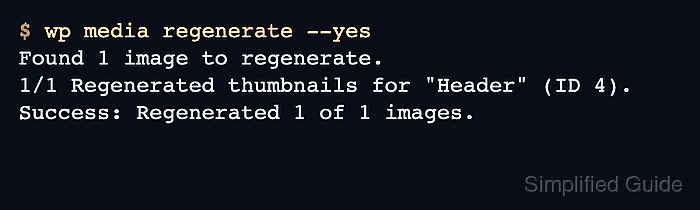
$ wp media regenerate --yes
Found 1 image to regenerate.
1/1 Regenerated thumbnails for "Header" (ID 4).
Success: Regenerated 1 of 1 images.
Use wp media regenerate --only-missing --yes when a theme or plugin added a new size and existing valid derivatives should stay untouched. Add --skip-delete when old generated filenames may still be referenced outside WordPress content.
--delete-unknown removes thumbnails for sizes that are no longer registered. Do not use it until backups exist and old emails, static pages, CDN objects, or hard-coded templates have been checked for those filenames.
Related: How to back up a WordPress site
- Run the missing-only check when the library-wide run finishes.
$ wp media regenerate --only-missing --yes
Found 1 image to regenerate.
1/1 No thumbnail regeneration needed for "Header" (ID 4).
Success: Regenerated 1 of 1 images.
A No thumbnail regeneration needed line means the registered sizes already exist for that attachment. Recheck a page that uses the affected image size, and purge any page cache, object cache, or CDN cache that can keep stale image URLs visible.