How to optimize a WordPress database
Optimizing a WordPress database removes stale application records and asks MySQL or MariaDB to rebuild or analyze tables after cleanup. Sites often need this after spam bursts, plugin churn, large editing sessions, or transient-heavy caching, especially before backups or performance checks where unnecessary rows make database evidence harder to read.
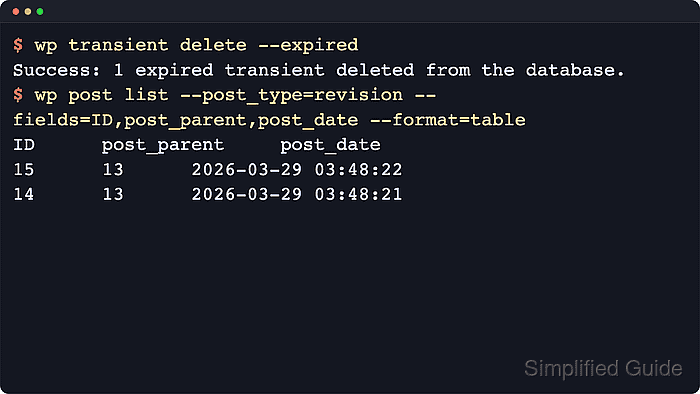
WP-CLI keeps the cleanup and table maintenance in one shell session because it can clean WordPress objects first and then run the table maintenance command through the database credentials in wp-config.php. Expired transients, selected post revisions, spam comments, and trash comments are application records, while wp db optimize delegates the storage-engine work to mysqlcheck.
Start with shell access to the active document root and a fresh database export stored outside the public web tree. Revision and comment deletion should be deliberate, not automatic, because those rows may still matter for editorial review or moderation history. The InnoDB note about recreating and analyzing tables is normal; a table-level Operation failed or SQL-mode error still needs review even when WP-CLI prints a final success line.
Steps to optimize a WordPress database with WP-CLI:
- Change into the WordPress document root that contains wp-config.php.
$ cd /var/www/example.com/public_html
Run the remaining wp commands from the same directory. On managed hosts, use the provider's shell path for the live site rather than a staging copy.
- Confirm WP-CLI is targeting the expected public site.
$ wp option get home
https://www.example.com
On multisite, add --url=<site-url> to the cleanup and optimize commands so the target site is explicit.
- Create a backup directory outside the public document root.
$ mkdir -p ~/backups/wordpress
- Export a rollback copy of the current database before deleting rows.
$ wp db export ~/backups/wordpress/pre-optimize.sql
Success: Exported to '/home/user/backups/wordpress/pre-optimize.sql'.
Keep the SQL dump outside the public document root. A fresh export is the fastest rollback path if an approved cleanup deletes the wrong records.
Related: How to back up a WordPress site
- Delete expired transients that no longer need to stay in the database.
$ wp transient delete --expired
Success: 1 expired transient deleted from the database.
No expired transients found is also a clean result when the site has already cleared them or uses a persistent object cache.
- List revisions before removing any editorial rollback history.
$ wp post list --post_type=revision --fields=ID,post_parent,post_date --format=table
ID	post_parent	post_date
6	4	2026-06-21 02:57:30
5	4	2026-06-21 02:57:29
Keep revisions that still matter to writers, editors, compliance review, or recent rollback decisions.
- Delete only the revision IDs approved for removal.
$ wp post delete 6 5 --force
Success: Deleted post 6.
Success: Deleted post 5.
--force skips the trash state. Review the revision list first instead of turning revision deletion into a blind scheduled job.
- List spam comments before permanent deletion.
$ wp comment list --status=spam --fields=comment_ID,comment_post_ID,comment_author --format=table
comment_ID	comment_post_ID	comment_author
2	4	Spam Sender
- List trashed comments before permanent deletion.
$ wp comment list --status=trash --fields=comment_ID,comment_post_ID,comment_author --format=table
comment_ID	comment_post_ID	comment_author
3	4	Old Commenter
Listing spam and trash separately keeps moderation cleanup auditable and avoids deleting comments that are only pending review.
- Delete the approved spam and trash comment IDs.
$ wp comment delete 2 3 --force
Success: Deleted comment 2.
Success: Deleted comment 3.
Comment deletion with --force is permanent. Keep the database export until the site has passed normal traffic checks.
- Run the database optimization pass after application-level cleanup is finished.
$ wp db optimize
wordpress.wp_commentmeta
note     : Table does not support optimize, doing recreate + analyze instead
status   : OK
wordpress.wp_comments
note     : Table does not support optimize, doing recreate + analyze instead
status   : OK
##### snipped #####
wordpress.wp_users
note     : Table does not support optimize, doing recreate + analyze instead
status   : OK
Success: Database optimized.
The recreate + analyze instead note is expected for InnoDB tables. It means the storage engine is using its supported maintenance path.
If any table reports Operation failed or an invalid default value, treat that table as unresolved even when the final line says the database was optimized.
- Check table health after the optimize pass.
$ wp db check
wordpress.wp_commentmeta                           OK
wordpress.wp_comments                              OK
wordpress.wp_links                                 OK
wordpress.wp_options                               OK
wordpress.wp_postmeta                              OK
wordpress.wp_posts                                 OK
wordpress.wp_term_relationships                    OK
wordpress.wp_term_taxonomy                         OK
wordpress.wp_termmeta                              OK
wordpress.wp_terms                                 OK
wordpress.wp_usermeta                              OK
wordpress.wp_users                                 OK
Success: Database checked.
Keep the pre-optimize SQL dump until logins, publishing, comments, and normal front-end requests behave as expected.