How to update WordPress core with WP-CLI
Updating WordPress core with WP-CLI replaces the application files from the shell during a controlled maintenance window. Running the update from the shell helps when dashboard access is limited, when the update needs a transcript, or when the same maintenance pattern must be repeated across several self-hosted sites.
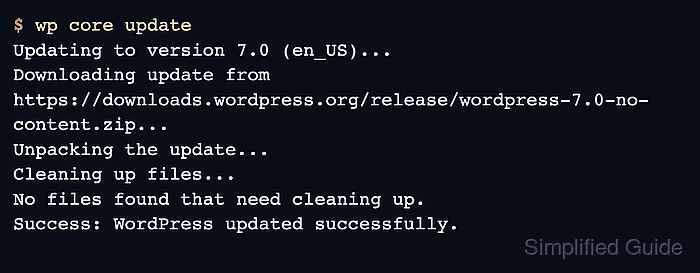
The wp core update command runs from the document root that contains wp-config.php and downloads the target release from WordPress.org. By default it moves to the latest available release, so an operator who only approved a maintenance release should use the matching --minor or --version=<version> form instead of relying on the default.
A core update can replace files, require a database schema update, and expose PHP or plugin compatibility problems on the next request. Keep a rollback backup outside the web root, run WP-CLI as the file owner, and close the window only after the database update, checksum verification, and a public or admin smoke test passes.
Steps to update WordPress core with WP-CLI:
- Change into the exact WordPress document root.
$ cd /var/www/example.com/public_html
- Confirm that WP-CLI is targeting the expected public site.
$ wp option get home
http://www.example.com
On multisite, add --url=https://www.example.com to the remaining commands so the update runs against the intended site instead of the network default.
- Record the current core version before applying the update.
$ wp core version
6.8.1
- Check the available core releases from the WordPress Version Check API.
$ wp core check-update --force-check --fields=version,update_type
version	update_type
6.8.5	minor
7.0	major
Default wp core update installs the latest release. Use wp core update --minor when the change window covers only maintenance releases, or --version=<version> when a specific target was approved.
- Export a rollback database copy before changing core files.
$ wp db export ~/backups/wordpress/pre-core-update.sql
Success: Exported to '/home/user/backups/wordpress/pre-core-update.sql'.
wp db export exports all tables unless a table list is provided. Keep a matching file backup or host snapshot for production.
Related: How to back up a WordPress site - Update WordPress core files.
$ wp core update
Updating to version 7.0 (en_US)...
Downloading update from https://downloads.wordpress.org/release/wordpress-7.0-no-content.zip...
Unpacking the update...
Cleaning up files...
No files found that need cleaning up.
Success: WordPress updated successfully.
If WP-CLI reports another update in progress, do not remove core_updater.lock until the host, cron, and dashboard are not still running an update.
- Run the database update procedure after the core files are in place.
$ wp core update-db
Success: WordPress database upgraded successfully from db version 58975 to 61833.
On multisite, use wp core update-db --network during a network-wide core update.
- Confirm the installed core version.
$ wp core version
7.0
- Verify core file checksums against WordPress.org.
$ wp core verify-checksums
Success: WordPress installation verifies against checksums.
If a localized or pinned release is used, pass matching --locale=<locale> or --version=<version> values when checksum verification needs them.
- Request the login screen or another normal site URL before closing the maintenance window.
$ curl -I -sS https://www.example.com/wp-login.php
HTTP/2 200
server: Apache
cache-control: no-cache, must-revalidate, max-age=0, no-store, private
x-frame-options: SAMEORIGIN
content-type: text/html; charset=UTF-8
If the request fails, keep the rollback backup available and review the web or PHP error log before returning normal traffic.