How to create a WordPress application password
Creating a WordPress Application Password gives an integration its own revocable credential for REST API access without sharing the user's normal login password. It is useful for deployment scripts, content tools, mobile clients, and services that need to authenticate as a specific WordPress user.

The password is created from the user's profile in wp-admin, and WordPress shows the secret only once. The saved row keeps the application name, creation date, last-used time, last IP address, and a Revoke action, so each integration should get its own descriptive name.
Application Passwords are for programmatic API access, not browser login to wp-admin. Use the site's HTTPS URL for remote clients, store the generated value in a secret manager or integration password field immediately, and rotate or revoke the credential when the connected service changes.
Steps to create a WordPress Application Password:
- Open Users → Profile in wp-admin for the account that the integration should use.
- Scroll to Application Passwords.
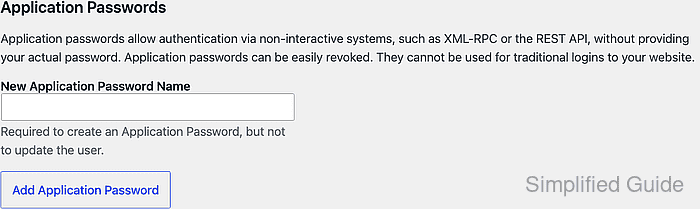
If the section is missing, confirm the site is served over HTTPS and check whether a security plugin or custom code disables Application Passwords.
- Enter a descriptive integration name in New Application Password Name.
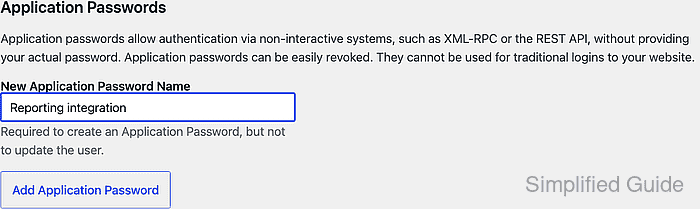
Use a name that identifies the connected service, such as Reporting integration or Deploy bot.
- Click Add Application Password.

Copy the generated password immediately. WordPress will not show the same secret again after this notice is closed.
- Store the copied password in the integration's secret, token, or password field.
WordPress displays the value in grouped chunks for readability. Authentication accepts the value with or without those spaces.
- Test the credential against the WordPress REST API over HTTPS.
$ curl --user "api-user:abcd efgh ijkl mnop qrst uvwx" https://www.example.com/wp-json/wp/v2/users/me
{
  "id": 12,
  "name": "API User",
  "link": "https://www.example.com/author/api-user/",
  "slug": "api-user"
}
Use the WordPress username, not the display name or email address, before the colon.
Related: How to use HTTP Basic authentication in cURL - Refresh the profile page and confirm the row shows the application name plus recent usage metadata.
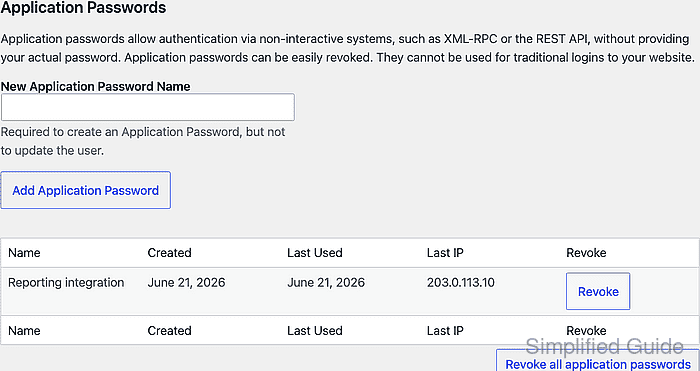
- Revoke the credential when the integration is retired, replaced, or exposed.
Revoking an active Application Password stops API authentication for that integration immediately.