How to add Google Analytics to WordPress
Adding Google Analytics to WordPress through Site Kit by Google connects the site to traffic reports without editing theme files. This path fits a site owner who needs visitor, acquisition, and page performance data in Google Analytics and inside the WordPress dashboard.
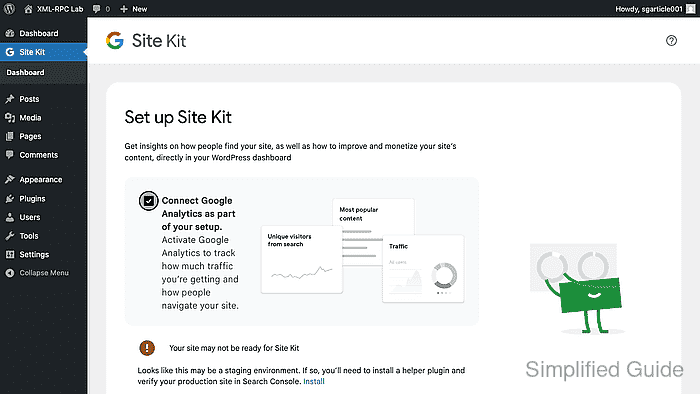
Site Kit installs from Plugins → Add Plugin, starts setup from Site Kit → Dashboard, and can connect Google Analytics during the initial setup flow. The Google account used during setup should own the Analytics property or have enough access to create and select the Analytics account, property, and web data stream.
Site Kit setup expects a public production site, not a password-protected, maintenance-mode, localhost, or unpublished staging URL. The WordPress REST API must be available before setup, and new Analytics properties can show a gathering-data message for 24 to 48 hours even when Realtime already records a test visit.
Steps to add Google Analytics to WordPress:
- Log in to the WordPress dashboard with an administrator account.
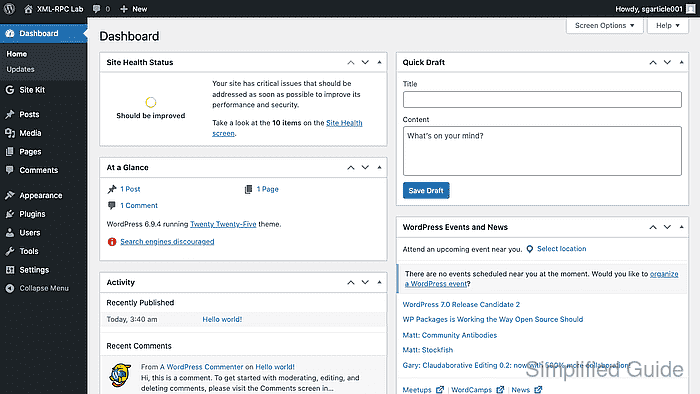
Site Kit setup is an administrator task because it creates the site connection to Google services.
- Open Tools → Site Health and review the REST API result before installing Site Kit.
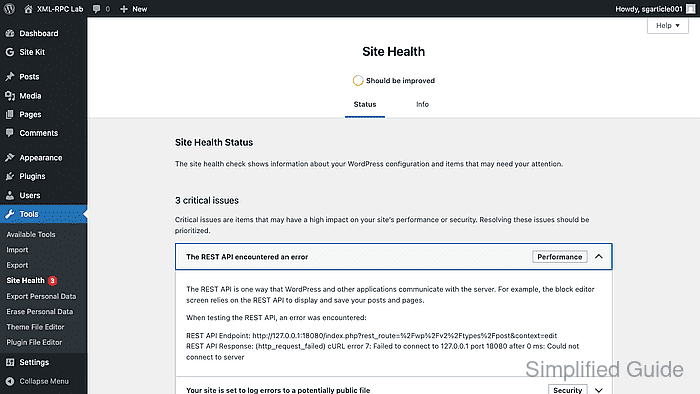
Continue only after the REST API check passes on the live site URL. Site Kit depends on the REST API during setup and reporting.
Related: How to update WordPress URLs from HTTP to HTTPSMaintenance mode, password protection, unpublished staging URLs, broken proxy headers, and mismatched WordPress Address or Site Address values can stop the setup flow before Google can verify the site.
- Open Plugins → Add Plugin, search for Site Kit by Google, and click Install Now.
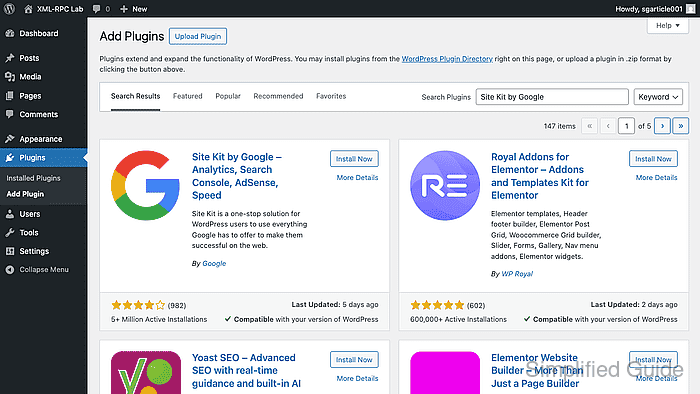
Site Kit by Google is the official Google plugin for connecting Analytics from the WordPress dashboard.
- Click Activate after the plugin package finishes downloading.
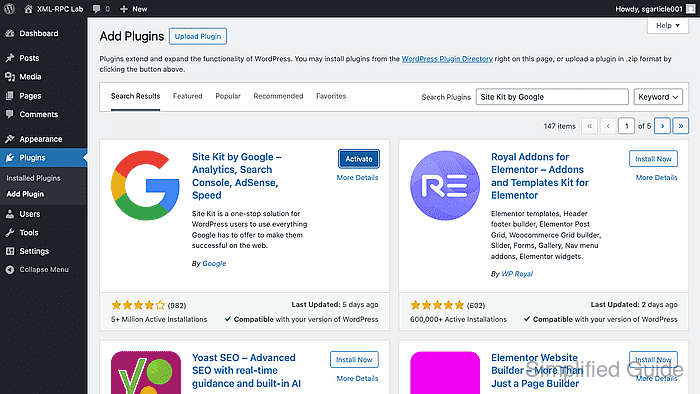
Activation adds the Site Kit menu to the admin sidebar.
- Open Site Kit → Dashboard, keep Connect Google Analytics as part of your setup selected, and click Sign in with Google.
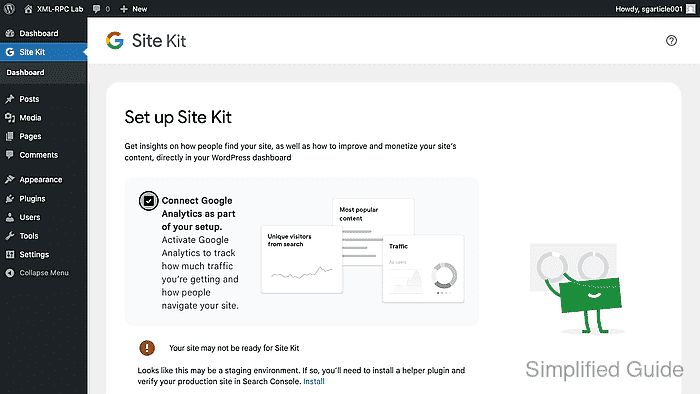
If Analytics was skipped during initial setup, connect it later from Site Kit → Settings → Connect More Services.
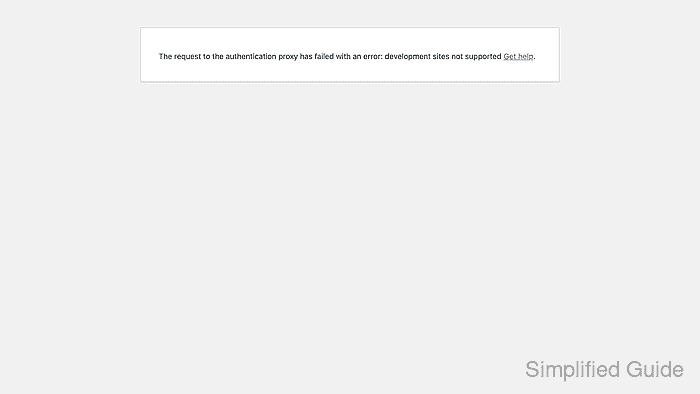
Localhost, unpublished staging URLs, and development copies can stop here with a staging warning or a development sites not supported error instead of the normal Google handoff.
- Select the Google account that owns or can access the Analytics property, then approve the permissions requested by Site Kit.
For client sites, use a client-owned Google account or make sure the client grants Analytics access to the Google account used during setup.
- Complete the Site Kit setup prompts for site ownership, Google account data access, and Search Console.
When Connect Google Analytics as part of your setup is selected, Analytics appears as the final setup step.
- Choose or create the Google Analytics 4 account, property, and web data stream, then click Configure Analytics.
Site Kit returns to the WordPress dashboard after the handoff completes. Existing properties can show data sooner; new properties can show gathering data while reports begin processing.
- Open the public site in a private browser window and browse one or two pages as a non-logged-in visitor.
If a cookie-consent plugin blocks Analytics before consent, accept the cookie notice during the test visit or check the consent plugin configuration before judging the Analytics connection.
- Open the connected property in Google Analytics and check Reports → Realtime for the test visit.
Realtime can confirm that the Analytics tag is firing before standard reports and Site Kit dashboard cards finish processing. Those reports can still take 24 to 48 hours to populate after a new property starts collecting traffic.