How to switch passive and active FTP modes in wget
FTP transfers can fail after login succeeds because FTP opens a separate data connection for the file itself. Switching wget between passive and active mode lets you prove whether the transfer problem sits in the server policy, a firewall, or the client network path.
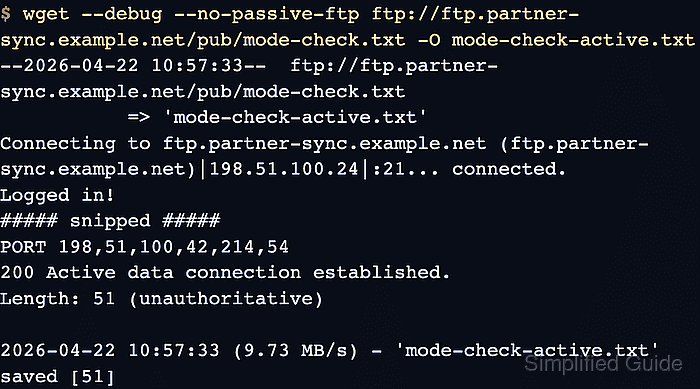
GNU wget uses passive FTP by default. In passive mode the client opens the data connection after the server advertises a listening port. In active mode the server connects back to the client instead, which is why the working mode usually depends on the firewall and NAT path between both sides.
Passive mode usually works better behind NAT and client-side firewalls, while active mode can help when a server or intermediary mishandles passive transfers. Use a small test file with --debug first, confirm the data-channel verb in the transcript, and only then keep the mode override on the command line or in /$HOME/.wgetrc/.
Related: How to download files over FTP with wget
Related: How to configure default options in ~/.wgetrc
Related: How to debug wget connections
Steps to switch passive and active FTP modes in wget:
- Download a small FTP file with Wget's default passive behavior and watch for the passive data-channel command.
$ wget --debug ftp://ftp.partner-sync.example.net/pub/mode-check.txt -O mode-check-passive.txt
Setting --output-document (outputdocument) to mode-check-passive.txt
DEBUG output created by Wget 1.25.0 on linux-gnu.
--2026-06-06 01:43:13--  ftp://ftp.partner-sync.example.net/pub/mode-check.txt
           => 'mode-check-passive.txt'
Connecting to ftp.partner-sync.example.net (ftp.partner-sync.example.net)|198.51.100.24|:21... connected.
Logged in!
##### snipped #####
==> PASV ...
--> PASV

227 Entering passive mode (198,51,100,24,214,56).
##### snipped #####
Length: 19 (unauthoritative)

     0K                                                       100% 8.53M=0s

2026-06-06 01:43:13 (8.53 MB/s) - 'mode-check-passive.txt' saved [19]
PASV or EPSV means the client kept the session in passive mode, which is the normal default in wget.
- Retry the same file with active mode enabled and confirm that the server now connects back to the client.
$ wget --debug --no-passive-ftp ftp://ftp.partner-sync.example.net/pub/mode-check.txt -O mode-check-active.txt
Setting --passive-ftp (passiveftp) to 0
Setting --output-document (outputdocument) to mode-check-active.txt
DEBUG output created by Wget 1.25.0 on linux-gnu.
--2026-06-06 01:43:13--  ftp://ftp.partner-sync.example.net/pub/mode-check.txt
           => 'mode-check-active.txt'
Connecting to ftp.partner-sync.example.net (ftp.partner-sync.example.net)|198.51.100.24|:21... connected.
Logged in!
##### snipped #####
==> PORT ... conaddr is: 198.51.100.42

--> PORT 198,51,100,42,148,163

200 Active data connection established.
##### snipped #####
Length: 19 (unauthoritative)

     0K                                                       100% 9.88M=0s

2026-06-06 01:43:13 (9.88 MB/s) - 'mode-check-active.txt' saved [19]
PORT or EPRT means the server must reach the client on the callback socket, so blocked inbound rules often break active mode after the login succeeds.
- Keep active mode on the real transfer command when only that server path needs the override.
$ wget --no-passive-ftp ftp://ftp.partner-sync.example.net/pub/nightly-ledger-2026-04-22.tar.gz
A per-command flag is safer than a persistent account-wide change when the rest of your FTP jobs should stay on the passive default.
- Force one transfer back to passive mode when a startup file or wrapper already disables it by default.
$ wget --passive-ftp ftp://ftp.partner-sync.example.net/pub/mode-check.txt -O mode-check-passive.txt
Use this override when you already have passive_ftp = off somewhere in your account policy and need one job back on the client-opened data connection.
- Persist the mode in the user startup file only when the same account needs the same behavior on repeated runs.
~/.wgetrc
# Use on to force passive mode, or off to force active mode.
passive_ftp = off
Set the value to on to keep passive mode explicit, or remove the line entirely to go back to Wget's normal passive default.
- Verify the final policy with one more debug run before reusing the command in a script or scheduled job.
$ wget --debug --no-passive-ftp ftp://ftp.partner-sync.example.net/pub/mode-check.txt -O ftp-mode-verify.txt
Setting --passive-ftp (passiveftp) to 0
DEBUG output created by Wget 1.25.0 on linux-gnu.
##### snipped #####
==> PORT ... conaddr is: 198.51.100.42

--> PORT 198,51,100,42,148,163

200 Active data connection established.
##### snipped #####
2026-06-06 01:43:13 (9.88 MB/s) - 'ftp-mode-verify.txt' saved [19]
Look for PASV or EPSV when passive mode should be in effect, and PORT or EPRT when active mode should be in effect.