Table of Contents
How to change the default VM location in VirtualBox
VirtualBox saves all virtual machine (VM) files in a default directory called VirtualBox VMs, typically located in the user’s home folder. This directory stores each VM's configuration and virtual disk files. By default, VirtualBox stores all VMs in this directory, which can lead to disk space issues or performance limitations if the home drive is limited in size or speed.
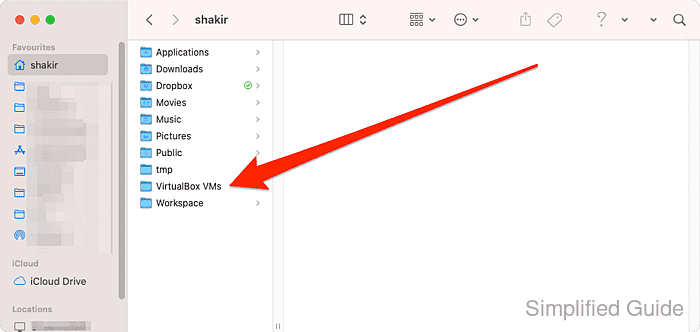
To manage disk space more efficiently, you can change the default VM location. This is useful when you have a larger or faster external or secondary drive. Changing the location allows VirtualBox to store new virtual machines in a specified folder without cluttering the home directory.
The default machine folder can be adjusted directly within VirtualBox settings. Once changed, all future virtual machines will be saved in the new folder. Existing virtual machines remain in the original location unless you move them manually.
Steps to change the default VirtualBox VM folder location:
- Create a new folder for storing virtual machines if not already available.
$ mkdir -p ~/Workspace/VMs/VirtualBox
- Open VirtualBox.
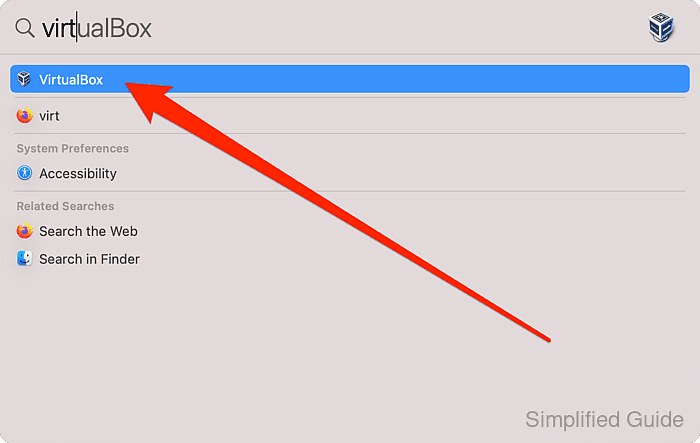
- Click on Tools in the main menu.
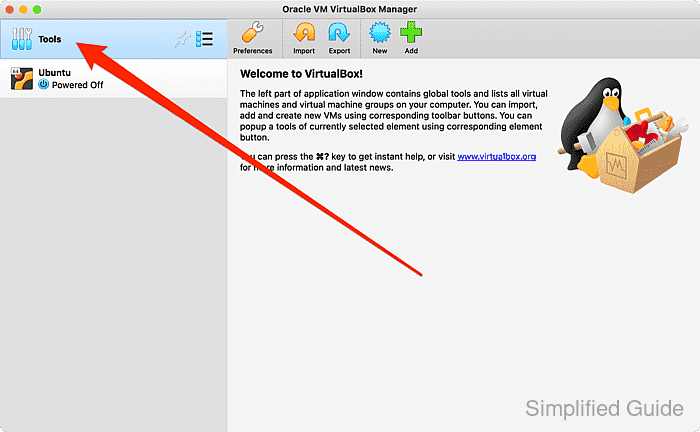
- Select Preferences.
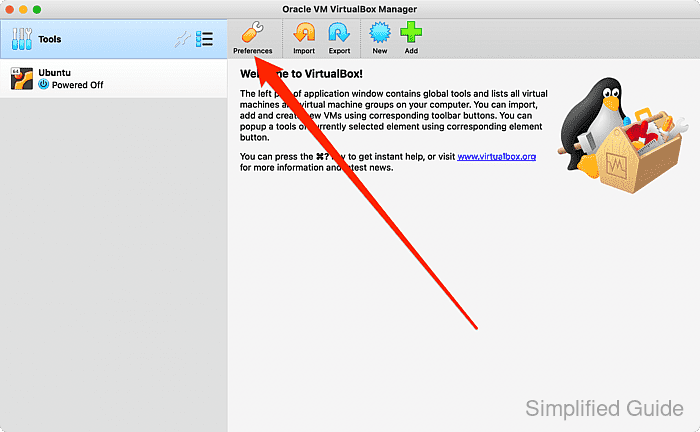
- Click on dropdown list of Default Machine Folder option.
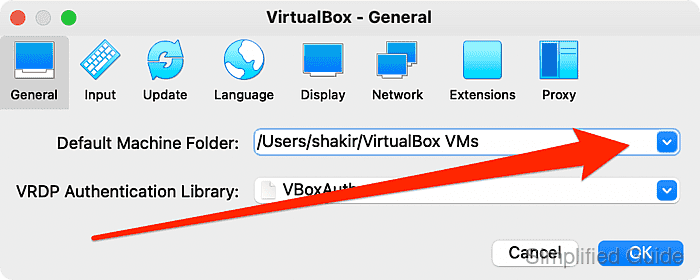
- Click Other to chose another folder from the list.
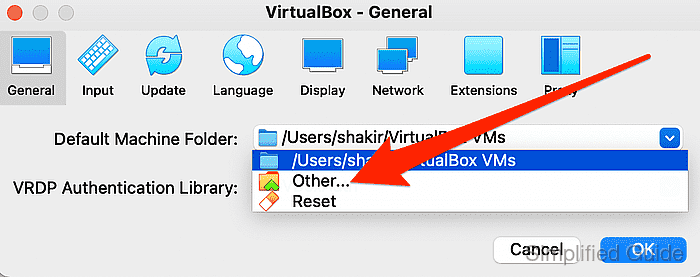
- Browse and select the new folder where VMs will be stored.
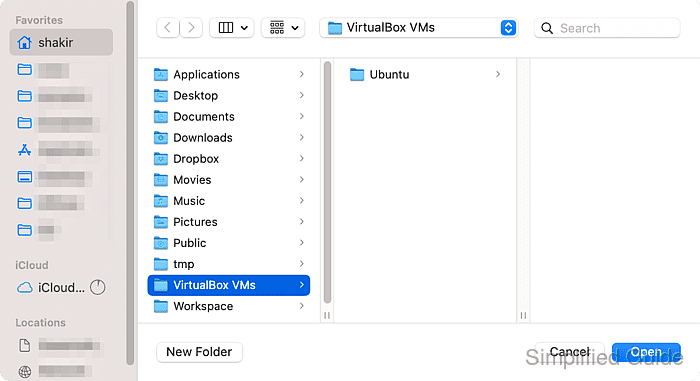
- Click Open to confirm the new folder.
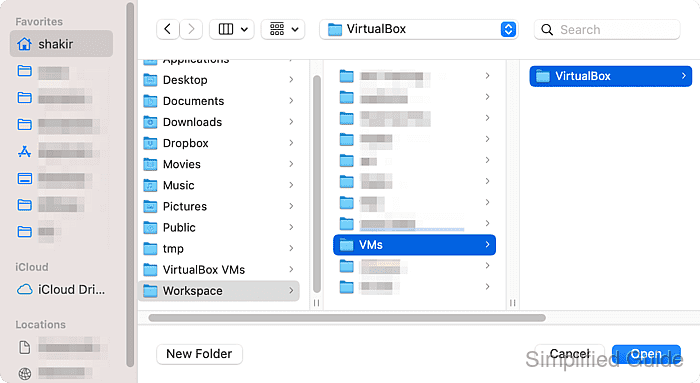
- Click OK to apply the changes.
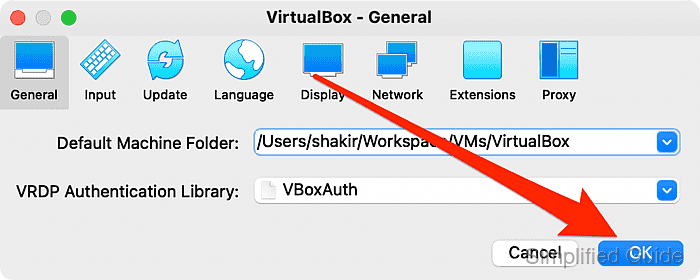
- Move existing virtual machines to the new folder manually, if required.
CLI method to change VirtualBox default VM folder location:
You can also change the default machine folder using the command line interface with VBoxManage. Below is a step-by-step guide to set the default VM folder location via CLI:
- Create a new folder for virtual machines. Use this command to create a new directory for your VMs:
mkdir -p ~/Workspace/VMs/VirtualBox
- Set the new default VM folder location. This command changes the default VM storage folder in VirtualBox:
VBoxManage setproperty machinefolder ~/Workspace/VMs/VirtualBox VirtualBox global configuration property "machinefolder" set to "/home/username/Workspace/VMs/VirtualBox" - Verify the new VM folder location. Use this command to confirm the changes:
VBoxManage list systemproperties | grep "Default machine folder"
    Default machine folder: /home/username/Workspace/VMs/VirtualBox