How to enable Tomcat Manager on Ubuntu
A package-managed Ubuntu Tomcat host does not become manageable just because tomcat10.service is running. The Manager web application lives in the separate tomcat10-admin package, needs a user with a Manager role, and should be reachable only from trusted client addresses before anyone opens the browser console.
Current Ubuntu packages keep Tomcat configuration under /etc/tomcat10, run the instance from /var/lib/tomcat10, and install the Manager application under /usr/share/tomcat10-admin/manager. The package adds a Manager context descriptor in the Catalina localhost directory, which is the safer place to control that context on a package-managed host.
Use manager-gui for the HTML interface at /manager/html, and keep automation roles such as manager-script and manager-jmx on separate accounts. Tomcat's text and JMX interfaces do not have the same CSRF protection as the HTML Manager, so mixing those roles with a browser account increases the blast radius of one stolen session.
Steps to enable Tomcat Manager on Ubuntu:
- Confirm the packaged Tomcat instance is installed.
$ dpkg-query -W tomcat10
tomcat10	10.1.40-1ubuntu1.26.04.1
The exact package version changes with Ubuntu security updates. The important signal is that the host uses the packaged tomcat10 instance with /etc/tomcat10 and /var/lib/tomcat10.
Related: How to install Tomcat on Ubuntu
- Install the Manager web application package.
$ sudo apt install tomcat10-admin
On current Ubuntu packages, tomcat10-admin installs the /manager and /host-manager web applications and context descriptors without replacing the main tomcat10 service package.
- Open the Tomcat users file.
$ sudoedit /etc/tomcat10/tomcat-users.xml
- Add a Manager GUI role and a dedicated user before the closing </tomcat-users> line.
  <role rolename="manager-gui"/>
  <user username="manager-admin"
        password="CHANGE_THIS_PASSWORD"
        roles="manager-gui"/>
Use a unique password and store it in the site's normal secret manager. Do not grant manager-script or manager-jmx to the same account used for browser access.
Related: How to create a Tomcat Manager user
- Open the Manager context descriptor.
$ sudoedit /etc/tomcat10/Catalina/localhost/manager.xml
- Restrict the Manager application to localhost before adding remote client ranges.
<?xml version="1.0" encoding="UTF-8"?>
<Context path="/manager"
         docBase="/usr/share/tomcat10-admin/manager"
         antiResourceLocking="false"
         privileged="true">
  <Valve className="org.apache.catalina.valves.RemoteCIDRValve"
         allow="127.0.0.0/8,::1/128" />
</Context>
Append the public IP address, VPN range, bastion subnet, or reverse-proxy source address that should reach Manager, such as 203.0.113.10/32. Keep 127.0.0.0/8 and ::1/128 so local checks still work.
If Tomcat sits behind Apache or Nginx with forwarded client IP handling, confirm which source address Tomcat sees before tightening this allowlist.
- Restart Tomcat to load the Manager package, user file, and context descriptor.
$ sudo systemctl restart tomcat10
- Confirm the service returned to active state.
$ systemctl is-active tomcat10
active
If the service does not return active, inspect sudo journalctl -u tomcat10 for XML parsing errors or a failed context startup before retrying the login.
- Confirm Manager challenges unauthenticated requests from an allowed address.
$ curl --include --silent http://127.0.0.1:8080/manager/html
HTTP/1.1 401
WWW-Authenticate: Basic realm="Tomcat Manager Application"
##### snipped #####
<title>401 Unauthorized</title>
A 401 from 127.0.0.1 proves the Manager web application is deployed and authentication is required.
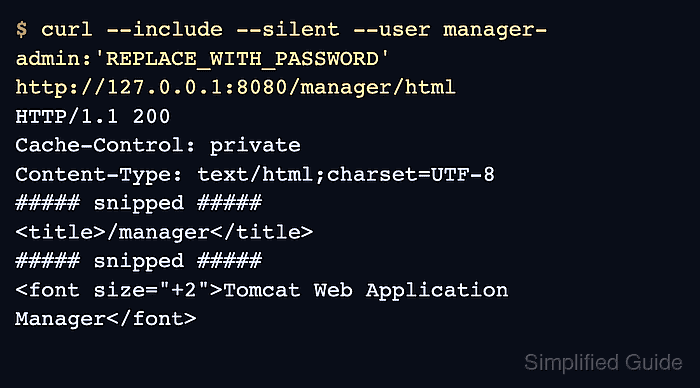
- Log in to the Manager HTML interface from an allowed address.
$ curl --include --silent \
  --user manager-admin:'PASSWORD' \
  http://127.0.0.1:8080/manager/html
HTTP/1.1 200
##### snipped #####
<title>/manager</title>
##### snipped #####
Tomcat Web Application Manager
For interactive use, open http://tomcat:8080/manager/html in a browser from the same allowed network and sign in with the manager-gui account.
- Confirm a client outside the allowlist is blocked.
$ curl --include --silent \
  http://tomcat:8080/manager/html
HTTP/1.1 403
##### snipped #####
<title>403 Access Denied</title>
A 403 from an untrusted client proves the context allowlist is active. A 401 from that client means it reached the Manager application and only authentication is blocking it.