How to customize the tmux status bar
When a tmux client has several similarly named windows or a crowded right side, the status bar can stop being the quick orientation cue it is meant to be. Customizing the bar lets the active session, current window, and clock stay readable without changing the panes or shells running inside the session.
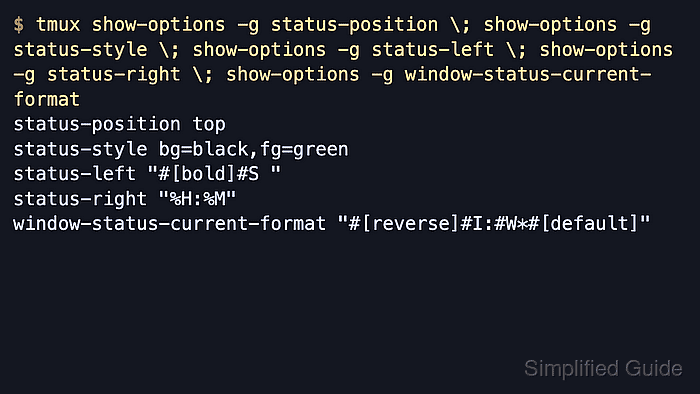
Current tmux controls the status line with options such as status-position, status-style, status-left, status-right, and window-status-current-format. By default the bar sits at the bottom, shows the session name on the left, keeps the window list in the middle, and shows pane title plus time and date on the right.
The usual workflow is to edit the tmux config file, reload it into the running server with source-file, and then query the live option values before trusting the visual result alone. Longer left or right segments are clipped by the length limits, so custom hostnames or extra clock text may need matching status-left-length or status-right-length changes.
Related: How to reload the tmux config
Related: How to rename a window in tmux
Steps to customize the tmux status bar:
- Open the tmux config file used by the running server.
$ vi ~/.tmux.conf
Current tmux also reads user config from $XDG_CONFIG_HOME/tmux/tmux.conf or the default ~/.config/tmux/tmux.conf path. Edit that file instead when the running server was started from an XDG config path.
- Add or update a small status-bar block in the config file.
set -g status-position top
set -g status-style 'bg=black,fg=green'
set -g status-left '#[bold]#S '
set -g status-left-length 20
set -g status-right '%H:%M'
set -g window-status-current-format '#[reverse]#I:#W*#[default]'
status-style sets the base bar colors. The #[...] sequences are embedded styles inside the left and current-window formats, #S expands to the session name, #I and #W expand to the current window index and name, and %H:%M uses the normal clock format for the right side. Keep the quotes around status formats that contain spaces, embedded styles, or clock punctuation.
Increase status-left-length or add status-right-length when longer labels, hostnames, or dates are clipped.
- Reload the tmux config into the running server.
$ tmux source-file ~/.tmux.conf
No output means the file was accepted and the new status-bar settings were applied to the live server.
Use the XDG config path here as well when that is the file the server is actually using.
If tmux returns error connecting to /tmp/tmux-UID/default (No such file or directory), there is no running tmux server to reload yet.
Related: How to reload the tmux config
- Print the live status fields that control the bar position, right side, and active-window label.
$ tmux display -p '#{status-position} #{status-right} #{window-status-current-format}'
top %H:%M #[reverse]#I:#W*#[default]
The output order is status position, right-side format, then current-window format. The values come from the running server, so they confirm the reloaded settings rather than only rereading the config file. display is the short alias for display-message.
- Look at any attached tmux client to confirm the visual result.
The bar should now appear at the top, the session name should render at the left in bold, the active window should stand out in the middle list, and the right side should show only the current time. If the middle list still shows generic window names such as bash or zsh, rename the relevant windows so the customized bar is easier to scan. Related: How to rename a window in tmux
- Fix the first invalid line and reload again when tmux reports an option error.
$ tmux source-file ~/.tmux.conf
invalid option: status-rght
tmux keeps the previously loaded status-bar settings until the bad line is corrected and the file is sourced again.