How to build a TensorFlow GPU environment
A TensorFlow GPU training environment has to line up the host NVIDIA driver, a supported Python interpreter, the TensorFlow package, and the CUDA user-space libraries installed with that package before model code can use the accelerator. Keeping those layers inside one dedicated virtual environment avoids mixing GPU training dependencies with unrelated Python projects.
Current Linux and WSL2 GPU installs use the PyPI package extra tensorflow[and-cuda] inside an active virtual environment. That package installs TensorFlow plus matching NVIDIA CUDA and cuDNN user-space packages, but it does not install the kernel driver or make an invisible GPU appear to the host.
Use a Linux x86_64 host or WSL2 environment where nvidia-smi already sees the GPU, and build the environment from a Python release supported by the current TensorFlow wheels. Native Windows GPU support stopped after TensorFlow 2.10, current macOS packages are CPU-only, and distro defaults can move faster than TensorFlow's wheel matrix.
Steps to build the TensorFlow GPU environment:
- Confirm that the host NVIDIA driver can see the GPU.
$ nvidia-smi
Mon Jun 29 04:20:31 2026
+-----------------------------------------------------------------------------------------+
| NVIDIA-SMI 575.64.03              Driver Version: 575.64.03      CUDA Version: 12.9     |
|-----------------------------------------+------------------------+----------------------|
| GPU  Name                 Persistence-M | Bus-Id          Disp.A | Volatile Uncorr. ECC |
|  0   NVIDIA RTX 4080 SUPER         Off  | 00000000:01:00.0  Off |                  Off |
##### snipped #####
If nvidia-smi fails or prints no GPU, repair the host driver or WSL2 GPU passthrough before changing the Python environment. The TensorFlow package cannot replace a missing kernel driver.
- Confirm that the host architecture matches the current GPU wheel target.
$ uname -m
x86_64
Use this pip GPU path on Linux x86_64 or WSL2. Current Linux Arm64 TensorFlow wheels are CPU-oriented and do not provide the same CUDA GPU training stack.
- Refresh the APT package index before installing virtual-environment support.
$ sudo apt update
- Install virtual-environment support for the supported Python interpreter.
$ sudo apt install --assume-yes python3.12-venv python3-pip
Use the package name that matches the supported interpreter on the training host, such as python3.12-venv or python3.13-venv. Do not build the environment from python3 when that command points at Python 3.14 or newer.
- Check the interpreter that will own the TensorFlow environment.
$ python3.12 --version
Python 3.12.13
Current TensorFlow 2.21 wheels resolve on CPython 3.10 through 3.13. Use the same executable for environment creation and package installation.
- Create a dedicated virtual environment for the GPU training stack.
$ python3.12 -m venv ~/venvs/tf-gpu
- Activate the new environment.
$ source ~/venvs/tf-gpu/bin/activate
(tf-gpu) $
- Upgrade pip inside the active environment.
(tf-gpu) $ python -m pip install --upgrade pip
Requirement already satisfied: pip in /home/user/venvs/tf-gpu/lib/python3.12/site-packages (24.0)
Collecting pip
##### snipped #####
Successfully installed pip-26.1.2
- Install the current TensorFlow GPU package from PyPI.
(tf-gpu) $ python -m pip install "tensorflow[and-cuda]"
Collecting tensorflow[and-cuda]
  Downloading tensorflow-2.21.0-cp312-cp312-manylinux_2_27_x86_64.whl.metadata (4.4 kB)
Collecting nvidia-cudnn-cu12<10.0,>=9.3.0.75
##### snipped #####
Successfully installed keras-3.14.0 nvidia-cudnn-cu12-9.21.0.82 tensorflow-2.21.0
The and-cuda extra keeps CUDA and cuDNN user-space libraries inside ~/venvs/tf-gpu with TensorFlow. It still depends on the already-working host driver from the first step.
Related: How to install TensorFlow with pip - Confirm that the active environment imports the installed TensorFlow package.
(tf-gpu) $ python -c "import tensorflow as tf; print(tf.__version__)"
2.21.0
Related: How to check the TensorFlow version
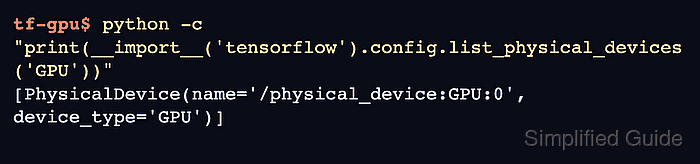
- Check whether TensorFlow can see the physical GPU.
(tf-gpu) $ python -c "print(__import__('tensorflow').config.list_physical_devices('GPU'))"
[PhysicalDevice(name='/physical_device:GPU:0', device_type='GPU')]
An empty list such as [] means the package imports but the GPU runtime path is not ready.
- Create the NVIDIA shared-library symlinks if the GPU list is empty.
(tf-gpu) $ pushd $(dirname $(python -c 'print(__import__("tensorflow").__file__)'))
(tf-gpu) $ ln -svf ../nvidia/*/lib/*.so* .
(tf-gpu) $ popd
This repair follows TensorFlow's current pip install notes for virtual environments where the packaged NVIDIA libraries exist but are not found automatically.
- Create the ptxas symlink if the GPU list is empty.
(tf-gpu) $ ln -sf $(find $(dirname $(dirname $(python -c "import nvidia.cuda_nvcc; print(nvidia.cuda_nvcc.__file__)"))/*/bin/) -name ptxas -print -quit) $VIRTUAL_ENV/bin/ptxas
- Run the GPU device check again after any symlink repair.
(tf-gpu) $ python -c "print(__import__('tensorflow').config.list_physical_devices('GPU'))"
[PhysicalDevice(name='/physical_device:GPU:0', device_type='GPU')]
If the list still returns [], use the GPU troubleshooting path before adding project training dependencies.
Related: How to enable GPU acceleration in TensorFlow - Run a small tensor operation and confirm it is placed on the GPU.
(tf-gpu) $ python -c "import tensorflow as tf; print(tf.matmul(tf.ones((512, 512)), tf.ones((512, 512))).device)"
/job:localhost/replica:0/task:0/device:GPU:0
The environment is ready for project packages such as pandas, scikit-learn, TensorBoard, or a distributed strategy setup after this command reports GPU:0.
Related: How to run distributed GPU training in TensorFlow