TensorFlow model training can spend most of its time in matrix operations that an NVIDIA GPU handles faster than a CPU. A project uses that accelerator only when the active Python environment can load both the TensorFlow package and the host GPU driver, so the environment needs a GPU-aware install and a device check before training starts.
Current Linux x86_64 and WSL2 installs use the pip package extra tensorflow[and-cuda] inside the environment that will run the model code. That package installs TensorFlow plus matching CUDA and cuDNN user-space libraries, while the host still provides the NVIDIA kernel driver that nvidia-smi reports.
Native Windows GPU support stopped after TensorFlow 2.10, and current macOS packages run on the CPU path. If the host driver cannot see a GPU first, reinstalling TensorFlow will not make GPU devices appear inside tf.config.list_physical_devices('GPU').
Steps to enable TensorFlow GPU acceleration:
- Activate the Python environment that should run TensorFlow on the GPU.
$ source ~/venvs/tf-gpu/bin/activate
(tf-gpu) $
Use conda activate <name> instead when the project environment is managed by Conda.
Related: How to create a virtual environment for TensorFlow
Related: How to create a Conda environment for TensorFlow - Confirm that the host NVIDIA driver can see the GPU.
(tf-gpu) $ nvidia-smi
Mon Jun 29 04:20:31 2026
+-----------------------------------------------------------------------------------------+
| NVIDIA-SMI 575.64.03              Driver Version: 575.64.03      CUDA Version: 12.9     |
|-----------------------------------------+------------------------+----------------------|
| GPU  Name                 Persistence-M | Bus-Id          Disp.A | Volatile Uncorr. ECC |
|  0   NVIDIA RTX 4080 SUPER         Off  | 00000000:01:00.0  Off |                  Off |
##### snipped #####
If nvidia-smi fails or prints no GPU, repair the Linux driver or WSL2 GPU passthrough before changing TensorFlow packages. The pip package cannot replace a missing host driver.
- Upgrade pip inside the active environment.
(tf-gpu) $ python -m pip install --upgrade pip
Requirement already satisfied: pip in /home/user/venvs/tf-gpu/lib/python3.12/site-packages (24.0)
Collecting pip
##### snipped #####
Successfully installed pip-26.0.1
- Install or upgrade the current TensorFlow GPU package.
(tf-gpu) $ python -m pip install --upgrade "tensorflow[and-cuda]"
Collecting tensorflow[and-cuda]
  Downloading tensorflow-2.21.0-cp312-cp312-manylinux_2_27_x86_64.whl.metadata
Collecting nvidia-cudnn-cu12<10.0,>=9.3.0.75
##### snipped #####
Successfully installed keras-3.14.0 nvidia-cudnn-cu12-9.21.0.82 tensorflow-2.21.0
The and-cuda extra keeps CUDA and cuDNN user-space libraries inside the active Python environment.
Related: How to install TensorFlow with pip - Confirm that the installed TensorFlow package imports from the active environment.
(tf-gpu) $ python -c "import tensorflow as tf; print(tf.__version__)"
2.21.0
Related: How to check the TensorFlow version
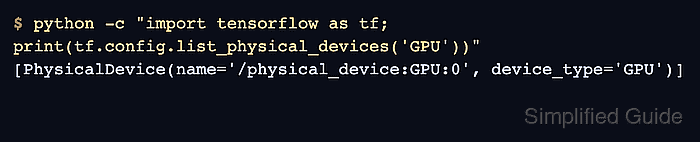
- List the physical GPU devices that TensorFlow can use.
(tf-gpu) $ python -c "import tensorflow as tf; print(tf.config.list_physical_devices('GPU'))"
[PhysicalDevice(name='/physical_device:GPU:0', device_type='GPU')]
If the output is [], TensorFlow imported but did not find a usable GPU runtime path.
- Move into the installed TensorFlow package directory if the GPU list is empty.
(tf-gpu) $ pushd $(dirname $(python -c 'print(__import__("tensorflow").__file__)')) ~/venvs/tf-gpu/lib/python3.12/site-packages/tensorflow ~/project - Create the shared-library symlinks if the GPU list is empty.
(tf-gpu) $ ln -svf ../nvidia/*/lib/*.so* .
'./libcublas.so.12' -> '../nvidia/cublas/lib/libcublas.so.12'
'./libcudart.so.12' -> '../nvidia/cuda_runtime/lib/libcudart.so.12'
##### snipped #####
This repair follows TensorFlow's pip install notes for virtual environments where packaged NVIDIA libraries are installed but not discovered automatically.
- Return to the project directory after creating the library symlinks.
(tf-gpu) $ popd
~/project
- Create the ptxas symlink if the GPU list is empty.
(tf-gpu) $ ln -sf $(find $(dirname $(dirname $(python -c "import nvidia.cuda_nvcc; print(nvidia.cuda_nvcc.__file__)"))/*/bin/) -name ptxas -print -quit) $VIRTUAL_ENV/bin/ptxas
- Run the GPU device check again after any symlink repair.
(tf-gpu) $ python -c "import tensorflow as tf; print(tf.config.list_physical_devices('GPU'))" [PhysicalDevice(name='/physical_device:GPU:0', device_type='GPU')] - Run a small tensor operation and confirm it is placed on the GPU.
(tf-gpu) $ python -c "import tensorflow as tf; x=tf.ones((512,512)); print(tf.matmul(x,x).device)"
/job:localhost/replica:0/task:0/device:GPU:0
After this command reports GPU:0, the environment is ready for GPU training options such as distribution strategies.
Related: How to run distributed GPU training in TensorFlow

Mohd Shakir Zakaria is a cloud architect with deep roots in software development and open-source advocacy. Certified in AWS, Red Hat, VMware, ITIL, and Linux, he specializes in designing and managing robust cloud and on-premises infrastructures.


