How to isolate a systemd target
Isolating a systemd target switches the running system into another operating state immediately instead of waiting for the next reboot. That is useful when a graphical host needs to drop to a text-only session, when a recovery target must be reached now, or when a temporary target change is safer than changing the next normal boot.
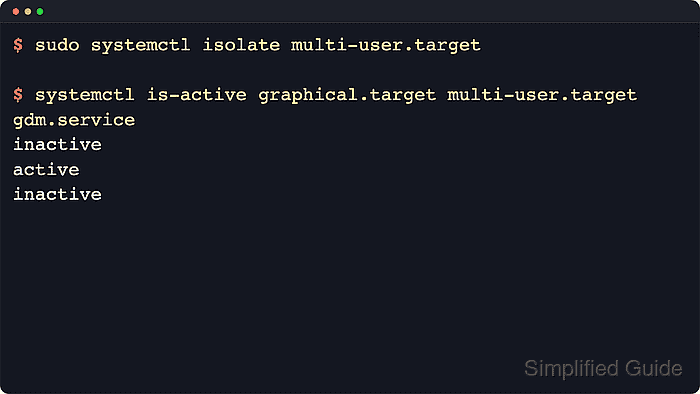
The systemctl isolate command starts the requested target together with its dependencies and stops units that are outside that target unless they are marked IgnoreOnIsolate=yes. It is allowed only on units that permit isolation, which is why runlevel-style targets such as multi-user.target, graphical.target, rescue.target, and emergency.target work while ordinary services do not.
Examples below use a host whose normal boot target is graphical.target and which switches temporarily to multi-user.target. Switching targets can end the current desktop, terminal, or remote session as soon as the new target is queued, and rescue.target or emergency.target are more disruptive recovery states, so use a local console, hypervisor console, or other out-of-band access before isolating to them.
Steps to isolate a systemd target:
- Open a terminal on the host that runs systemd.
Use a local console, hypervisor console, IPMI, or another recovery path when the current session could disappear. Current upstream systemctl behavior warns that isolate immediately stops processes that are not enabled in the new target, which can include the graphical environment or the terminal that launched the command.
- List the common system targets before choosing the one to enter.
$ systemctl list-unit-files default.target graphical.target multi-user.target rescue.target emergency.target --type=target --no-pager
UNIT FILE         STATE  PRESET
default.target    alias  -
emergency.target  static -
graphical.target  static -
multi-user.target static -
rescue.target     static -

5 unit files listed.
default.target is the normal boot target alias. graphical.target adds the display manager on top of multi-user.target, while rescue.target and emergency.target are recovery targets.
- Check which of the common targets are active before switching away from them.
$ systemctl is-active default.target graphical.target multi-user.target rescue.target emergency.target
active
active
active
inactive
inactive
On graphical systems, graphical.target usually pulls in multi-user.target, so both can be active at the same time. Only targets that ship with AllowIsolate=yes can be used with systemctl isolate, and the common built-in targets above do.
- Isolate the target that the current session should enter.
$ sudo systemctl isolate multi-user.target
Replace multi-user.target with the real target name chosen in the previous step. Isolating the target that is already active is effectively a no-op.
Switching from graphical.target to multi-user.target stops the display manager and closes the local desktop session. Isolating rescue.target or emergency.target is more disruptive and can stop network access or other services that the current shell depends on.
- Confirm that the requested target is active and that the previous graphical target is no longer active.
$ systemctl is-active graphical.target multi-user.target
inactive
active
This example shows a successful switch from graphical.target to multi-user.target. On a headless server, multi-user.target is often already the normal runtime target, so isolating it again does not change the current state.
- Isolate back to the normal boot target when the temporary switch is finished.
$ sudo systemctl isolate default.target
When the saved boot target is graphical.target, isolating default.target returns the system to the usual graphical runtime state. Use How to set the default boot target in systemd when later boots should land in a different target instead.
- Confirm that the system returned to the normal target set.
$ systemctl is-active default.target graphical.target multi-user.target
active
active
active
If the saved default is multi-user.target, the restored state is usually active for default.target and multi-user.target with graphical.target inactive.