Setting the default boot target in systemd decides which target the system tries to reach on a normal boot. That controls whether the next regular startup stops at a text-mode multi-user environment or continues to the graphical login screen.
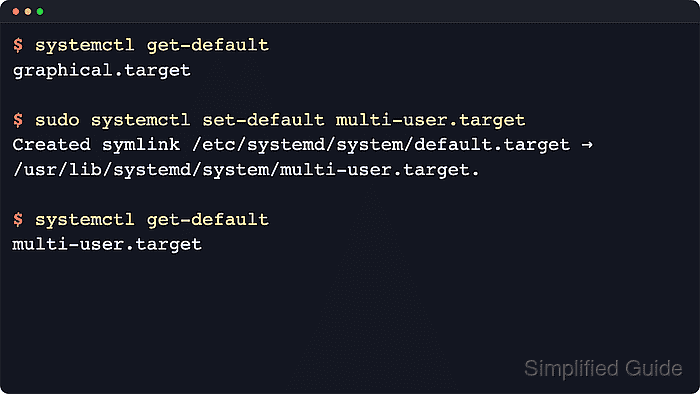
In the system instance, default.target is an alias that usually points to multi-user.target or graphical.target. The systemctl set-default command rewrites that alias for future boots, and systemctl get-default prints the saved target name.
Changing the saved default does not switch the current session immediately. A one-time kernel option such as systemd.unit=rescue.target or a runtime switch with systemctl isolate can reach another target without changing the persistent boot target, and rescue.target or emergency.target are recovery states rather than normal long-term defaults.
Steps to set the default boot target in systemd:
- Open a terminal session with an account that can use sudo.
- Check the target that the next normal boot currently uses.
$ systemctl get-default
graphical.target
Common results are graphical.target for a graphical login and multi-user.target for a non-graphical multi-user boot.
- List the common boot targets when the target name needs a quick sanity check before changing it.
$ systemctl list-unit-files default.target graphical.target multi-user.target rescue.target --type=target --no-pager
UNIT FILE          STATE    PRESET
default.target     alias    -
graphical.target   static   -
multi-user.target  static   -
rescue.target      static   -
The unit names in this list are the values to pass to systemctl set-default. graphical.target pulls in multi-user.target, while rescue.target is for troubleshooting rather than a normal day-to-day default.
Related: How to list systemd targets
- Set the target that future boots should reach.
$ sudo systemctl set-default multi-user.target
Created symlink /etc/systemd/system/default.target → /usr/lib/systemd/system/multi-user.target.
Replace multi-user.target with graphical.target when the system should return to a graphical login. If default.target was already overridden locally, systemctl usually prints a Removed line before the new symlink line.
- Read the saved default back from systemd.
$ systemctl get-default
multi-user.target
systemctl set-default saves the next regular boot target only. It does not switch the current session.
- Reboot when the system should start using the new boot mode.
$ sudo systemctl reboot
Changing from graphical.target to multi-user.target removes the graphical login on the next boot. Confirm that SSH, a hypervisor console, or another recovery path is available before rebooting a remote host.
- Confirm the booted system reached the intended mode after it comes back.
$ systemctl is-active multi-user.target graphical.target
active
inactive
This example shows a successful boot into multi-user.target. On a system set to graphical.target, both targets are usually active because graphical.target pulls in multi-user.target.
Use How to isolate a systemd target when the current session must switch targets immediately instead of waiting for the next reboot.

Mohd Shakir Zakaria is a cloud architect with deep roots in software development and open-source advocacy. Certified in AWS, Red Hat, VMware, ITIL, and Linux, he specializes in designing and managing robust cloud and on-premises infrastructures.


